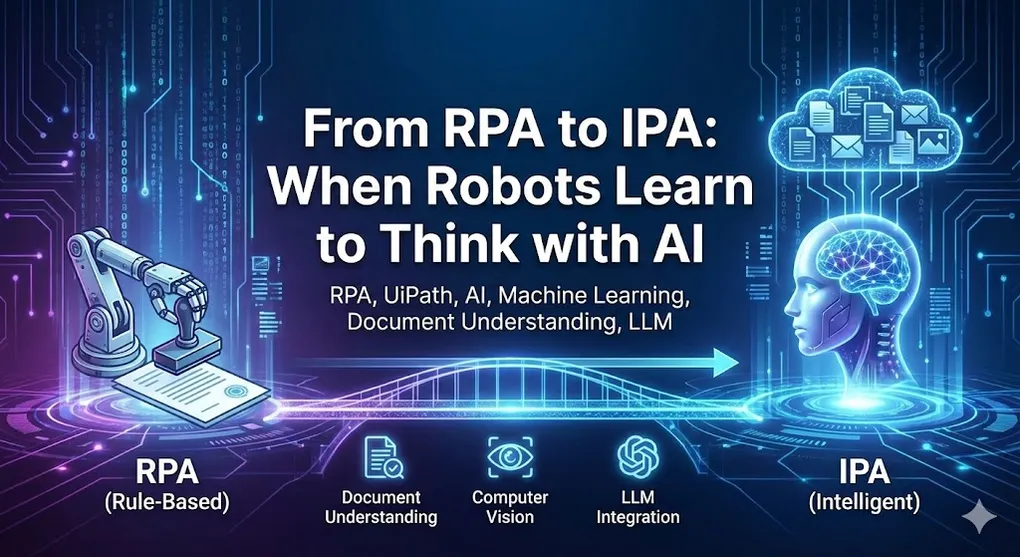
From RPA to IPA: When Robots Learn to Think with AI
Traditional RPA has a limitation: it can only follow explicit rules.
“If the button says ‘Submit’, click it.” “If the cell value is greater than 1000, flag it.” “If the email subject contains ‘Invoice’, process it.”
But what about:
- “Read this invoice” (that has a completely different layout than yesterday’s)?
- “Find the submit button” (when there’s no stable selector)?
- “Classify this customer complaint” (from free-text email)?
These require cognitive capabilities. This is where AI enters the picture, transforming RPA into IPA (Intelligent Process Automation).
The AI/ML Opportunity in RPA
| Traditional RPA | AI-Enhanced RPA |
|---|---|
| Follows fixed rules | Recognizes patterns |
| Needs structured data | Handles unstructured data |
| Breaks on variation | Adapts to variation |
| Explicit programming | Learning from examples |
Where AI Adds Value
graph TB
    subgraph AI["AI Capabilities in RPA"]
        subgraph DU["Document Understanding"]
            DU1["Invoice extraction"]
            DU2["Contract parsing"]
            DU3["Form processing"]
        end
        subgraph CV["Computer Vision"]
            CV1["Find UI elements"]
            CV2["Screen recognition"]
            CV3["Image matching"]
        end
        subgraph NL["Natural Language"]
            NL1["Email parsing"]
            NL2["ChatGPT queries"]
            NL3["Text generation"]
        end
        subgraph SC["Sentiment & Classification"]
            SC1["Ticket routing"]
            SC2["Priority scoring"]
            SC3["Intent detection"]
        end
    end
Document Understanding
The crown jewel of AI-RPA integration. Document Understanding (DU) can extract data from documents even when layouts vary.
[!NOTE] UiPath-Specific: This section covers UiPath’s Document Understanding framework. Concepts apply similarly to other platforms (ABBYY, AWS Textract) but API/activity names are UiPath-specific.
OCR vs Document Understanding: The Semantic Layer
Traditional OCR = “What text is on this page?” Document Understanding = “What does this text mean?” (semantic layer)
graph TB
    subgraph DU["DU Architecture Layers"]
        S["SEMANTIC LAYER (DU)<br/>'This is an invoice number' 'This is the total'<br/>Understands MEANING based on context"]
        O["OCR LAYER (Digitization)<br/>'INV-2024-0001' '$1,234.56' 'Acme Corp'<br/>Reads TEXT but doesn't understand"]
        D["DOCUMENT (Image/PDF)"]
    end
    S -->|builds upon| O
    O --> D
The Problem with Traditional OCR Alone
Traditional approach:
- OCR extracts all text
- Use RegEx to find patterns
- Pray the position doesn’t change
This breaks when:
- Different vendors use different invoice formats
- The same vendor changes their template
- Handwritten annotations appear
Step 0: Taxonomy (The Foundation)
[!NOTE] Critical: Everything in DU starts with Taxonomy. Without defining Taxonomy first, Classify and Extract have no reference point.
Taxonomy defines:
- Document Types you want to process (Invoice, Purchase Order, Contract…)
- Fields to extract from each type (InvoiceNumber, VendorName, Amount…)
- Field Data Types (String, Date, Currency, Table…)
// Example Taxonomy Structure (taxonomy.json)
{
  "documentTypes": [
    {
      "typeName": "Invoice",
      "fields": [
        { "name": "InvoiceNumber", "type": "string" },
        { "name": "InvoiceDate", "type": "date" },
        { "name": "VendorName", "type": "string" },
        { "name": "TotalAmount", "type": "currency" },
        { "name": "LineItems", "type": "table",
          "columns": ["Description", "Quantity", "UnitPrice", "Amount"] }
      ]
    },
    {
      "typeName": "PurchaseOrder",
      "fields": [...]
    }
  ]
}
' Load Taxonomy in UiPath
Activity: Load Taxonomy
├── TaxonomyPath: "taxonomy.json"
└── Output: documentTaxonomy
' Use throughout DU pipeline
' → Classify uses taxonomy to know what document types exist
' → Extract uses taxonomy to know what fields to look forDocument Understanding Pipeline
╔════════════╗   ╔════════════╗   ╔════════════╗   ╔════════════╗   ╔════════════╗
│  TAXONOMY  │══?│  DIGITIZE  │══?│  CLASSIFY  │══?│  EXTRACT   │══?│  VALIDATE  │
└──══════════╝   └──══════════╝   └──══════════╝   └──══════════╝   └──══════════╝
     │                │                │                │                │
     →                →                →                →                →
  Define doc      OCR engine       ML classifier    ML extractor    Human review
  types & fields   reads text       identifies doc   finds fields    catches errors
                                    type (invoice,   (amount, date,
                                    PO, contract)    vendor)
Step 1: Digitization
Convert document to machine-readable format:
Activity: Digitize Document
├── DocumentPath: "C:\Incoming\invoice.pdf"
├── OCR Engine: UiPath Document OCR
├── Languages: ["en", "zh-tw"]  ' Support multiple languages
└── Output:
    ├── DocumentText: fullText
    ├── DocumentObjectModel: dom
    └── Pages: pageArray
Step 2: Classification
Determine document type:
Activity: Classify Document Scope
├── DocumentObjectModel: dom
├── ClassifierEndpoint: "https://du.uipath.com/classifier/invoice-model"
└── Activities:
    ├── Intelligent Keyword Classifier
    │   └── Keywords: {"Invoice": ["invoice", "bill", "amount due"],
    │                  "PurchaseOrder": ["PO", "purchase order"]}
    ├── Machine Learning Classifier
    │   └── Model: "invoice_po_classifier_v2"
    └── Present Classification Station (if confidence < 80%)

Output: documentType, confidence
Step 3: Data Extraction
Extract specific fields:
Activity: Data Extraction Scope
├── DocumentObjectModel: dom
├── DocumentType: documentType
└── Activities:
    ├── ML Extractor
    │   └── Model: "invoice_extractor_v3"
    │   └── Fields: [InvoiceNumber, InvoiceDate, VendorName,
    │                LineItems, SubTotal, Tax, Total]
    ├── RegEx Extractor (backup for specific patterns)
    │   └── Patterns: {
    │       "InvoiceNumber": "INV-\d{4}-\d{6}",
    │       "Date": "\d{2}/\d{2}/\d{4}"
    │   }
    └── Form Extractor (for fixed-position fields)

Output: extractedData (ExtractionResult)
Step 4: Human Validation
For low-confidence extractions:
Activity: Present Validation Station
├── DocumentObjectModel: dom
├── ExtractionResults: extractedData
├── ValidationStationUrl: "https://validation.company.com"
└── Output: validatedData

' Robot pauses until human reviews and confirms
' Validated data is then used for training to improve model
Training Custom Models
When out-of-box models aren’t enough:
- Collect samples: 50-100 documents per type
- Label data: Use AI Center to annotate fields
- Train model: AI Center builds custom ML model
- Deploy: Publish to production endpoint
- Improve: Use validation corrections as new training data
2026 Trend: Generative Extraction (Zero-Shot)
[!TIP] When Training is Overkill: For one-off or highly unstructured documents (resumes, contracts, press releases), use Generative Extractor instead of training custom models.
How It Works:
Traditional ML Model          Generative Extractor
══════════════════════          ═════════════════════

1. Collect 50+ samples        1. Write a prompt
2. Label fields manually      2. Done ✓
3. Train for hours
4. Deploy model
5. Retrain when formats change

Time: Days to weeks           Time: Minutes
Generative Extractor Prompt Example:
' Extract from resume without any training
prompt = "
Extract the following from this resume:
- Full Name
- Email
- Phone
- Skills (as array)
- Highest Education (degree and school)
- Years of Experience

Respond in JSON format.
"

result = GenerativeExtractor.Extract(documentText, prompt)
When to Use What:
| Scenario | Traditional ML | Generative Extractor |
|---|---|---|
| High-volume (1000+ docs/day) | ✓ Cost-efficient | ✗ Too expensive |
| Fixed formats (invoices) | ✓ Faster inference | ~ Overkill |
| One-time extraction | ✗ Training overhead | ✓ Zero-shot |
| Non-standard docs (contracts) | ~ Hard to train | ✓ Natural language |
| Accuracy critical (finance) | ✓ Controllable | ~ Prompt-dependent |
[!CAUTION] Cost Warning: Generative Extraction uses LLM API calls per document. At 30-100. For recurring high-volume tasks, train a custom model instead.
Case Study: Training a Custom Invoice Extraction Model
[!IMPORTANT] When to Train Custom Models:
- Out-of-box models accuracy < 80% for your document types
- Highly specialized formats (industry-specific, internal forms)
- Non-English documents with complex layouts
- Need to extract custom fields not in standard models
Step 1: Prepare Your Dataset
Minimum Requirements:
| Document Type | Minimum Samples | Recommended |
|---|---|---|
| Single layout (one vendor) | 20 documents | 50+ |
| Multiple layouts (multi-vendor) | 50 documents | 100+ per layout |
| Complex forms | 100 documents | 200+ |
Quality Matters:
✓ Good Training Data:
   - Clear scans (300 DPI or higher)
   - Variety of real-world samples
   - Include edge cases (handwritten, stamps, corrections)

✗ Bad Training Data:
   - All from same day/batch (no variety)
   - Only "perfect" samples (won't handle real-world noise)
   - Synthetic or template documents only
[!IMPORTANT] Data Stratification: The Secret to Robust Models
Your training set MUST include “dirty” data to build robustness:
Data Type % of Training Set Why Clean scans 40% Baseline quality Mobile photos 20% Real-world capture Skewed/rotated 15% Handling misalignment Low light/shadows 10% Lighting variation Faxes/low resolution 10% Legacy document handling Handwritten annotations 5% Human modifications A model trained only on perfect scans will fail spectacularly when it encounters a photo taken under fluorescent lighting.
Step 2: AI Center Project Setup
╔═════════════════════════════════════════════════════════════════╗
│                    AI Center Project Structure                   │
├──═══════════════════════════════════════════════════════════════╣
│                                                                  │
│   Project: InvoiceProcessing_AP                                 │
│   │                                                              │
│   ├── Datasets                                                   │
│   │   ├── TrainingSet_v1 (80 invoices)                          │
│   │   ├── ValidationSet_v1 (20 invoices)                        │
│   │   └── TestSet_v1 (10 invoices - never trained on)           │
│   │                                                              │
│   ├── Labeling Sessions                                          │
│   │   ├── Session_2024Q1_Batch1                                 │
│   │   └── Session_2024Q1_Batch2                                 │
│   │                                                              │
│   ├── ML Packages                                                │
│   │   ├── invoice_extractor_v1.0 (initial)                      │
│   │   ├── invoice_extractor_v1.1 (improved)                     │
│   │   └── invoice_extractor_v2.0 (current production)           │
│   │                                                              │
│   └── ML Skills (Deployed Models)                                │
│       └── InvoiceExtractor_Prod                                 │
│                                                                  │
└──═══════════════════════════════════════════════════════════════╝
Step 3: Data Labeling in AI Center
Labeling Interface Workflow:
╔═════════════════════════════════════════════════════════════════╗
│                  Document Labeling Process                       │
├──═══════════════════════════════════════════════════════════════╣
│                                                                  │
│   ╔═════════════════════════════════════════════════════════╗   │
│   │          ORIGINAL DOCUMENT (PDF/Image)                   │   │
│   │   ╔═════════════════════════════════════════════════╗   │   │
│   │   │  INVOICE                                         │   │   │
│   │   │  Acme Corporation                     INV-12345  │   │   │
│   │   │  ═══════════════════════════════════════════════ │   │   │
│   │   │  Invoice Date: 2024-01-15                       │   │   │
│   │   │  Due Date: 2024-02-15                           │   │   │
│   │   │                                                  │   │   │
│   │   │  Item        Qty    Price      Amount           │   │   │
│   │   │  Widget A     10    $50.00     $500.00          │   │   │
│   │   │  Widget B      5    $30.00     $150.00          │   │   │
│   │   │  ═══════════════════════════════════════════════ │   │   │
│   │   │  Subtotal                       $650.00          │   │   │
│   │   │  Tax (10%)                       $65.00          │   │   │
│   │   │  TOTAL                          $715.00          │   │   │
│   │   └──═══════════════════════════════════════════════╝   │   │
│   └──═══════════════════════════════════════════════════════╝   │
│                              →                                   │
│   ╔═════════════════════════════════════════════════════════╗   │
│   │           LABELED OUTPUT (What You Create)               │   │
│   │                                                          │   │
│   │   Field: VendorName      → [Acme Corporation]           │   │
│   │   Field: InvoiceNumber   → [INV-12345]                  │   │
│   │   Field: InvoiceDate     → [2024-01-15]                 │   │
│   │   Field: DueDate         → [2024-02-15]                 │   │
│   │   Field: Subtotal        → [$650.00]                    │   │
│   │   Field: Tax             → [$65.00]                     │   │
│   │   Field: Total           → [$715.00]                    │   │
│   │   Table: LineItems       →                              │   │
│   │       Row 1: [Widget A] [10] [$50.00] [$500.00]        │   │
│   │       Row 2: [Widget B] [5]  [$30.00] [$150.00]        │   │
│   │                                                          │   │
│   └──═══════════════════════════════════════════════════════╝   │
│                                                                  │
└──═══════════════════════════════════════════════════════════════╝
Labeling Best Practices:
| Practice | Why It Matters |
|---|---|
| Be consistent | Label “Invoice #” and “Invoice Number” the same way |
| Include context | Select currency symbols with amounts (“$500” not “500”) |
| Handle edge cases | Label even partially visible or crossed-out fields |
| Multi-page handling | Label fields even if split across pages |
Step 4: Train the Model
Training Configuration:
# AI Center Training Pipeline
Pipeline:
  BaseModel: "UiPath.ExtractiveDocumentML"
  Version: "3.0"

Training:
  Dataset: "TrainingSet_v1"
  ValidationSplit: 0.2
  Epochs: 50
  EarlyStoppingPatience: 10

Hyperparameters:
  LearningRate: 0.001
  BatchSize: 4
  AugmentationEnabled: true

Output:
  PackageName: "invoice_extractor"
  Version: "1.0.0"
Training Metrics to Monitor:
╔═════════════════════════════════════════════════════════════════╗
│                 Training Progress Dashboard                      │
├──═══════════════════════════════════════════════════════════════╣
│                                                                  │
│  Epoch 45/50                                                     │
│  →→→→→→→→→→→→→→→→→→→→→→→→→→→→→→→→→→→→→→→→→→→→→→→→→→ 90%         │
│                                                                  │
│  Field-Level Accuracy:                                           │
│  ════════════════════                                            │
│  InvoiceNumber   ████████████████████████ 98.5%                 │
│  VendorName      ███████████████████████? 95.2%                 │
│  TotalAmount     ████████████████████████ 99.1%                 │
│  InvoiceDate     ██████████████████████?? 92.3%                 │
│  LineItems       ████████████████████???? 87.6%  → Needs more   │
│                                                                  │
│  Overall Extraction Accuracy: 94.5%                              │
│                                                                  │
└──═══════════════════════════════════════════════════════════════╝
Step 5: Evaluate & Deploy
Evaluation Checklist:
' Test on held-out test set (never seen during training)
testResults = EvaluateModel("invoice_extractor_v1.0", "TestSet_v1")

' Check metrics
If testResults.OverallAccuracy < 0.90 Then
    ' Need more training data or hyperparameter tuning
    Log.Warn("Model accuracy below threshold, not ready for production")
ElseIf testResults.LowestFieldAccuracy < 0.85 Then
    ' Specific field needs more examples
    Log.Warn($"Field {testResults.LowestField} needs improvement")
Else
    ' Ready to deploy
    Log.Info("Model passed evaluation, deploying to production")
End If
Deployment to ML Skill:
AI Center → ML Skills → Create Skill
├── Package: invoice_extractor_v1.0
├── Skill Name: InvoiceExtractor_Prod
├── GPU: Enable (for faster inference)
├── Replicas: 2 (for high availability)
└── Auto-scaling: Min 1, Max 5
Step 6: Use in UiPath Workflow
Activity: Data Extraction Scope
├── DocumentObjectModel: dom
├── DocumentType: "Invoice"
└── Activities:
    ├── ML Extractor
    │   ├── Endpoint: "https://aicenter.company.com/mlskills/InvoiceExtractor_Prod"
    │   ├── ApiKey: {{GetCredential("AICenter_APIKey")}}
    │   └── Fields: [All from Taxonomy]
    └── RegEx Extractor (fallback for low confidence)

Output: extractedData

' Access extracted values
vendorName = extractedData.GetField("VendorName").Value
invoiceNumber = extractedData.GetField("InvoiceNumber").Value
totalAmount = extractedData.GetField("TotalAmount").Value
lineItems = extractedData.GetField("LineItems").Table
Step 7: Continuous Improvement
[!TIP] Human Validation = Free Training Data
Every correction made in Validation Station becomes labeled data for retraining.
╔═════════════════════════════════════════════════════════════════╗
│            Continuous Improvement Feedback Loop                  │
├──═══════════════════════════════════════════════════════════════╣
│                                                                  │
│                     ╔═════════════════╗                         │
│              ╔═════?│ Production Bot  │                         │
│              │      │   (v1.0)        │                         │
│              │      └──══════┬════════╝                         │
│              │               │                                   │
│              │               →                                   │
│   ╔══════════┼═══════╗  ╔════════════╗                         │
│   │  Retrain Model   │  │ Low Conf?  │════? Auto-process       │
│   │   (v1.1)         │  └──══┬═══════╝      (confidence > 90%)  │
│   └──════════════════╝       │                                   │
│              →               →                                   │
│              │         ╔════════════╗                           │
│              │         │ Validation │                           │
│              │         │  Station   │                           │
│              │         └──══┬═══════╝                           │
│              │              │                                    │
│              │              →                                    │
│              │  ╔═══════════════════════╗                       │
│              └──│ Collect Corrections   │                       │
│                 │ (New Training Data)   │                       │
│                 └──═════════════════════╝                       │
│                                                                  │
│  Result: Model accuracy improves from 94% → 97% → 99%           │
│                                                                  │
└──═══════════════════════════════════════════════════════════════╝
Retraining Schedule:
| Trigger | Action |
|---|---|
| Monthly (scheduled) | Retrain with accumulated corrections |
| Accuracy drops below 90% | Immediate investigation and retrain |
| New vendor format encountered | Add samples, retrain classifier |
| Major accuracy drift detected | Full model review |
Example: Multi-Format Invoice Processing
' Handle invoices from any vendor
documentTypes = ClassifyDocument(dom)

Select Case documentTypes.FirstOrDefault()?.Type
    Case "Invoice"
        data = ExtractWithModel(dom, "universal_invoice_model")
    Case "CreditNote"
        data = ExtractWithModel(dom, "credit_note_model")
    Case Else
        ' Unknown format - send to human
        data = PresentValidationStation(dom)
End Select

' Extracted data is now structured regardless of original format
vendorName = data("VendorName").Value
amount = data("TotalAmount").Value
invoiceNumber = data("InvoiceNumber").Value
Computer Vision
When selectors fail completely, Computer Vision uses AI-powered visual recognition to find UI elements.
[!NOTE] UiPath-Specific: UiPath AI Computer Vision uses neural networks trained on millions of UI elements. This is fundamentally different from the older “Click on Image” approach.
Image Automation vs AI Computer Vision
| Feature | Traditional Image (Pixel-Based) | AI Computer Vision (Neural Network) |
|---|---|---|
| Technology | Pixel-perfect template matching | Neural network recognition |
| Resolution Change | ✗ Breaks completely | ✓ Still works |
| Color/Theme Change | ✗ Often breaks | ✓ Usually works |
| Element Recognition | Matches exact pixels | Recognizes “button”, “text field”, “checkbox” as concepts |
| Accuracy | 0.95+ required | 0.7-0.8 is often enough |
| Use Case | Exact image matching | Virtual environments (Citrix/VDI) |
╔═════════════════════════════════════════════════════════════════╗
│        Traditional Image vs AI Computer Vision                   │
├──═══════════════════════════════════════════════════════════════╣
│                                                                  │
│  TRADITIONAL IMAGE                AI COMPUTER VISION            │
│  ═════════════════                ══════════════════            │
│                                                                  │
│  "Does this pixel block          "This looks like a            │
│   match EXACTLY?"                 Submit button"                │
│                                                                  │
│  ╔════════╗                       ╔════════╗                    │
│  │ Submit │  → Exact match        │ Submit │  → Concept match  │
│  └──══════╝    required           └──══════╝    (any style)    │
│                                                                  │
│  Resolution: 1920→1080            Resolution: Any               │
│  Color: Exact blue                Color: Any theme              │
│  Font: Exact Arial 12pt          Font: Any readable            │
│                                                                  │
└──═══════════════════════════════════════════════════════════════╝
When to Use AI Computer Vision
[!NOTE] Primary Use Case: AI CV was designed specifically for Virtual Desktop Infrastructure (VDI) environments like Citrix, RDP, and VMware Horizon where there’s no DOM access.
| Scenario | CV Solution |
|---|---|
| Citrix/VDI (Primary) | No DOM access—CV finds buttons by visual AI recognition |
| Legacy Windows apps | No automation framework—CV sees what you see |
| Image-based menus | Icons without text—CV recognizes UI patterns |
| Resolution-variable displays | Different screens—CV adapts to visual changes |
CV Activities
Click on Image:
Activity: CV Click
├── Target: Image of button (saved as PNG)
├── Accuracy: 0.8 (80% similarity threshold)
├── WaitForTarget: True
├── Timeout: 30000
└── Action: Click
Type with CV Context:
Activity: CV Type Into
├── Target: Image of text field label ("Username:")
├── Text: username
├── Anchor: Left (type to the right of anchor)
└── Relative Position: 50, 0 (50px right, 0px down)
Screen Region Comparison:
Activity: CV Screen Scope
├── IndicateAnchor: Screenshot of stable area
└── Activities:
    ├── CV Get Text: Read text from region
    ├── CV Element Exists: Check if image appears
    └── CV Click: Click on matched element
CV Descriptor: How AI Actually Finds Elements
[!NOTE] Behind the Scenes: CV uses a Descriptor that combines multiple recognition strategies, not just image matching.
CV Descriptor Components:
╔═════════════════════════════════════════════════════════════════╗
│                  CV Descriptor Structure                        │
├──═══════════════════════════════════════════════════════════════╣
│                                                                 │
│   ╔═══════════════════════╗                                     │
│   │   TEXT FEATURES     │  "Submit", "Login", "????"            │
│   │   (OCR-based)       │  Any text visible on/near element     │
│   └──═════════════════════╝                                     │
│           +                                                     │
│   ╔═══════════════════════╗                                     │
│   │  VISUAL FEATURES    │  Button shape, checkbox, icon         │
│   │  (Neural Network)   │  Recognizes UI element "type"         │
│   └──═════════════════════╝                                     │
│           +                                                     │
│   ╔═══════════════════════╗                                     │
│   │   ANCHOR POSITION   │  "To the right of 'Username:'"        │
│   │   (Relative layout)  │  Position relative to stable text    │
│   └──═════════════════════╝                                     │
│           =                                                     │
│   ╔═══════════════════════╗                                     │
│   │  ROBUST MATCH       │  Works even if button changes color   │
│   │  (Combined score)   │  or moves slightly                    │
│   └──═════════════════════╝                                     │
│                                                                 │
└──═══════════════════════════════════════════════════════════════╝
Anchor Best Practices:
| Anchor Type | When to Use |
|---|---|
| Text label | ”Username:” + field to the right |
| Icon | Search icon + input field below |
| Stable UI region | Header area that doesn’t change |
Fuzzy Matching
CV doesn’t require exact matches:
' Handles slight variations in button appearance
Activity: CV Click
├── Target: "submit_button.png"
├── Accuracy: 0.7  ' 70% match is enough
├── WaitForReady: Interactive
└── MatchExact: False  ' Allow color variations
CV + Traditional Automation
Best practice: use CV as a fallback:
Try
    ' Try selector first (faster, more reliable)
    Click(submitButtonSelector)
Catch SelectorNotFoundException
    ' Fall back to Computer Vision
    Log.Warn("Selector failed, using Computer Vision")
    CV_Click("submit_button.png")
End Try
Virtual Desktop Automation
For Citrix/RDP where you only see pixels:
Activity: Citrix Scope
├── Application: "SAP"
└── Activities:
    ├── CV Type Into: Username field
    ├── CV Type Into: Password field
    ├── CV Click: Login button
    ├── CV Wait For Image: SAP menu loaded
    └── Continue with CV navigation...
LLM/ChatGPT Integration
Large Language Models bring natural language understanding to RPA.
Use Cases
| Task | How LLM Helps |
|---|---|
| Email classification | Understand intent, not just keywords |
| Response drafting | Generate human-like replies |
| Data extraction | Find entities in unstructured text |
| Summarization | Condense long documents |
| Translation | Multi-language support |
| Decision support | Suggest actions based on context |
Integrating OpenAI/Azure OpenAI
Direct API Call:
' Call ChatGPT API
endpoint = "https://api.openai.com/v1/chat/completions"

requestBody = New JObject()
requestBody("model") = "gpt-4"
requestBody("messages") = New JArray({
    New JObject({{"role", "system"}, {"content", "You are a customer service classifier. Respond with JSON only."}}),
    New JObject({{"role", "user"}, {"content", $"Classify this email: {emailBody}"}}
})
requestBody("temperature") = 0.1  ' Low temperature for consistent output

response = HTTP_POST(endpoint, requestBody.ToString(), headers)
classification = JObject.Parse(response)("choices")(0)("message")("content")
Example: Customer Email Classification
' Input: raw customer email
emailContent = "I've been waiting 3 weeks for my order #12345.
               This is completely unacceptable! I want a full refund
               and I'm never ordering from you again!"

' Build prompt
prompt = $"
Analyze this customer email and respond with JSON:
{{
  ""category"": ""complaint"" | ""inquiry"" | ""feedback"" | ""order_status"",
  ""sentiment"": ""positive"" | ""neutral"" | ""negative"",
  ""urgency"": ""low"" | ""medium"" | ""high"" | ""critical"",
  ""order_number"": ""extracted order number or null"",
  ""suggested_action"": ""brief action recommendation""
}}

Email:
{emailContent}
"

' Call LLM
result = CallOpenAI(prompt, model: "gpt-4", temperature: 0.1)

' Parse result
classification = JObject.Parse(result)
category = classification("category").ToString()      ' "complaint"
sentiment = classification("sentiment").ToString()    ' "negative"
urgency = classification("urgency").ToString()        ' "critical"
orderNumber = classification("order_number").ToString() ' "12345"
suggestedAction = classification("suggested_action").ToString()

' Route based on classification
Select Case category
    Case "complaint"
        If urgency = "critical" Then
            CreatePriorityTicket(emailContent, orderNumber)
        Else
            CreateStandardTicket(emailContent, orderNumber)
        End If
    Case "order_status"
        SendOrderStatusUpdate(orderNumber, email.From)
    ' ...
End Select
Example: Document Summarization
' Summarize a long contract
contract = ReadPDF("service_agreement.pdf")

prompt = $"
Summarize this contract in bullet points covering:
- Parties involved
- Service scope
- Payment terms
- Duration
- Key obligations
- Termination clauses

Contract:
{contract.Substring(0, 15000)}  ' Token limit
"

summary = CallOpenAI(prompt, model: "gpt-4", temperature: 0.3)

' Use summary for quick review
SendEmail("Legal Review Request",
    $"Please review this contract summary:\n\n{summary}\n\n" +
    "Full document attached.",
    attachments: {"service_agreement.pdf"})
Prompt Engineering Tips
| Tip | Example |
|---|---|
| Be specific | ”Extract the invoice number in format INV-XXXX” not “Find the invoice number” |
| Provide examples | ”Like this: INV-2024-001” |
| Request structured output | ”Respond only with valid JSON” |
| Set constraints | ”If unsure, respond with ‘UNKNOWN‘“ |
| Use low temperature | 0.1-0.3 for consistent, deterministic outputs |
Token Management: Control LLM Costs
[!WARNING] The Hidden Cost Trap: Sending a 50-page contract to GPT-4 can cost 0.20.
Token Estimation:
' Rule of thumb: 1 token ? 4 characters (English) or 1-2 characters (CJK)
Function EstimateTokens(text As String) As Integer
    Return CInt(text.Length / 4)
End Function

' Example
contractText = ReadPDF("50_page_contract.pdf")  ' ~100,000 characters
tokens = EstimateTokens(contractText)  ' ~25,000 tokens
cost = tokens * 0.00003  ' GPT-4: ~$0.75 per request!
Chunking Strategy:
' DON'T send entire document
' DO extract relevant sections first

' Step 1: Use RegEx/DU to find relevant sections
paymentSection = ExtractSection(contract, "Payment Terms")
terminationSection = ExtractSection(contract, "Termination")

' Step 2: Only send what you need
prompt = $"
Analyze these contract sections:

Payment Terms:
{paymentSection}   ' ~500 tokens instead of 25,000

Termination:
{terminationSection}

Extract: payment schedule, late fees, termination notice period.
"

' Result: 90% cost reduction
Cost Comparison:
| Approach | Tokens | Cost (GPT-4) |
|---|---|---|
| Send full 50-page contract | 25,000 | $0.75 |
| Extract relevant sections | 2,500 | $0.08 |
| Savings | 89% |
LLM Guardrails: Preventing Hallucinations
[!NOTE] CRITICAL FOR ENTERPRISE RPA: LLMs can “hallucinate” - generate plausible-sounding but completely fabricated information. In enterprise automation, blindly trusting LLM output without validation can cause serious damage.
The Problem:
LLM: "The order number is ORD-12345 and the refund amount is $500"

Reality:
- ORD-12345 doesn't exist in your database
- Customer actually ordered $50, not $500
- Your bot just issued a $500 refund that shouldn't happen!
Guardrail Strategies:
╔═════════════════════════════════════════════════════════════════╗
│              LLM Output Validation Pipeline                     │
├──═══════════════════════════════════════════════════════════════╣
│                                                                 │
│   LLM Response                                                  │
│       →                                                         │
│   ╔═════════════════════════════════════════════════════════╗   │
│   │ 1. JSON SCHEMA VALIDATION                               │   │
│   │    Does the output match expected structure?            │   │
│   │    Are all required fields present?                     │   │
│   │    Are field types correct (string, number, date)?      │   │
│   └──══════════════════════┬════════════════════════════════╝   │
│                            →                                    │
│   ╔═════════════════════════════════════════════════════════╗   │
│   │ 2. BUSINESS RULE VALIDATION                             │   │
│   │    Is the amount within acceptable range?               │   │
│   │    Is the date in a valid range?                        │   │
│   │    Does the category exist in allowed values?           │   │
│   └──══════════════════════┬════════════════════════════════╝   │
│                            →                                    │
│   ╔═════════════════════════════════════════════════════════╗   │
│   │ 3. DATABASE VERIFICATION                                │   │
│   │    Does the Order ID exist?                             │   │
│   │    Does the Customer ID exist?                          │   │
│   │    Do the extracted values match database records?      │   │
│   └──══════════════════════┬════════════════════════════════╝   │
│                            →                                    │
│   ? Validated Output → Continue processing                      │
│   ? Validation Failed → Flag for human review                   │
│                                                                 │
└──═══════════════════════════════════════════════════════════════╝
Implementation with Newtonsoft.Json:
Imports Newtonsoft.Json
Imports Newtonsoft.Json.Linq
Imports Newtonsoft.Json.Schema

' Step 1: Define expected schema
jsonSchema = JSchema.Parse("
{
  'type': 'object',
  'properties': {
    'order_number': { 'type': 'string', 'pattern': '^ORD-[0-9]{5,10}$' },
    'category': { 'type': 'string', 'enum': ['complaint', 'inquiry', 'feedback'] },
    'urgency': { 'type': 'string', 'enum': ['low', 'medium', 'high', 'critical'] },
    'amount': { 'type': 'number', 'minimum': 0, 'maximum': 10000 }
  },
  'required': ['category', 'urgency']
}
")

' Step 2: Parse LLM response and validate against schema
Try
    llmOutput = JObject.Parse(rawLlmResponse)
    isValid = llmOutput.IsValid(jsonSchema, errors)

    If Not isValid Then
        Log.Error($"LLM output failed schema validation: {String.Join(", ", errors)}")
        SendToHumanReview(rawLlmResponse, "Schema validation failed")
        Return
    End If
Catch ex As JsonReaderException
    Log.Error($"LLM returned invalid JSON: {ex.Message}")
    SendToHumanReview(rawLlmResponse, "Invalid JSON format")
    Return
End Try

' Step 3: Verify extracted data against database
orderNumber = llmOutput("order_number")?.ToString()
If Not String.IsNullOrEmpty(orderNumber) Then
    orderExists = CheckOrderExists(orderNumber)  ' Database lookup
    If Not orderExists Then
        Log.Warn($"LLM hallucinated order number: {orderNumber} not found in database")
        llmOutput("order_number") = Nothing  ' Clear hallucinated value
        llmOutput("confidence_warning") = "Order number could not be verified"
    End If
End If

' Step 4: Business rule validation
amount = llmOutput("amount")?.Value(Of Decimal?)()
If amount.HasValue AndAlso amount.Value > MaxRefundAmount Then
    Log.Warn($"LLM suggested amount ${amount} exceeds max refund ${MaxRefundAmount}")
    SendToHumanReview(llmOutput.ToString(), "Amount exceeds threshold")
    Return
End If
Guardrail Summary:
| Layer | What It Catches | Example |
|---|---|---|
| Schema Validation | Structural errors | Missing fields, wrong types |
| Enum/Pattern Validation | Invalid values | Category = “urgent” (not in list) |
| Range Validation | Out-of-bounds values | Amount = $999,999 |
| Database Verification | Hallucinated entities | Non-existent Order ID |
| Cross-Reference Check | Inconsistent data | Customer A’s order assigned to Customer B |
[!NOTE] Rule of Thumb: The more critical the automation action (refunds, payroll, contracts), the more validation layers you need before acting on LLM output.
Rate Limiting and Cost Management
' Track usage
tokenCount += response("usage")("total_tokens").Value(Of Integer)()

' Rate limiting
If DateTime.Now - lastCallTime < TimeSpan.FromMilliseconds(100) Then
    Delay(100)  ' Prevent hitting rate limits
End If

' Cost estimation (GPT-4 pricing example)
costPerToken = 0.00003  ' $0.03 per 1K tokens
estimatedCost = tokenCount * costPerToken
Log.Info($"LLM usage: {tokenCount} tokens, ~${estimatedCost:F4}")
Combining AI Capabilities
The real power comes from combining multiple AI tools:
Example: Intelligent Invoice Processing
╔═════════════════════════════════════════════════════════════════╗
│           AI-Powered Invoice Processing Pipeline                 │
├──═══════════════════════════════════════════════════════════════╣
│                                                                  │
│  1. EMAIL ARRIVES                                                │
│     ├── LLM: Classify email intent                              │
│     └── If invoice-related → continue                           │
│                                                                  │
│  2. ATTACHMENT EXTRACTION                                        │
│     ├── Document Understanding: OCR + Digitization              │
│     └── ML Classifier: Identify document type                   │
│                                                                  │
│  3. DATA EXTRACTION                                              │
│     ├── ML Extractor: Pull structured fields                    │
│     ├── LLM: Parse unusual line item descriptions               │
│     └── Confidence check → Validation Station if needed         │
│                                                                  │
│  4. BUSINESS LOGIC                                               │
│     ├── Traditional RPA: Enter data in SAP                      │
│     ├── Computer Vision: Handle legacy ERP screens              │
│     └── API: Post to modern systems                             │
│                                                                  │
│  5. EXCEPTION HANDLING                                           │
│     ├── LLM: Generate human-readable error explanation          │
│     └── Email: Notify appropriate team                          │
│                                                                  │
└──═══════════════════════════════════════════════════════════════╝
AI Model Management
Model Versioning
Track which model version processed each document:
' Log model info with each transaction
transactionLog = New Dictionary(Of String, Object) From {
    {"DocumentId", documentId},
    {"ModelName", "invoice_extractor"},
    {"ModelVersion", "v3.2.1"},
    {"Confidence", extractionConfidence},
    {"ProcessedAt", DateTime.UtcNow}
}
LogToDatabase(transactionLog)
Performance Monitoring
' Track model accuracy over time
If humanValidated Then
    ' Compare extracted vs validated values
    For Each field In extractedFields
        accuracy = CalculateAccuracy(field, validatedValue)
        LogModelPerformance(modelName, field.Name, accuracy)
    Next
End If

' Alert if accuracy drops
If weeklyAccuracy < 0.85 Then
    SendAlert("Model accuracy dropped below 85%")
End If
Continuous Improvement Loop
╔═════════════════════════════════════════════════════════════════╗
│                    ML Improvement Cycle                          │
├──═══════════════════════════════════════════════════════════════╣
│                                                                  │
│   ╔════════════╗                      ╔════════════╗            │
│   │   Deploy   │?═════════════════════│   Train    │            │
│   │   Model    │                      │   Model    │            │
│   └──═══┬══════╝                      └──═══→══════╝            │
│         │                                   │                    │
│         →                                   │                    │
│   ╔════════════╗                      ╔════════════╗            │
│   │  Process   │                      │  Collect   │            │
│   │  Documents │═════════════════════?│ Validated  │            │
│   └──═══┬══════╝                      │   Data     │            │
│         │                             └──══════════╝            │
│         →                                                        │
│   ╔════════════╗                                                │
│   │  Human     │                                                │
│   │ Validation │ (for low-confidence extractions)               │
│   └──══════════╝                                                │
│                                                                  │
└──═══════════════════════════════════════════════════════════════╝
Key Takeaways
- Document Understanding extracts data from varying layouts without custom code per format.
- Computer Vision is your backup when selectors fail completely.
- LLMs handle unstructured text that pattern matching can’t.
- Combine AI capabilities for complex, real-world processes.
- Human-in-the-loop improves accuracy and provides training data.
- Monitor model performance and retrain when accuracy drops.
- AI doesn’t replace RPA—it extends it to handle what rules can’t.
The future isn’t RPA vs AI. It’s RPA with AI. And the developers who master both will be unstoppable.