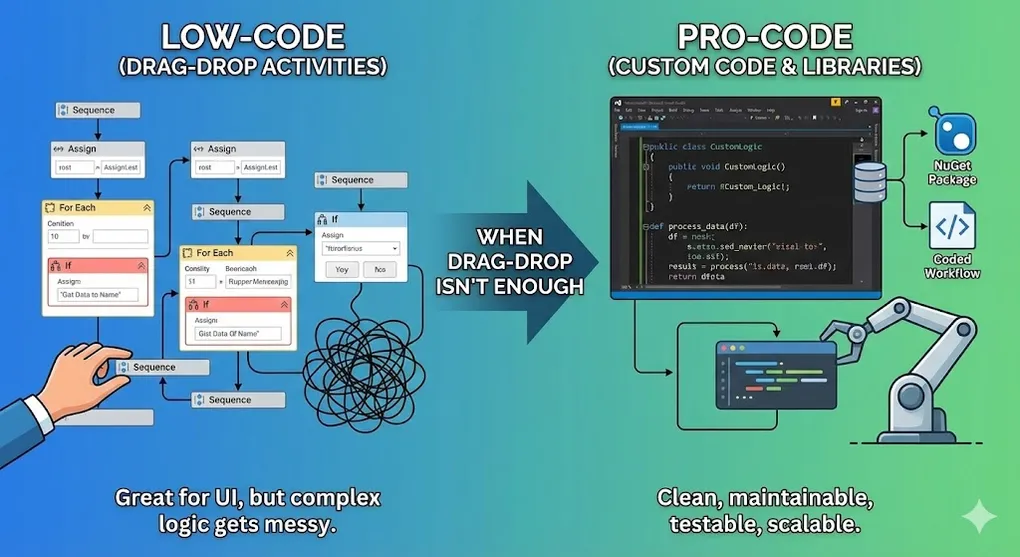
When Drag-Drop Isn't Enough: Custom Code and Libraries in UiPath
UiPath is a low-code platform. That’s its greatest strength—and occasionally its limitation.
There comes a moment in every RPA developer’s journey when they think: “This would be three lines of code, but I need fifteen activities.”
That’s when you reach for custom code.
Why Write Code in UiPath?
UiPath’s activity library is vast. But there are gaps:
| Scenario | Why Custom Code Helps |
|---|---|
| Complex string manipulation | RegEx in code is more readable than multiple activities |
| Mathematical algorithms | Loops and conditionals are cleaner in code |
| Custom encryption/hashing | Security libraries need code integration |
| External DLL calls | No activity exists for your library |
| Performance-critical loops | Code executes faster than activity chains |
| Reusable team utilities | Package once, use everywhere |
The goal isn’t to abandon low-code—it’s to use the right tool for each problem.
The Science Behind “Code is Faster”
Why does code outperform activity chains? It’s about overhead.
Let = fixed overhead per activity execution (context switch, logging, type conversion)
Let = time to execute actual business logic
For a loop processing items:
Activity Chain (For Each → Multiple Activities): where = number of activities inside the loop
Invoke Code (Single Activity → Loop in Code):
The Math Matters:
Example: Processing 10,000 rows, 5 activities per row
O_act ? 5ms (activity overhead)
T_logic ? 1ms (actual work)

Activity Chain:  10,000 → (5ms → 5 + 1ms) = 260,000ms ? 4.3 minutes
Invoke Code:     5ms + (10,000 → 1ms) = 10,005ms ? 10 seconds

Speedup: 26x faster!
[!TIP] Rule of Thumb: If your loop runs 100+ iterations and contains multiple activities, consider moving the logic to Invoke Code or a Coded Workflow.
Invoke Code: Embedded Scripts
The Invoke Code activity lets you embed C# or VB.NET directly in your workflow.
Basic Structure
Activity: Invoke Code
├── Language: CSharp (or VBNet)
├── Code: [your script here]
├── Arguments (In): variables passed into the script
└── Arguments (Out): variables passed back to workflow
Example 1: Complex String Parsing
The Problem: Extract domain from various email formats
// Input: email (String)
// Output: domain (String)

try
{
    // Handle formats: user@domain.com, "Name" <user@domain.com>
    string emailPattern = @"[\w\.-]+@([\w\.-]+)";
    var match = System.Text.RegularExpressions.Regex.Match(email, emailPattern);

    if (match.Success)
    {
        domain = match.Groups[1].Value.ToLower();
    }
    else
    {
        domain = "INVALID";
    }
}
catch
{
    domain = "ERROR";
}
Example 2: Custom Hashing
// Input: inputText (String)
// Output: hashedValue (String)

using System.Security.Cryptography;
using System.Text;

using (SHA256 sha256 = SHA256.Create())
{
    byte[] bytes = sha256.ComputeHash(Encoding.UTF8.GetBytes(inputText));
    StringBuilder builder = new StringBuilder();
    foreach (byte b in bytes)
    {
        builder.Append(b.ToString("x2"));
    }
    hashedValue = builder.ToString();
}
Example 3: Date Calculation
// Input: startDate (DateTime), businessDays (Int32)
// Output: endDate (DateTime)

DateTime current = startDate;
int daysAdded = 0;

while (daysAdded < businessDays)
{
    current = current.AddDays(1);
    if (current.DayOfWeek != DayOfWeek.Saturday &&
        current.DayOfWeek != DayOfWeek.Sunday)
    {
        daysAdded++;
    }
}

endDate = current;
Invoke Code Best Practices
- Keep it short: If code exceeds ~50 lines, consider a custom activity
- Handle exceptions: Wrap in try-catch, return error state
- Avoid side effects: Don’t modify external state, just compute and return
- Document arguments: Use clear names like
inputEmailnots1 - Test outside UiPath: Validate logic in Visual Studio first
Coded Workflows: The Bridge Between Low-Code and Pro-Code
2026 Update: Ignoring Coded Workflows in modern UiPath development is like discussing web development without mentioning TypeScript. This feature fundamentally changes how pro-code developers can work in UiPath.
Coded Workflows (introduced in UiPath 2023.4+) are .cs files that run alongside traditional XAML workflows. They solve the major pain points of Invoke Code:
| Problem with Invoke Code | How Coded Workflows Solve It |
|---|---|
| No IntelliSense | Full Visual Studio-level autocomplete |
| Can’t set breakpoints | Full debugging with step-through |
| Hard to unit test | Standard C# unit testing (NUnit, xUnit) |
| Code lives in activity property | Proper .cs files with version control |
| No code reuse | Import and call from any workflow |
| Limited to ~50 lines | Write full classes with multiple methods |
[!IMPORTANT] Why Senior Engineers Prefer Coded Workflows in 2026
1. Modularity via Inheritance: Create a
BaseWorkflow.cswith common error handling, logging, or retry logic—then inherit:public class InvoiceProcessor : BaseWorkflow { // Automatically inherits logging, error handling, config loading [Workflow] public void ProcessInvoice(string invoiceId) { ... } }2. Git-Friendly Diffs:
# .cs file diff (readable)
- if (amount > 1000)
+ if (amount > 5000)

# .xaml file diff (nightmare)
- <Argument x:TypeArguments="x:Int32" Expression="[1000]" Name="threshold"/>
+ <Argument x:TypeArguments="x:Int32" Expression="[5000]" Name="threshold"/>
- <Activity ref="a7f3b2c1-..." DisplayName="If Amount Greater Than..."/>
Code reviewers can actually understand what changed!
What is a Coded Workflow?
A Coded Workflow is a C# class file that coexists with XAML in your UiPath project:
MyProject/
├── Main.xaml                    (Traditional low-code workflow)
├── ProcessTransaction.xaml      (Traditional low-code workflow)
├── Utilities/
│   ├── DataValidator.cs         → Coded Workflow!
│   ├── EmailBuilder.cs          → Coded Workflow!
│   └── CustomLogic.cs           → Coded Workflow!
└── project.json
Creating a Coded Workflow
In UiPath Studio: File → New → Coded Workflow
using System;
using System.Collections.Generic;
using UiPath.CodedWorkflows;

namespace MyProject.Utilities
{
    public class DataValidator : CodedWorkflow
    {
        [Workflow]
        public ValidationResult ValidateInvoice(
            string invoiceNumber,
            decimal amount,
            string vendorId,
            DateTime invoiceDate)
        {
            var errors = new List<string>();

            // Business Rule 1: Invoice number format
            if (!System.Text.RegularExpressions.Regex.IsMatch(
                invoiceNumber, @"^INV-\d{4}-\d{5}$"))
            {
                errors.Add($"Invalid invoice number format: {invoiceNumber}");
            }

            // Business Rule 2: Amount range
            if (amount <= 0 || amount > 1_000_000)
            {
                errors.Add($"Amount out of range: {amount}");
            }

            return new ValidationResult
            {
                IsValid = errors.Count == 0,
                Errors = errors
            };
        }
    }
}
Debugging Coded Workflows
This is where Coded Workflows truly shine:
╔═══════════════════════════════════════════════════════════════════╗
║               Debugging Comparison                                ║
╠═══════════════════════════════════════════════════════════════════╣
║                                                                   ║
║  INVOKE CODE (Old Way)           CODED WORKFLOWS (New Way)        ║
║  ─────────────────────           ─────────────────────────        ║
║  ✗ Set Log Messages everywhere   ✓ Set breakpoints on any line   ║
║  ✗ Check Locals after exception  ✓ Step Into / Step Over         ║
║  ✗ Guess which line failed       ✓ Inspect variables real-time   ║
║  ✗ No step-through debugging     ✓ Full IDE debugging!           ║
║                                                                   ║
╚═══════════════════════════════════════════════════════════════════╝
Unit Testing Coded Workflows
Another game-changer: real unit tests!
using NUnit.Framework;

[TestFixture]
public class DataValidatorTests
{
    [Test]
    public void ValidateInvoice_ValidData_ReturnsTrue()
    {
        var validator = new DataValidator();
        var result = validator.ValidateInvoice(
            "INV-2024-00001", 1000.00m, "V001", DateTime.Today);

        Assert.IsTrue(result.IsValid);
    }

    [Test]
    public void ValidateInvoice_InvalidFormat_ReturnsFalse()
    {
        var validator = new DataValidator();
        var result = validator.ValidateInvoice(
            "BAD-FORMAT", 100m, "V001", DateTime.Today);

        Assert.IsFalse(result.IsValid);
    }
}
Run tests with: dotnet test
Modern .NET Packaging with dotnet pack
For distributing Coded Workflows as NuGet packages:
# Create a class library with your coded workflows
dotnet new classlib -n MyCompany.RPA.Utilities
cd MyCompany.RPA.Utilities

# Add UiPath dependencies
dotnet add package UiPath.Workflow

# Build and package
dotnet build -c Release
dotnet pack -c Release -o ./packages
This creates a .nupkg file that can be:
- Uploaded to Orchestrator Library Feed
- Published to Azure Artifacts or private NuGet server
- Installed in any UiPath project via Manage Packages
When to Use What?
| Approach | Best For | Avoid When |
|---|---|---|
| XAML Activities | UI automation, simple logic | Complex algorithms, heavy data processing |
| Invoke Code | Quick scripts, < 30 lines | Need debugging, reuse, or testing |
| Coded Workflows | Business logic, validation, data transformation | Simple UI clicks, non-developers |
| Custom Activities | Org-wide reusable components | Project-specific logic |
AI-Assisted Coding in 2026
[!IMPORTANT] In 2026, nobody writes code from scratch. Leverage AI to accelerate development:
UiPath Autopilot (Built-in):
- Right-click in Coded Workflow → “Generate with Autopilot”
- Describe logic in natural language → Get C# implementation
GitHub Copilot (External):
- Install Copilot extension in VS Code or Visual Studio
- Write a comment describing your intent → Copilot completes the code
Prompting Patterns for RPA Code:
// Prompt: Validate Taiwan National ID format (A123456789)
// Copilot generates:
public bool ValidateTaiwanId(string id)
{
    if (string.IsNullOrEmpty(id) || id.Length != 10) return false;
    string pattern = @"^[A-Z][12]\d{8}$";
    return System.Text.RegularExpressions.Regex.IsMatch(id, pattern);
}

// Prompt: LINQ to group invoices by vendor and sum amounts
// Copilot generates:
var summary = invoices
    .GroupBy(i => i.VendorId)
    .Select(g => new {
        Vendor = g.Key,
        TotalAmount = g.Sum(i => i.Amount),
        Count = g.Count()
    })
    .OrderByDescending(x => x.TotalAmount);
[!TIP] Effective Prompting: Be specific about input/output types, edge cases, and error handling. “Validate email format and return reason if invalid” produces better code than just “validate email”.
Invoke Python: Machine Learning and Advanced Analytics
When C# isn’t enough—especially for data science—Python steps in.
Setting Up Python in UiPath
- Install Python on the robot machine
- Install
UiPath.Python.Activitiespackage - Configure Python path in activity settings
Basic Python Invocation
Activity: Python Scope
├── Path: C:\Python39\python.exe
├── Target: x64
└── Activities:
    ├── Load Python Script: script.py
    ├── Invoke Python Method: method_name
    └── Get Python Object: result
Example 1: Pandas Data Processing
Python Script (process_data.py):
import pandas as pd

def process_invoice_data(file_path):
    # Read Excel
    df = pd.read_excel(file_path)

    # Clean data
    df['amount'] = pd.to_numeric(df['amount'], errors='coerce')
    df = df.dropna(subset=['amount'])

    # Aggregate
    summary = df.groupby('vendor').agg({
        'amount': ['sum', 'count', 'mean']
    }).round(2)

    # Return as JSON (easily parsed in UiPath)
    return summary.to_json()
UiPath Workflow:
Python Scope
├── Load Python Script: "process_data.py"
├── Invoke Python Method
│   ├── Name: "process_invoice_data"
│   ├── Input: {excelFilePath}
│   └── Output: resultJson
└── (Parse JSON in UiPath)
Example 2: Machine Learning Classification
import joblib
import pandas as pd

# Load pre-trained model
model = joblib.load('invoice_classifier.pkl')

def classify_invoice(description, amount, vendor):
    # Create feature vector
    features = pd.DataFrame([{
        'description': description,
        'amount': float(amount),
        'vendor': vendor
    }])

    # Predict category
    prediction = model.predict(features)[0]
    confidence = max(model.predict_proba(features)[0])

    return {
        'category': prediction,
        'confidence': round(confidence, 3)
    }
When to Use Python vs C#
| Use Python | Use C# |
|---|---|
| Data science (pandas, NumPy) | General .NET integration |
| Machine learning (scikit-learn) | Windows API calls |
| Natural language processing | Performance-critical code |
| Quick prototyping | Type-safe enterprise code |
| Existing Python codebase | .NET library consumption |
Calling External DLLs
Sometimes you need to call compiled libraries.
Method 1: Invoke Method Activity
For simple static methods:
Activity: Invoke Method
├── Target Type: MyCompany.Utilities.StringHelper
├── Method Name: SanitizeInput
├── Parameters:
│   └── [0]: inputString (String)
└── Result: sanitizedString
Method 2: Invoke Code with Assembly Reference
// Add assembly reference in Invoke Code settings
// References: MyCompany.Utilities.dll

using MyCompany.Utilities;

var helper = new DataProcessor();
var result = helper.ProcessComplexData(inputData, options);
outputData = result.ToString();
Method 3: Load Assembly Dynamically
// Input: dllPath (String), inputData (String)
// Output: result (String)

var assembly = System.Reflection.Assembly.LoadFrom(dllPath);
var type = assembly.GetType("MyCompany.Utilities.Processor");
var instance = Activator.CreateInstance(type);
var method = type.GetMethod("Process");

result = (string)method.Invoke(instance, new object[] { inputData });
Building Custom Activities
For code you’ll reuse across projects, package it as a Custom Activity.
Why Custom Activities?
| Approach | Pros | Cons |
|---|---|---|
| Invoke Code | Quick, inline, no setup | Not reusable, no IntelliSense |
| Workflow (XAML) | Visual, reusable | Slower, can’t use all .NET features |
| Custom Activity | Reusable, IntelliSense, fast | Requires C# knowledge, build pipeline |
Creating a Custom Activity
Step 1: Create Class Library Project
dotnet new classlib -n MyCompany.RPA.Activities
cd MyCompany.RPA.Activities
dotnet add package UiPath.Workflow
Step 2: Implement Activity Class
using System;
using System.Activities;
using System.ComponentModel;

namespace MyCompany.RPA.Activities
{
    [DisplayName("Calculate Business Days")]
    [Description("Calculates a date N business days in the future")]
    public class CalculateBusinessDays : CodeActivity<DateTime>
    {
        [Category("Input")]
        [RequiredArgument]
        [DisplayName("Start Date")]
        [Description("The starting date for calculation")]
        public InArgument<DateTime> StartDate { get; set; }

        [Category("Input")]
        [RequiredArgument]
        [DisplayName("Business Days")]
        [Description("Number of business days to add")]
        public InArgument<int> BusinessDays { get; set; }

        [Category("Input")]
        [DisplayName("Exclude Holidays")]
        [Description("Optional list of holiday dates to skip")]
        public InArgument<DateTime[]> Holidays { get; set; }

        protected override DateTime Execute(CodeActivityContext context)
        {
            DateTime start = StartDate.Get(context);
            int days = BusinessDays.Get(context);
            DateTime[] holidays = Holidays.Get(context) ?? Array.Empty<DateTime>();

            DateTime current = start;
            int added = 0;

            while (added < days)
            {
                current = current.AddDays(1);

                if (current.DayOfWeek != DayOfWeek.Saturday &&
                    current.DayOfWeek != DayOfWeek.Sunday &&
                    !Array.Exists(holidays, h => h.Date == current.Date))
                {
                    added++;
                }
            }

            return current;
        }
    }
}
Step 3: Build NuGet Package
Create MyCompany.RPA.Activities.nuspec:
<?xml version="1.0"?>
<package>
  <metadata>
    <id>MyCompany.RPA.Activities</id>
    <version>1.0.0</version>
    <title>MyCompany RPA Utilities</title>
    <authors>RPA Team</authors>
    <description>Common utilities for RPA development</description>
    <tags>uipath activities</tags>
  </metadata>
  <files>
    <file src="bin\Release\net461\*.dll" target="lib\net461" />
  </files>
</package>
Build and pack:
dotnet build -c Release
nuget pack MyCompany.RPA.Activities.nuspec
Step 4: Publish to Company Feed
Upload .nupkg to:
- Orchestrator Library Feed
- Azure Artifacts
- Internal NuGet server
Step 5: Use in UiPath
Install package in UiPath Studio. Activity appears in Activities panel with IntelliSense!
NuGet Version Conflicts: The Hidden Pain Point
[!CAUTION] The Most Frustrating Bug: Your Custom Activity works in Visual Studio but crashes in UiPath with
FileLoadExceptionorMissingMethodException.
Why This Happens:
UiPath uses specific versions of common libraries (e.g., Newtonsoft.Json 12.0.3). If your Activity references a different version (e.g., 13.0.1), you get version conflicts.
Solutions:
| Approach | When to Use |
|---|---|
| Match UiPath’s version | Best option—use same version as UiPath |
| Binding Redirects | When you must use a specific version |
| ILMerge/ILRepack | Embed dependency into your DLL |
Solution 1: Check UiPath’s Dependencies
Look at the installed packages in a UiPath project to see which versions are used, then match them in your .csproj:
<PackageReference Include="Newtonsoft.Json" Version="12.0.3" />Solution 2: Binding Redirects (app.config)
If you must use a newer version, add to your .nuspec or include an app.config that the robot loads:
<configuration>
  <runtime>
    <assemblyBinding xmlns="urn:schemas-microsoft-com:asm.v1">
      <dependentAssembly>
        <assemblyIdentity name="Newtonsoft.Json"
                          publicKeyToken="30ad4fe6b2a6aeed" />
        <bindingRedirect oldVersion="0.0.0.0-13.0.0.0"
                         newVersion="13.0.1.0" />
      </dependentAssembly>
    </assemblyBinding>
  </runtime>
</configuration>
[!WARNING] Test thoroughly: Binding redirects can cause subtle runtime bugs. Always test your Activity in a real UiPath project before publishing.
Building Shared Libraries (Object Repository Alternative)
For sharing XAML workflows across projects:
Library Project Structure
MyCompany.RPA.Core/
├── project.json
├── README.md
├── Workflows/
│   ├── SAP/
│   │   ├── SAP_Login.xaml
│   │   ├── SAP_Logout.xaml
│   │   └── SAP_Create_PO.xaml
│   ├── Email/
│   │   ├── Email_SendWithAttachment.xaml
│   │   └── Email_ReadInbox.xaml
│   └── Utilities/
│       ├── Util_RetryMechanism.xaml
│       └── Util_LogTransaction.xaml
└── Tests/
    └── (Test workflows)
Publishing a Library
- Set project type to Library in
project.json - Mark workflows as callable (not just invokable)
- Document Input/Output arguments clearly
- Publish to Orchestrator or shared feed
Consuming a Library
Activity: Invoke Workflow File
├── File Name: MyCompany.RPA.Core\SAP_Login.xaml
└── Arguments:
    ├── in_Username: sapUser
    ├── in_Password: sapPassword
    └── out_SessionId: (captured)
Or better—after publishing as package:
Activity: SAP Login (from installed library)
├── Username: sapUser
├── Password: sapPassword
└── Output SessionId: sessionId
Code Organization Patterns
Pattern 1: Utility Class
Group related functions:
public static class StringUtilities
{
    public static string Sanitize(string input) { ... }
    public static string ExtractNumbers(string input) { ... }
    public static bool IsValidEmail(string email) { ... }
    public static string MaskPII(string text) { ... }
}
Pattern 2: Configuration Helper
public class ConfigHelper
{
    private Dictionary<string, object> _config;

    public ConfigHelper(string configPath)
    {
        _config = LoadFromExcel(configPath);
    }

    public string GetString(string key) => _config[key]?.ToString();
    public int GetInt(string key) => Convert.ToInt32(_config[key]);
    public bool GetBool(string key) => Convert.ToBoolean(_config[key]);
}
Pattern 3: Service Wrapper
Encapsulate external system interaction:
public class SalesforceService
{
    private string _accessToken;
    private string _instanceUrl;

    public void Authenticate(string clientId, string clientSecret) { ... }
    public JObject Query(string soql) { ... }
    public string CreateRecord(string objectType, JObject data) { ... }
    public void UpdateRecord(string objectType, string id, JObject data) { ... }
}
Debugging Custom Code
In Invoke Code
Add logging:
// Use System.Diagnostics.Debug for UiPath logs
System.Diagnostics.Debug.WriteLine($"Processing: {inputValue}");

try
{
    // Your code
}
catch (Exception ex)
{
    System.Diagnostics.Debug.WriteLine($"Error: {ex.Message}");
    System.Diagnostics.Debug.WriteLine(ex.StackTrace);
    throw;
}
In Custom Activities
protected override DateTime Execute(CodeActivityContext context)
{
    // Log to UiPath
    context.GetExtension<System.Activities.Tracking.TrackingParticipant>();

    // Or write to trace
    System.Diagnostics.Trace.WriteLine("Executing CalculateBusinessDays");

    // Your logic
}
Testing Outside UiPath
Always test complex logic in pure .NET first:
// Test project
[TestMethod]
public void CalculateBusinessDays_SkipsWeekends()
{
    var friday = new DateTime(2024, 1, 12); // Friday
    var result = BusinessDayCalculator.AddDays(friday, 1);

    Assert.AreEqual(new DateTime(2024, 1, 15), result); // Monday
}
Key Takeaways
- Invoke Code is for small scripts (< 50 lines of focused logic).
- Coded Workflows are the future for complex logic with full IDE debugging and unit testing.
- Python fills the data science gap when C# isn’t enough.
- Custom Activities scale across projects with full IDE support.
- Libraries enable team reuse without copy-paste nightmares.
- Use
dotnet packto distribute your code as NuGet packages. - Test code outside UiPath before integrating.
The best RPA developers know when to drag-drop and when to write code. Mastering both is what makes you indispensable.