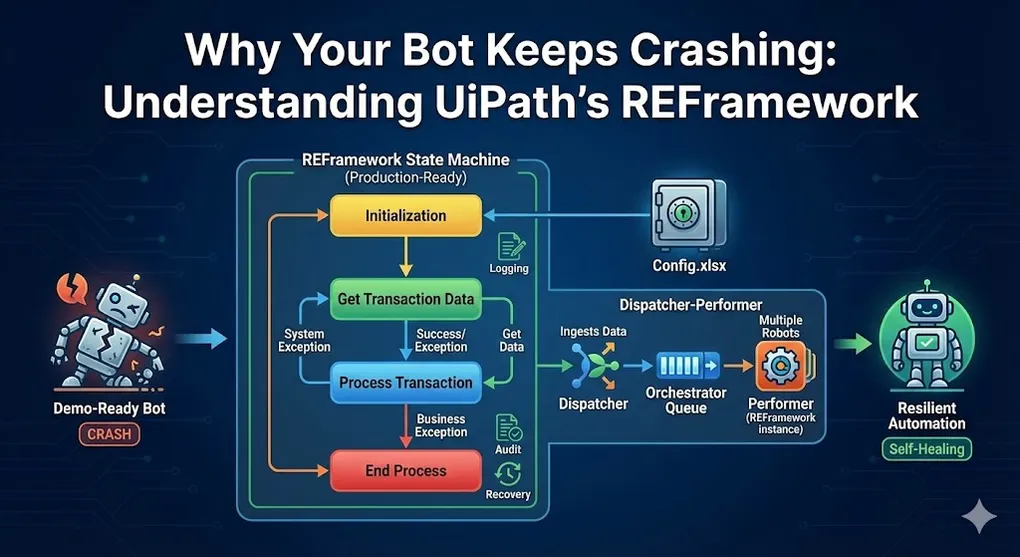
Why Your Bot Keeps Crashing: Understanding UiPath's REFramework
Let me paint a familiar picture: You’ve built an RPA bot. It works perfectly on your machine. You deploy it to production. Three days later, you get a call at 2 AM—the bot crashed, and nobody knows why. Sound familiar? You’re not alone. The gap between “demo-ready” and “production-ready” automation is where most RPA projects fail. And that gap has a name: architecture.
The Problem with “Record and Replay”
When most people start with RPA, they begin by recording their clicks. It’s intuitive. It’s fast. And it creates technical debt at an alarming rate. Here’s what typically goes wrong:
| Issue | What Happens |
|---|---|
| No error handling | One unexpected popup crashes the entire workflow |
| Hardcoded values | Changing an email address requires editing the code |
| No logging | When it fails, you have no idea where or why |
| Monolithic design | A small change breaks everything else |
| No recovery mechanism | If step 50 fails, you restart from step 1 |
| The REFramework exists to solve all of these problems. |
What is the REFramework?
The Robotic Enterprise Framework (REF) is UiPath’s official template for building production-grade automation. It’s not just a starting point—it’s a battle-tested architecture that encodes years of enterprise RPA experience. At its core, the REFramework is a state machine that handles:
- Configuration management
- Transaction-based processing
- Exception handling and recovery
- Logging and audit trails
- Graceful initialization and shutdown Think of it as the difference between building a house from scratch versus using proven blueprints that already account for plumbing, electrical, and structural integrity.
The Four States of REFramework
The REFramework operates as a finite state machine with four distinct states:
┌─────────────────────────────────────────────────────────────────┐
│                      REFramework State Machine                   │
├─────────────────────────────────────────────────────────────────┤
│                                                                  │
│    ┌──────────┐    Success    ┌──────────────────┐              │
│    │          │──────────────▶│                  │              │
│    │   Init   │               │  Get Transaction │◀─────┐       │
│    │          │               │       Data       │      │       │
│    └────┬─────┘               └────────┬─────────┘      │       │
│         │                              │                │       │
│         │ System                       │ Has Data       │       │
│         │ Exception                    ▼                │       │
│         │                     ┌──────────────────┐      │       │
│         │                     │                  │      │       │
│         │                     │     Process      │──────┘       │
│         │                     │   Transaction    │  Success     │
│         │                     │                  │              │
│         │                     └────────┬─────────┘              │
│         │                              │                        │
│         │                              │ Exception              │
│         ▼                              ▼                        │
│    ┌──────────────────────────────────────────────┐             │
│    │                  End Process                  │             │
│    └──────────────────────────────────────────────┘             │
│                                                                  │
└─────────────────────────────────────────────────────────────────┘
State 1: Initialization
This is where your bot “wakes up.” Before processing any data, the framework:
- Loads configuration from
Config.xlsx - Retrieves credentials from Orchestrator Assets
- Opens required applications (SAP, browsers, etc.)
- Validates the environment (are all systems accessible?) If anything fails here, the bot stops immediately. There’s no point processing transactions if your foundation is broken.
// Pseudo-logic for Init State
IF (Config loaded successfully)
   AND (Credentials retrieved)
   AND (Applications opened)
   → Move to "Get Transaction Data"
ELSE
   → Move to "End Process" with System Exception
State 2: Get Transaction Data
Here, the bot asks: “What’s next?” This state retrieves the next item to process. The data source could be:
| TransactionItem Type | Source | Best For |
|---|---|---|
| QueueItem | Orchestrator Queue | Production workloads (recommended) |
| DataRow | DataTable/Excel | Simple linear processing |
| Custom Object | API, Database | Advanced scenarios |
Best Practice: Use Orchestrator Queues for production. They provide built-in retry, status tracking, priority, and multi-robot support that DataRow processing lacks. The key insight: your bot processes one item at a time. This atomic approach is what enables recovery. If item #47 fails, you don’t lose progress on items #1-46.
State 3: Process Transaction
This is where your actual business logic lives. For each transaction item, the bot:
- Performs the required steps
- Handles any exceptions that occur
- Reports the outcome (Success, Business Exception, System Exception) The distinction between exception types is critical: | Exception Type | Meaning | Example | Action | |---------------|---------|---------|--------| | Business Exception | Bad data, but bot is healthy | Invoice amount is negative | Skip this item, move to next | | System Exception | Something broke | SAP crashed | Retry or restart application |
State 4: End Process
The cleanup phase. Regardless of how the bot finished (success, failure, or manual stop), this state:
- Closes all applications gracefully
- Writes final logs
- Releases resources
- Sends notification emails (if configured)
The Config.xlsx: Your Bot’s Control Panel
One of the most underrated features of REFramework is external configuration. Instead of hardcoding values like:
' BAD: Hardcoded values
emailRecipient = "john@company.com"
maxRetries = 3
sapApplicationPath = "C:\Program Files\SAP\..."
You externalize them to Config.xlsx:
| Name | Value | Description |
|---|---|---|
| OrchestratorQueueName | Invoice_Processing | Name of the Orchestrator Queue |
| MaxRetryNumber | 3 | How many times to retry on System Exception |
| EmailRecipient | john@company.com | Who receives failure notifications |
| LogLevel | Trace | Logging verbosity |
Why This Matters
- No redeployment for config changes: Update the Excel file, restart the bot. Done.
- Environment-specific configs: Dev, UAT, and Prod can have different settings without code changes.
- Non-developers can update values: Business users can adjust thresholds without touching the code.
- Audit trail: The config file becomes part of your change history.
The Three Sheets
The standard Config.xlsx has three sheets:
| Sheet | Purpose |
|---|---|
| Settings | General configuration (queue names, paths, email settings) |
| Constants | Values that rarely change (column indices, status codes) |
| Assets | Orchestrator Asset names for credentials and secure strings |
Exception Handling: The Heart of Resilience
The REFramework’s exception handling is what separates it from amateur automation. Let’s break down the two exception types:
Business Rule Exceptions
These occur when the data is wrong, but the bot is working correctly. Examples:
- Customer not found in the system
- Invoice amount exceeds approval threshold
- Required field is blank Correct response: Log the issue, mark the transaction as failed with a business exception, and move to the next item. No retry needed—the data was the problem.
TRY
   Process invoice
CATCH BusinessRuleException
   Set TransactionItem.Status = "Failed - Business Exception"
   Set TransactionItem.Output = "Invalid invoice format"
   → Continue to next transaction (no retry)
System Exceptions
These occur when something technical broke. Examples:
- Application crashed
- Network timeout
- Element not found (due to slow loading) Correct response: The bot might be in an unstable state. The standard REF behavior:
- Transition to End Process → Close all applications
- Transition to Init → Re-open applications (clean state)
- Retry the same transaction (up to
MaxRetryNumbertimes) - If retries exhausted → Mark transaction as failed, move to next
┌─────────────────────────────────────────────────────────────────┐
│             System Exception Recovery Flow                       │
├─────────────────────────────────────────────────────────────────┤
│                                                                  │
│  Process Transaction                                             │
│         │                                                        │
│         │ System Exception!                                      │
│         ▼                                                        │
│  ┌─────────────────┐                                            │
│  │   End Process   │  ← Close SAP, Browser, etc.                │
│  └────────┬────────┘                                            │
│           │                                                      │
│           ▼                                                      │
│  ┌─────────────────┐                                            │
│  │      Init       │  ← Re-open applications (clean state)      │
│  └────────┬────────┘                                            │
│           │                                                      │
│           ▼                                                      │
│  ┌─────────────────┐     RetryCount < Max?                      │
│  │ Get Transaction │────── Yes ──→ Retry same transaction       │
│  │     Data        │                                             │
│  └────────┬────────┘────── No ───→ Mark failed, get next        │
│           │                                                      │
└───────────┴──────────────────────────────────────────────────────┘
The Retry Mechanism (Standard REF Behavior)
The default REFramework does NOT implement exponential backoff. Here’s what actually happens:
| Retry Attempt | What Happens |
|---|---|
| 1st | End Process → Init → Retry immediately |
| 2nd | End Process → Init → Retry immediately |
| 3rd | End Process → Init → Retry immediately |
| Max reached | Mark as failed, move to next transaction |
Note: If you need exponential backoff (wait 5s, 15s, 30s…), you must customize
SetTransactionStatus.xaml. The Orchestrator Queue’sPostponeDateproperty can defer retries, but this requires explicit implementation. The power is in the application restart, not the wait time. A fresh application state often resolves transient issues like memory leaks, corrupted sessions, or stale UI states.
The Dispatcher-Performer Pattern
In enterprise deployments, REFramework typically runs as a Performer—but where does the data come from? Enter the Dispatcher.
┌─────────────────────────────────────────────────────────────────┐
│              Dispatcher-Performer Architecture                   │
├─────────────────────────────────────────────────────────────────┤
│                                                                  │
│   ┌──────────────────────────────────────────────────────────┐  │
│   │                      DISPATCHER                          │  │
│   │                                                          │  │
│   │  1. Read data source (Excel, Database, Email)            │  │
│   │  2. Validate each item                                   │  │
│   │  3. Add items to Orchestrator Queue                      │  │
│   │                                                          │  │
│   │  Runs: Once per batch (scheduled or triggered)           │  │
│   └───────────────────────────┬──────────────────────────────┘  │
│                               │                                  │
│                               ▼                                  │
│   ┌──────────────────────────────────────────────────────────┐  │
│   │              ORCHESTRATOR QUEUE                          │  │
│   │                                                          │  │
│   │  - Stores transaction items                              │  │
│   │  - Tracks status (New, InProgress, Success, Failed)      │  │
│   │  - Handles retry counts                                  │  │
│   │  - Supports priority and deadlines                       │  │
│   └───────────────────────────┬──────────────────────────────┘  │
│                               │                                  │
│              ┌────────────────┼────────────────┐                │
│              ▼                ▼                ▼                │
│   ┌────────────────┐ ┌────────────────┐ ┌────────────────┐     │
│   │   PERFORMER 1  │ │   PERFORMER 2  │ │   PERFORMER N  │     │
│   │  (REFramework) │ │  (REFramework) │ │  (REFramework) │     │
│   │                │ │                │ │                │     │
│   │ Get → Process  │ │ Get → Process  │ │ Get → Process  │     │
│   └────────────────┘ └────────────────┘ └────────────────┘     │
│                                                                  │
│   Multiple robots can process the same queue simultaneously!    │
│                                                                  │
└─────────────────────────────────────────────────────────────────┘
Dispatcher Responsibilities
| Task | Description |
|---|---|
| Data ingestion | Read from source (Excel, SAP, Email, API) |
| Validation | Check required fields before adding to queue |
| Deduplication | Prevent duplicate processing |
| Prioritization | Set queue item priority based on business rules |
| Scheduling | Can set deadline or defer date for items |
Performer Responsibilities
| Task | Description |
|---|---|
| Get next item | Fetch from Orchestrator Queue |
| Process | Execute business logic |
| Update status | Report success/failure back to queue |
| Handle exceptions | Retry or escalate based on exception type |
Why Separate Dispatcher and Performer?
| Benefit | Explanation |
|---|---|
| Scalability | Add more Performers without changing Dispatcher |
| Resilience | If Performer crashes, items remain in queue |
| Visibility | Orchestrator shows queue status in real-time |
| Flexibility | Dispatcher can run on schedule, Performers continuously |
| Parallelism | Multiple robots process the same queue simultaneously |
Putting It All Together: A Real Example
Let’s trace through a typical invoice processing scenario:
The Scenario
Your bot processes invoices from an Orchestrator Queue. For each invoice:
- Open SAP
- Look up the vendor
- Enter invoice details
- Submit for approval
What the REFramework Handles
9:00:00 [Init] Loading config from Config.xlsx...
9:00:01 [Init] Retrieving SAP credentials from Orchestrator...
9:00:02 [Init] Opening SAP application...
9:00:10 [Init] SAP ready. Moving to Get Transaction Data.
9:00:11 [Get Data] Fetching next queue item...
9:00:11 [Get Data] Processing: INV-2024-001
9:00:12 [Process] Looking up vendor V12345...
9:00:15 [Process] Entering invoice details...
9:00:20 [Process] Submitting for approval...
9:00:22 [Process] SUCCESS. Transaction complete.
9:00:22 [Get Data] Fetching next queue item...
9:00:22 [Get Data] Processing: INV-2024-002
9:00:23 [Process] Looking up vendor V99999...
9:00:25 [Process] ERROR: Vendor not found.
9:00:25 [Process] Business Exception. Skipping to next item.
9:00:25 [Get Data] Fetching next queue item...
9:00:25 [Get Data] Processing: INV-2024-003
9:00:26 [Process] Looking up vendor V11111...
9:00:30 [Process] SAP CRASH DETECTED.
9:00:30 [Process] System Exception. Retry 1 of 3.
9:00:35 [Init] Restarting SAP...
9:00:45 [Process] Retrying INV-2024-003...
9:00:55 [Process] SUCCESS. Transaction complete.
... (continues until queue is empty)
10:30:00 [Get Data] No more items in queue.
10:30:00 [End] Closing SAP...
10:30:05 [End] Sending summary email...
10:30:06 [End] Process complete. 47 processed, 2 business exceptions, 1 system exception (recovered).
Notice how:
- The SAP crash didn’t kill the entire process
- Business exceptions were logged but didn’t cause retries
- The bot recovered automatically after the system exception
Common Mistakes When Using REFramework
Even with a solid framework, things can go wrong:
Mistake 1: Putting Business Logic in Init
Wrong: Initialize → Process 100 rows of data → Get Transaction Right: Initialize → Get 1 row → Process → Get next row → Process → … The Init state should only prepare the environment, not process data.
Mistake 2: Catching Generic Exceptions
' BAD: Hides the real problem
Try
   DoSomething()
Catch ex As Exception
   Log("Something went wrong")  ' Useless!
End Try
' GOOD: Specific handling
Try
   DoSomething()
Catch ex As SelectorNotFoundException
   ' UI element issue - likely needs retry
   Throw New System.Exception("Button not found after wait", ex)
Catch ex As BusinessRuleException
   ' Data issue - skip this transaction
   Throw
End Try
Mistake 3: Ignoring the Config.xlsx
If you find yourself editing the XAML to change a value, you’re doing it wrong. Every user-configurable value belongs in the config file.
Mistake 4: Not Testing Exception Paths
Your bot will encounter exceptions. Test them intentionally:
- What happens if the network drops?
- What if SAP takes 60 seconds to load instead of 10?
- What if the queue returns malformed data?
When NOT to Use REFramework
Despite its power, REFramework isn’t always the right choice:
| Scenario | Better Alternative |
|---|---|
| One-time scripts | Simple sequential workflow |
| Attended automation (human-triggered) | Attended Robot Framework |
| Simple linear process (<20 activities) | Basic sequence |
| Real-time triggers (webhooks) | Event-based architecture |
| The REFramework adds complexity. That complexity pays off for production workloads with many transactions, but it’s overkill for a simple file-moving script. |
Key Takeaways
- State machine architecture makes your bot predictable and recoverable.
- Transaction-based processing enables granular retry and progress tracking.
- Business vs System exceptions require different handling strategies.
- System Exception = Application Restart (the core self-healing mechanism).
- Dispatcher-Performer pattern enables multi-robot scaling.
- External configuration eliminates hardcoding and enables environment-specific settings.
- Proper logging turns “it crashed” into “it crashed at step X because of Y.” The REFramework isn’t magic. It’s engineering discipline packaged into a template. But that discipline is what separates bots that run reliably for years from bots that require constant babysitting.
Appendix: Workflow Type Selection Guide
REFramework uses a State Machine—but that’s just one of three workflow types in UiPath. Knowing when to use each is a fundamental skill.
The Three Workflow Types
┌─────────────────────────────────────────────────────────────────┐
│                    Workflow Type Comparison                      │
├─────────────────────────────────────────────────────────────────┤
│                                                                  │
│   SEQUENCE              FLOWCHART            STATE MACHINE       │
│   ────────              ─────────            ─────────────       │
│                                                                  │
│   ┌───┐                 ┌───┐                ┌─────┐             │
│   │ A │                 │ A │                │  S1 │◀───────┐    │
│   └─┬─┘                 └─┬─┘                └──┬──┘        │    │
│     │                     │                     │           │    │
│     ▼                   ┌─┴─┐                   ▼           │    │
│   ┌───┐               ┌─┤ ? ├─┐              ┌─────┐        │    │
│   │ B │               │ └───┘ │              │  S2 │────────┤    │
│   └─┬─┘               ▼       ▼              └──┬──┘        │    │
│     │              ┌───┐   ┌───┐                │           │    │
│     ▼              │ B │   │ C │                ▼           │    │
│   ┌───┐            └─┬─┘   └─┬─┘             ┌─────┐        │    │
│   │ C │              └───┬───┘               │  S3 │────────┘    │
│   └───┘                  ▼                   └─────┘             │
│                       ┌───┐                                      │
│   Linear, top-down    │ D │     Cycles allowed                   │
│   No branching        └───┘     Loop back to S1                  │
│                     Visual branching                             │
│                                                                  │
└─────────────────────────────────────────────────────────────────┘
When to Use Each
| Workflow Type | Best For | Avoid When |
|---|---|---|
| Sequence | Linear tasks, reusable components, sub-workflows | You need IF/ELSE branching |
| Flowchart | Decision-heavy logic, visual clarity, moderate complexity | Process has “states” that repeat |
| State Machine | Complex processes with multiple phases that can loop (like REFramework) | Simple linear tasks |
Decision Matrix
| Question | Yes → | No → |
|---|---|---|
| Is this a simple, reusable activity? | Sequence | Continue ↓ |
| Does it have branching decisions? | Continue ↓ | Sequence |
| Does it have states that can loop back? | State Machine | Flowchart |
| Is it the main entry point with Init/Process/End? | State Machine | Flowchart |
Nested IF vs Switch vs Flow Decision
When you need branching logic, you have three options:
1. Nested IF (If Activity)
If status = "New" Then
    ProcessNew()
ElseIf status = "Pending" Then
    ProcessPending()
ElseIf status = "Approved" Then
    ProcessApproved()
Else
    HandleUnknown()
End If
Use when:
- Conditions are range-based (e.g.,
amount > 1000) - Conditions involve multiple variables (e.g.,
status = "A" AND type = "B") - You have 2-3 branches maximum
Avoid when:
- You have 5+ branches (becomes unreadable)
- All conditions check the same variable against fixed values
2. Switch Activity
Switch status
    Case "New": ProcessNew()
    Case "Pending": ProcessPending()
    Case "Approved": ProcessApproved()
    Default: HandleUnknown()
End Switch
Use when:
- Checking one variable against multiple fixed values
- You have 4+ branches
- Values are known at design time (enums, status codes)
Avoid when:
- You need range comparisons (
> 100) - Conditions involve multiple variables
3. Flow Decision (Flowchart only)
         ┌─────────┐
         │ Status? │
         └────┬────┘
    ┌─────────┼─────────┐
    ▼         ▼         ▼
 [New]    [Pending]  [Approved]
    │         │         │
    ▼         ▼         ▼
 Process   Process   Process
Use when:
- Complex decision trees with multiple paths
- You want visual clarity over code readability
- Non-developers need to understand the logic
Avoid when:
- Simple 2-way decisions (use If instead)
- Inside a Sequence workflow (Flow Decision requires Flowchart)
Quick Reference
| Criteria | IF Activity | Switch | Flow Decision |
|---|---|---|---|
Range conditions (> 100) | ✅ Yes | ❌ No | ✅ Yes |
| Multiple variables | ✅ Yes | ❌ No | ✅ Yes |
| 5+ fixed values | ❌ Messy | ✅ Perfect | ✅ OK |
| Visual clarity | ❌ Code only | ❌ Code only | ✅ Great |
| Works in Sequence | ✅ Yes | ✅ Yes | ❌ No |
Parallel and Pick Branch
For concurrent operations:
Parallel Activity
Runs all branches simultaneously. Useful for:
- Launching multiple applications at once
- Making independent API calls concurrently
┌────────────────────────────────────────┐
│           Parallel Activity            │
├────────────────────────────────────────┤
│   Branch 1      Branch 2      Branch 3 │
│   ┌──────┐      ┌──────┐      ┌──────┐ │
│   │Open  │      │Open  │      │Open  │ │
│   │SAP   │      │Excel │      │Email │ │
│   └──────┘      └──────┘      └──────┘ │
│      │             │             │     │
│      └─────────────┴─────────────┘     │
│                   │                    │
│            All Complete                │
└────────────────────────────────────────┘Warning: All branches must complete before continuing. If one hangs, everything waits.
Pick Branch Activity
Runs whichever trigger fires first. Useful for:
- “Wait for email OR 5 minutes, whichever comes first”
- Handling multiple possible user actions
┌────────────────────────────────────────┐
│           Pick Branch Activity         │
├────────────────────────────────────────┤
│   Trigger 1           Trigger 2        │
│   ┌──────────┐        ┌──────────┐     │
│   │Wait for  │   OR   │ Timeout  │     │
│   │Email     │        │ 5 min    │     │
│   └────┬─────┘        └────┬─────┘     │
│        │ (wins)            │           │
│        ▼                   ▼           │
│   ┌──────────┐        ┌──────────┐     │
│   │Process   │        │Send Alert│     │
│   │Email     │        │"No Email"│     │
│   └──────────┘        └──────────┘     │
└────────────────────────────────────────┘