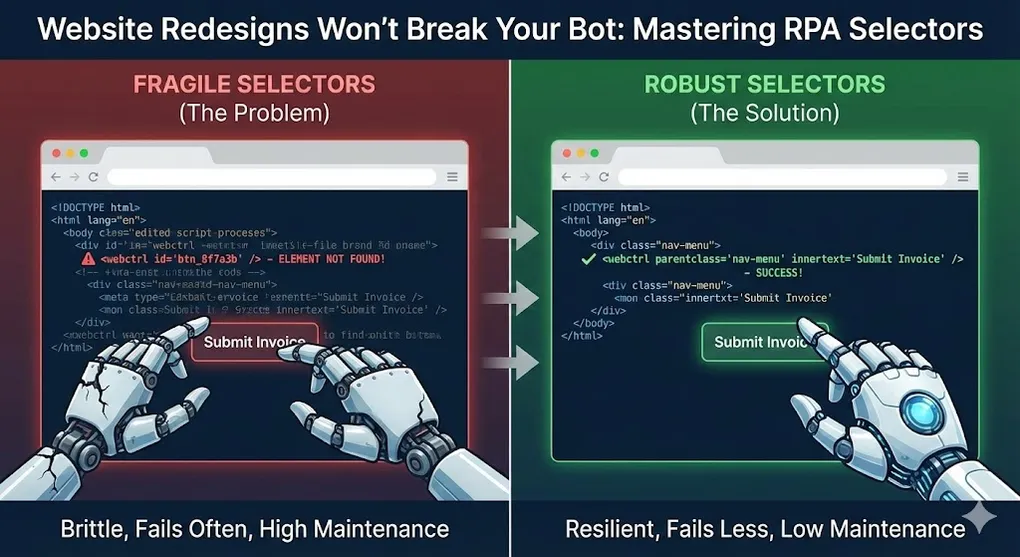
Website Redesigns Won't Break Your Bot: Mastering RPA Selectors
It’s Monday morning. Your invoice processing bot worked perfectly on Friday. But over the weekend, the vendor updated their website. Now your bot can’t find the login button. You spend four hours fixing selectors. The bot runs for a week. Then it breaks again. If this cycle sounds familiar, you’re not alone. Fragile selectors are the #1 cause of RPA maintenance headaches. But they don’t have to be.
What is a Selector?
A selector is how your RPA bot identifies UI elements—buttons, text fields, links, tables. It’s essentially a path through the application’s UI hierarchy. Think of it like giving directions:
- Address-based (fragile): “The third house on Elm Street” → breaks if houses are renumbered
- Landmark-based (stable): “The blue house next to the library” → survives changes Here’s what a selector actually looks like:
<webctrl tag='A' parentclass='nav-menu' innertext='Submit Invoice' />This tells the bot: Find an anchor tag (<A>) inside an element with class nav-menu that contains the text “Submit Invoice”.
Anatomy of a Selector
Selectors are built from attributes. Not all attributes are equal.
Attribute Stability Ranking
| Attribute | Stability | Verdict | Why |
|---|---|---|---|
id | 🟢 High | Best | Usually unique and static. (Beware of dynamic IDs like btn_8f7a3b!) |
name | 🟢 High | Good | Form field names rarely change. |
aaname | 🟡 Medium | Okay | ”Active Accessibility Name”. Good for buttons, but breaks if UI text changes. |
innertext | 🟡 Medium | Okay | Stable unless UI copy changes. |
class | 🟡 Medium | Risky | Developers change CSS classes frequently for styling. |
href | 🟡 Medium | Risky | URLs can change with routing updates. |
idx (index) | 🔴 Low | Avoid | Position-based: “the 3rd button”. If a 4th button is added, this breaks. |
css-selector | 🔴 Low | Avoid | Extremely brittle; dependent on DOM structure. |
tableCol/tableRow | 🔴 Low | Avoid | Data-driven, changes with content. |
| Auto-generated IDs | 🔴 Very Low | Never | Random strings like btn_a7x9k2 change every session. |
Red Flags in Selectors
When you see these, proceed with caution:
<!-- BAD: Random ID that will change -->
<webctrl id='dynamicBtn_8f7a3b2e' />
<!-- BAD: Position-based (what if table rows change?) -->
<webctrl idx='3' />
<!-- BAD: Very deep nesting that hardcodes structure -->
<webctrl tag='DIV' />
<webctrl tag='DIV' />
<webctrl tag='DIV' />
<webctrl tag='DIV' />
<webctrl tag='BUTTON' />
Classic vs Modern Design Experience
UiPath offers two development paradigms. Understanding the difference is critical.
┌─────────────────────────────────────────────────────────────────┐
│             Classic vs Modern Design Experience                  │
├─────────────────────────────────────────────────────────────────┤
│                                                                  │
│   CLASSIC DESIGN                   MODERN DESIGN                │
│   (UiPath 2020 and earlier)       (UiPath 2021+, recommended)   │
│   ─────────────────────            ──────────────────────────   │
│                                                                  │
│   - XML Selectors only             - Unified Target (selector   │
│   - Manual attribute editing         + fuzzy + image combined)  │
│   - Separate activities for        - Object Repository          │
│     different frameworks           - Automatic anchor detection │
│   - Config.xlsx for selectors      - Built-in screenshot        │
│   - Anchor Base activity           - Retry with fallback        │
│                                                                  │
│   Selector variable syntax:        Selector variable syntax:    │
│   {{variableName}}                 {variableName}               │
│                                                                  │
└─────────────────────────────────────────────────────────────────┘
Variable Syntax Comparison
| Context | Classic | Modern |
|---|---|---|
| In selector string | {{variableName}} | {variableName} |
| Example | innertext='{{invoiceNum}}' | innertext='{invoiceNum}' |
Warning: Mixing syntax causes runtime errors. Know which design you’re using! [!TIP] Modern Syntax Best Practice
In Modern Design, right-click any selector attribute in the Target panel and select “Use Variable”. This auto-generates the correct{variableName}syntax and prevents typos. Never manually type the braces!
Wildcards: Flexible Pattern Matching
When IDs contain dynamic portions, wildcards let you match the stable parts.
Wildcard Syntax
| Pattern | Meaning | Example |
|---|---|---|
* | Any characters | id='btn_*' matches btn_submit, btn_cancel, btn_123 |
? | Single character | id='item_?' matches item_1, item_A |
Real Example: Dynamic IDs
Original selector (fragile):
<webctrl id='invoice_row_8f7a3b2e_editBtn' />The 8f7a3b2e changes every session. Solution:
Improved selector (stable):
<webctrl id='invoice_row_*_editBtn' />Now it matches invoice_row_ANYTHING_editBtn.
Combining Wildcards
<!-- Match buttons that start with "btn" and end with "submit" -->
<webctrl id='btn*submit' />
<!-- Match any element with class containing "modal" -->
<webctrl class='*modal*' />
Regex Selectors: When Wildcards Aren’t Enough
When IDs follow complex patterns (not just prefix/suffix), use regex matching:
Scenario: Invoice IDs like invoice-2026-ABC, invoice-2025-XYZ
<!-- Wildcard approach: too greedy, might match unintended elements -->
<webctrl id='invoice-*' />
<!-- Regex approach: precise pattern matching -->
<webctrl id='invoice-\d{4}-[A-Z]{3}' matching:id='regex' />| Pattern | Matches | Use Case |
|---|---|---|
order-\d+ | order-123, order-99999 | Numeric suffixes |
btn-[a-z]{2,4} | btn-ok, btn-save | Short codes |
item_[A-Z0-9]{8} | item_A1B2C3D4 | Session tokens |
[!TIP] When to use Regex vs Wildcards:
- Wildcards (
*,?): Simple prefix/suffix patterns, faster to write- Regex: Complex patterns, length constraints, character classes
Variables in Selectors
Sometimes you need to target different elements based on data. Use selector variables.
Syntax
Replace the static value with {{variable}}:
<webctrl innertext='{{vendorName}}' />UiPath Example
In your workflow:
- Create a variable
vendorName = "Acme Corp" - In the selector, use:
innertext='{{vendorName}}' - At runtime, it becomes:
innertext='Acme Corp'
Dynamic Table Row Selection
Let’s say you need to click the “Edit” button for a specific invoice:
<webctrl tag='TR' innertext='*{{invoiceNumber}}*' />
<webctrl tag='BUTTON' innertext='Edit' />
This finds the table row containing your invoice number, then the Edit button within it.
The UI Explorer: Your Selector Surgeon
Never blindly trust auto-generated selectors. The UI Explorer is your tool for diagnosing and improving them.
Step-by-Step Optimization Process
Step 1: Identify the Target Element
Open UI Explorer, indicate the element you want to click.
[!TIP] F4 Magic Wand: Selecting the Right Depth
Complex web pages often have nested elements (e.g.,DIV→SPAN→ text). Press F4 while indicating to cycle through selection modes:
- Element: Selects the exact DOM node under cursor
- Region: Selects a visual bounding box
- UIElement: Selects the parent container
For buttons styled as
<div><span>Submit</span></div>, use F4 to select the<span>withinnertext—not the outer<div>which may lack identifiable attributes.
Step 2: Analyze the Attribute Tree
UI Explorer shows all available attributes:
Element: Button
├── tag: BUTTON
├── id: dynBtn_7f8a9b
├── class: btn btn-primary submit-invoice
├── innertext: Submit Invoice
├── parentid: invoiceForm
└── aaname: Submit Invoice
Step 3: Choose Stable Attributes
Ask yourself:
- Is
idstatic or dynamic? (Look for random strings) - Is
innertextstable? (Does the button label change?) - Is
classtoo generic? (.btnmatches every button) - Is there a unique parent context?
Step 4: Build the Minimal Selector
Start with the least attributes needed:
<!-- Too specific (fragile) -->
<webctrl tag='BUTTON' id='dynBtn_7f8a9b' class='btn btn-primary submit-invoice' />
<!-- Just right (stable) -->
<webctrl parentid='invoiceForm' tag='BUTTON' innertext='Submit Invoice' />
Step 5: Validate
Click “Validate” in UI Explorer. If it highlights the correct element, you’re done. If multiple elements match, add more specificity.
Anchor Base: When Elements Have No Identity
Sometimes target elements have no useful attributes:
<div class="row">
  <label>Invoice Amount</label>
  <input type="text" class="form-control">  <!-- How do I target THIS? -->
</div>
<div class="row">
  <label>Tax Amount</label>
  <input type="text" class="form-control">  <!-- Same selector! -->
</div>
Both inputs have identical selectors. Anchor Base solves this.
Concept: Relative Positioning
Instead of selecting the input directly, you:
- Find a nearby unique element (the anchor)
- Find the target relative to the anchor
UiPath Anchor Base Activity
[Anchor Base]
├── [Anchor] Find Element: <label innertext='Invoice Amount' />
└── [Action] Type Into: <input class='form-control' />
The anchor (label “Invoice Amount”) is unique. The input is found relative to it.
Anchor Positioning Options
| Position | Use When |
|---|---|
| Left | Label is to the left of input (most common) |
| Right | Label is to the right of input |
| Top | Label is above input |
| Bottom | Label is below input |
How Anchor Search Works (Visualization)
┌─────────────────────────────────────────────────────────────────┐
│                     Anchor-Based Targeting                      │
├─────────────────────────────────────────────────────────────────┤
│                                                                 │
│        Position: LEFT              Position: TOP                │
│        ────────────────            ────────────                 │
│                                                                 │
│        ┌──────────┐                   ┌──────┐                  │
│        │  ANCHOR  │ ←offset→ [TARGET] │ANCHOR│                  │
│        │ (Label)  │          (Input)  └──────┘                  │
│        └──────────┘                      ↑                      │
│                                       offset                    │
│                                          ↓                      │
│                                      [TARGET]                   │
│                                                                 │
│   The robot:                                                    │
│   1. Finds the ANCHOR (unique element)                          │
│   2. Searches in the specified DIRECTION                        │
│   3. Matches the TARGET within offset tolerance (default: 10px) │
│                                                                 │
└─────────────────────────────────────────────────────────────────┘
[!NOTE] Offset Tolerance: If the layout shifts slightly (responsive design), increase the offset tolerance in Anchor Base properties. Default is fine for most forms. When to Use Anchor Base
- Form fields with generic classes
- Table cells without row/column identifiers
- Elements that only differ by context
- Legacy systems with poor HTML structure
Modern Alternative: In Modern Design, the Unified Target automatically detects nearby anchors when you indicate an element. You don’t need a separate Anchor Base activity.
The Modern Design Advantage: Fuzzy Selectors
Modern Design Experience introduces Unified Target, which combines multiple targeting methods:
┌─────────────────────────────────────────────────────────────────┐
│                Unified Target: Multi-Layer Fallback             │
├─────────────────────────────────────────────────────────────────┤
│                                                                  │
│   Robot tries to find element using:                            │
│                                                                  │
│   1️⃣ STRICT SELECTOR                                            │
│      └── Traditional XML selector (exact match)                 │
│          If found → ✅ Success                                   │
│          If not found → try next level                         │
│                                                                  │
│   2️⃣ FUZZY SELECTOR                                             │
│      └── Approximate matching (ML-based)                        │
│          Tolerates minor attribute changes                      │
│          If found → ✅ Success                                   │
│          If not found → try next level                         │
│                                                                  │
│   3️⃣ IMAGE MATCHING                                             │
│      └── Visual recognition using screenshot                    │
│          Falls back to finding by appearance                    │
│          If found → ✅ Success                                   │
│          If not found → ❌ Element Not Found Error              │
│                                                                  │
└─────────────────────────────────────────────────────────────────┘
Fuzzy Selector: How It Works
Fuzzy selectors use machine learning to match elements even when attributes change slightly.
| Change Type | Strict Selector | Fuzzy Selector |
|---|---|---|
id='btn_123' → id='btn_456' | ❌ Fails | ✅ Matches (similar structure) |
class='submit' → class='submit-btn' | ❌ Fails | ✅ Matches (partial match) |
| Button moved 10px | ✅ Works | ✅ Works |
| Button completely redesigned | ❌ Fails | ❌ Fails (use Image) |
Configuring Target Methods
In Modern Design, you can enable/disable each method:
| Setting | Default | Recommendation |
|---|---|---|
| Strict Selector | ✅ On | Always keep on (most reliable) |
| Fuzzy Selector | ✅ On | Keep on for resilience |
| Image | ✅ On | Keep on as last resort |
| Native Text | Varies | Enable for text-heavy apps |
When Fuzzy Helps Most
| Scenario | Fuzzy Benefit |
|---|---|
| Third-party websites you don’t control | Survives minor updates |
| Applications with dynamic CSS classes | Ignores class changes |
| Multilingual interfaces | Matches structure, not just text |
| Applications with frequent UI updates | Self-healing selectors |
[!IMPORTANT] Runtime Self-Healing (2024.10+)
Modern Design goes beyond passive fuzzy matching. When a Strict Selector fails but Fuzzy succeeds, UiPath:
- Logs the discrepancy in Orchestrator (under Robot Logs → Selector Warnings)
- Records the “drift” between expected and actual attributes
- Suggests updated selectors via Studio’s “Selector Recommendations” panel
This means your bots can recover at runtime AND give you actionable repair data—true self-healing automation.
Handling Dynamic Tables
Tables are notoriously difficult because their content changes.
The Challenge
<table id="invoiceTable">
  <tr><td>INV-001</td><td>$500</td><td><button>Edit</button></td></tr>
  <tr><td>INV-002</td><td>$750</td><td><button>Edit</button></td></tr>
  <tr><td>INV-003</td><td>$300</td><td><button>Edit</button></td></tr>
</table>
How do you click “Edit” for invoice INV-002 specifically?
Solution 1: Filtered Selector
<webctrl tag='TR' innertext='*INV-002*' />
<webctrl tag='BUTTON' innertext='Edit' />
Solution 2: Index with Find Children
' Get all rows
rows = UiElement.FindChildren(rowSelector)
' Find the row with our invoice
targetRow = rows.FirstOrDefault(Function(r) r.Get("innertext").Contains("INV-002"))
' Click the button within that row
Click targetRow.FindElement(buttonSelector)
Solution 3: Data Scraping + Click
' Extract table to DataTable
invoiceTable = DataScrape(tableSelector)
' Find row index
rowIndex = invoiceTable.AsEnumerable() _
    .Select(Function(r, i) New With {.Row = r, .Index = i}) _
    .First(Function(x) x.Row("Invoice").ToString() = "INV-002") _
    .Index
' Click by index
Click editButtonSelector, rowIndex
Common Selector Patterns
Pattern 1: Login Forms
<!-- Username field by label association -->
<webctrl tag='INPUT' name='username' type='text' />
<!-- Password field -->
<webctrl tag='INPUT' name='password' type='password' />
<!-- Submit button by value -->
<webctrl tag='INPUT' type='submit' value='Login' />
<!-- OR by button text -->
<webctrl tag='BUTTON' innertext='*Login*' />
Pattern 2: Navigation Menus
<!-- Target menu item within navigation context -->
<webctrl tag='NAV' class='*main-nav*' />
<webctrl tag='A' innertext='Invoices' />
Pattern 3: Modal Dialogs
<!-- Modal context + button -->
<webctrl tag='DIV' class='*modal*' />
<webctrl tag='BUTTON' innertext='Confirm' />
Pattern 4: Dropdowns
<!-- Select dropdown by name -->
<webctrl tag='SELECT' name='country' />
<!-- Option by value -->
<webctrl tag='OPTION' value='US' />
<!-- OR by text -->
<webctrl tag='OPTION' innertext='United States' />
Debugging Selector Issues
Problem: Element Not Found
Symptoms: SelectorNotFoundException or timeout
Diagnostic Steps:
- Is the element visible? (Check for overlays, modals)
- Is the page fully loaded? (Add wait conditions)
- Did the selector change? (Open UI Explorer, compare)
- Is it inside an iframe? (Need frame selector first) Solutions:
' Wait for element to appear
WaitForElement(selector, timeout:=30)
' Handle iframes
AttachBrowser() → SwitchToFrame(iframeSelector) → Click(buttonSelector)
Problem: Wrong Element Clicked
Symptoms: Action executes but on different element Diagnostic Steps:
- Is the selector too generic? (Matches multiple elements)
- Is index being used incorrectly?
- Did page structure change? Solutions:
<!-- Add more specific parent context -->
<webctrl parentid='uniqueParent' tag='BUTTON' />
<!-- Use innertext for disambiguation -->
<webctrl tag='BUTTON' innertext='Submit Invoice' />
Problem: Works Sometimes, Fails Sometimes
Symptoms: Intermittent failures Causes:
- Dynamic content loading
- Animation delays
- Race conditions
- Session-specific IDs Solutions:
' Add delay for animations
Delay(500)
' Wait for specific condition
WaitForElement(loadingSpinner, waitForVanish:=True)
' Use wildcards for dynamic IDs
' id='btn_*' instead of id='btn_7f8a9b'
Browser-Specific Considerations
Chrome/Edge vs Internet Explorer
Modern browsers use different automation bridges:
| Browser | Technology | Selector Behavior |
|---|---|---|
| Chrome/Edge (Chromium) | CDP | More reliable, supports shadow DOM |
| Firefox | Native integration | Good stability |
| Internet Explorer | MSAA/UIA | Legacy, limited CSS selector support |
Shadow DOM
Modern web frameworks (Angular, React) use Shadow DOM which hides elements from standard selectors: The Problem:
<!-- Standard selector can't pierce Shadow DOM -->
<webctrl tag='BUTTON' class='mat-button' />
Solutions (Recommended Order):
| Approach | How | When to Use |
|---|---|---|
| 1. SimulateClick | Set SimulateClick = True | First try, often works |
| 2. Change Framework | Switch to UIA or AA | If Default framework fails |
| 3. Modern Fuzzy + Image | Use Unified Target fallback | When selectors unreliable |
| 4. JavaScript Injection | Use Inject JS activity | Last resort for complex SPAs |
Avoid: Manually writing
css-selector='::shadow button'is brittle and hard to maintain. Use the approaches above instead. [!TIP] Shadow DOM Diagnostics: Switch Your “Glasses”
In UI Explorer, try switching the UI Framework dropdown:
- Default → Start here
- Active Accessibility (AA) → Often reveals hidden labels and roles
- UI Automation (UIA) → Better for WPF/WinForms, sometimes pierces web shadows
Different frameworks “see” the DOM differently. If Default can’t find an element, AA might expose it through accessibility attributes.
Input Method Selection
For stubborn elements, change the input method:
| Method | Speed | Compatibility | Use When |
|---|---|---|---|
| Hardware Events (Default) | Slow | High | Standard apps |
| SimulateClick/Type | Fast | Medium | Background execution |
| Chromium API | Fast | Chromium only | Chrome/Edge automation |
Activity Properties:
├── SimulateClick: True    ← Try this first for hidden elements
├── SimulateType: True     ← For Type Into activities
└── SendWindowMessages: True ← Windows apps only
[!WARNING] “Selector is fine but click doesn’t work”
This is often NOT a selector problem—it’s an Input Method problem:
- Hardware Events: Element must be visible and in foreground
- SimulateClick: Works on hidden/background elements if selector is correct
If your selector validates perfectly but actions fail, try
SimulateClick = Truebefore rebuilding selectors.
Single Page Applications (SPAs)
SPAs don’t reload pages—they update DOM dynamically: Challenge: Elements change without navigation events Solution: Wait for element state, not page load:
' Wrong: Wait for page load
WaitForPageLoad()
' Right: Wait for specific element
WaitForElement(targetElement, timeout:=30)
Selector Maintenance Strategy
Proactive Measures
- Document your selectors: Comment why you chose specific attributes
- Create selector libraries: Centralize selectors for reuse
- Use Object Repository (Modern) or Config.xlsx (Classic)
- Version control: Track selector changes over time
Object Repository: The Enterprise Approach
In Modern Design, the Object Repository is the recommended way to manage UI elements:
┌─────────────────────────────────────────────────────────────────┐
│                    Object Repository                             │
├─────────────────────────────────────────────────────────────────┤
│                                                                  │
│   Project                                                        │
│   └── .objects/                                                  │
│       ├── VendorPortal/                                         │
│       │   ├── LoginPage/                                        │
│       │   │   ├── UsernameField    [Target]                     │
│       │   │   ├── PasswordField    [Target]                     │
│       │   │   └── LoginButton      [Target]                     │
│       │   └── InvoicePage/                                      │
│       │       ├── InvoiceTable     [Target]                     │
│       │       └── SubmitButton     [Target]                     │
│       └── SAPGui/                                               │
│           └── ...                                               │
│                                                                  │
└─────────────────────────────────────────────────────────────────┘
Object Repository vs Config.xlsx
| Feature | Config.xlsx (Classic) | Object Repository (Modern) |
|---|---|---|
| Storage | Excel file | JSON files in .objects/ folder |
| Editing | Manual XML editing | Visual UI in Studio |
| Reuse | Copy-paste | UI Libraries sharing |
| Versioning | File-level | Git-friendly JSON |
| Maintenance | Find-replace nightmare | Visual update tool |
| Screenshot | Manual | Automatic capture |
| Fuzzy/Image | Not supported | Built-in |
Using Object Repository Elements
Classic:                              Modern:
────────                              ────────
Click(selectorString)                 Use Application/Browser
                                      └── Click: LoginPage.LoginButton
No autocomplete                       IntelliSense support
Easy to break                         Visual preview
Config.xlsx Pattern (Classic Design)
For Classic Design projects, store selectors externally for easy updates: Config.xlsx:
| Name | Value |
|---|---|
| Selector_LoginButton | <webctrl parentid='loginForm' tag='BUTTON' innertext='Login' /> |
| Selector_InvoiceTable | <webctrl id='invoiceTable' tag='TABLE' /> |
| Usage: |
loginButtonSelector = Config("Selector_LoginButton")
Click(loginButtonSelector)
This pattern allows non-developers to update selectors without modifying XAML code. However, for new projects, Object Repository is strongly recommended as it provides visual editing, fuzzy fallback, and better maintainability.
Reactive Recovery
When selectors break:
- Don’t panic-edit: Understand what changed first
- Use UI Explorer: Find new stable attributes
- Update Object Repository: Re-indicate the element
- Test backward compatibility: Will the fix break previous versions?
- Update documentation: Record what changed and why
Key Takeaways
- Use Modern Design Experience for new projects (Fuzzy + Image fallback).
- Prefer stable attributes:
id,name,innertextoveridxand dynamic values. - Use Object Repository instead of Config.xlsx for enterprise projects.
- Understand Classic vs Modern variable syntax:
{{var}}vs{var}. - Leverage Unified Target’s multi-layer fallback (Strict → Fuzzy → Image).
- For Shadow DOM: Try SimulateClick first, then framework switching.
- Test selectors after application updates before production. The goal isn’t to write selectors that work—it’s to write selectors that keep working when the application inevitably changes.
Browser Automation Patterns
Beyond selectors, browser automation has its own set of challenges and best practices.
Browser Choice: Chrome vs Edge vs IE
┌─────────────────────────────────────────────────────────────────┐
│                    Browser Comparison for RPA                    │
├─────────────────────────────────────────────────────────────────┤
│                                                                  │
│   CHROME/EDGE (Chromium)      FIREFOX        INTERNET EXPLORER  │
│   ─────────────────────       ───────        ─────────────────  │
│                                                                  │
│   ✅ Best UiPath support      ✅ Native      ⚠️ Legacy only      │
│   ✅ CDP protocol             ✅ Good        ❌ Deprecated       │
│   ✅ Modern web apps          ✅ Privacy     ✅ Old intranets    │
│   ✅ Extensions available     ⚠️ Slower     ✅ ActiveX support  │
│                                                                  │
│   Recommendation:                                                │
│   • Chrome/Edge: Default choice for new projects                │
│   • IE Mode: Legacy apps that require IE (Edge has IE mode)     │
│   • Firefox: When Chrome is blocked by policy                   │
│                                                                  │
└─────────────────────────────────────────────────────────────────┘
Native Browser Activities vs JavaScript Injection
| Approach | When to Use | Example |
|---|---|---|
| Native (Click, Type) | Standard web forms | Click button, fill input |
| JavaScript Injection | Complex interactions or hidden elements | Trigger onclick, modify DOM |
JavaScript Injection Example:
' When native click doesn't work on a custom button
Inject JS: "document.querySelector('#customBtn').click()"

' Get value from hidden field
result = Inject JS: "return document.querySelector('#hiddenData').value"

' Scroll to element (useful for lazy-loading)
Inject JS: "document.querySelector('#targetElement').scrollIntoView()"Warning: JavaScript injection bypasses security checks. Use only when native activities fail.
Handling Dynamic Content (Ajax/SPA)
Modern web apps load content dynamically. Your bot must wait properly.
Anti-Pattern (Fixed Delay):
Click "Load Data" button
Delay 5000ms  ' BAD: Wastes time or still not enough
Read table
Pattern 1: Wait for Element
Click "Load Data" button
Wait For Element: dataTable (timeout: 30s)
Read table
Pattern 2: Wait for Element Vanish
Click "Load Data" button
' Wait for loading spinner to disappear
Wait For Element Vanish: loadingSpinner (timeout: 60s)
Read table
Pattern 3: Check Element Attribute
' Wait until button is enabled
Retry Scope (3 retries, 1s interval)
    Get Attribute: submitButton, "disabled"
    If attribute = "false" Then Exit
    Throw New Exception("Button still disabled")
Handling Authentication
┌─────────────────────────────────────────────────────────────────┐
│              Web Authentication Strategies                       │
├─────────────────────────────────────────────────────────────────┤
│                                                                  │
│   STRATEGY              PROS                CONS                 │
│   ─────────────         ────                ────                 │
│                                                                  │
│   UI Login              Simple              Slow, fragile        │
│   (Type user/pass)      No API needed       Password exposed     │
│                                                                  │
│   Saved Browser Session Fast                Session expires      │
│   (Cookies/Profile)     No login each run   Profile management   │
│                                                                  │
│   API Token             Fastest             Requires API access  │
│   (Inject auth header)  Most reliable       Setup complexity     │
│                                                                  │
│   Windows Integrated    Seamless            Corporate only       │
│   (Kerberos/NTLM)       No password         Network dependent    │
│                                                                  │
│   Recommendation: Use API tokens when possible,                  │
│   Browser profile for UI automation, UI login as last resort     │
│                                                                  │
└─────────────────────────────────────────────────────────────────┘
File Downloads and Uploads
Download Handling:
' Set download folder in browser settings (before opening)
browserProfile.DefaultDownloadDirectory = "C:\Bot\Downloads"

' Wait for download to complete
Retry Scope (timeout: 60s)
    If File.Exists("C:\Bot\Downloads\report.xlsx") Then
        Exit
    End If
    Delay 1000ms
Upload Handling:
' Method 1: Click upload button + Type Into dialog
Click "Upload" button
Type Into File Dialog: "C:\Files\document.pdf"

' Method 2: Set input value directly (if file input is accessible)
Set Attribute: fileInput, "value", "C:\Files\document.pdf"

' Method 3: JavaScript (for hidden inputs)
Inject JS: "document.querySelector('input[type=file]').value = 'C:\\Files\\document.pdf'"
Multi-Tab Management
' Open new tab
Send Hotkey: Ctrl+T
Navigate To: "https://secondary-site.com"

' Switch between tabs
Attach Browser (by title or URL)
    Title: "Secondary Site*"

' Close current tab
Send Hotkey: Ctrl+W

' Close all tabs except main
For Each tab In browser.GetTabs()
    If tab.Title <> "Main Application" Then
        tab.Close()
    End If
Next
Pop-up and Alert Handling
' Handle JavaScript alerts
On Alert Appear
    Accept Alert  ' or Dismiss Alert
    ' Get Alert Text if needed

' Handle new window popups
Attach Browser (new window)
    ' Work in popup
Detach
' Back to main window

' Block popups entirely (browser setting)
browserProfile.BlockPopups = True
Headless Browser Execution
For maximum speed (no visible UI):
' Enable headless mode in browser activities
Open Browser
    Headless: True
    ' 3-5x faster execution
    ' Works on servers without display
    ' Screenshots still work for debugging
Limitations of Headless:
- Some sites detect headless and block
- Debugging harder (no visual feedback)
- Some JavaScript features may differ