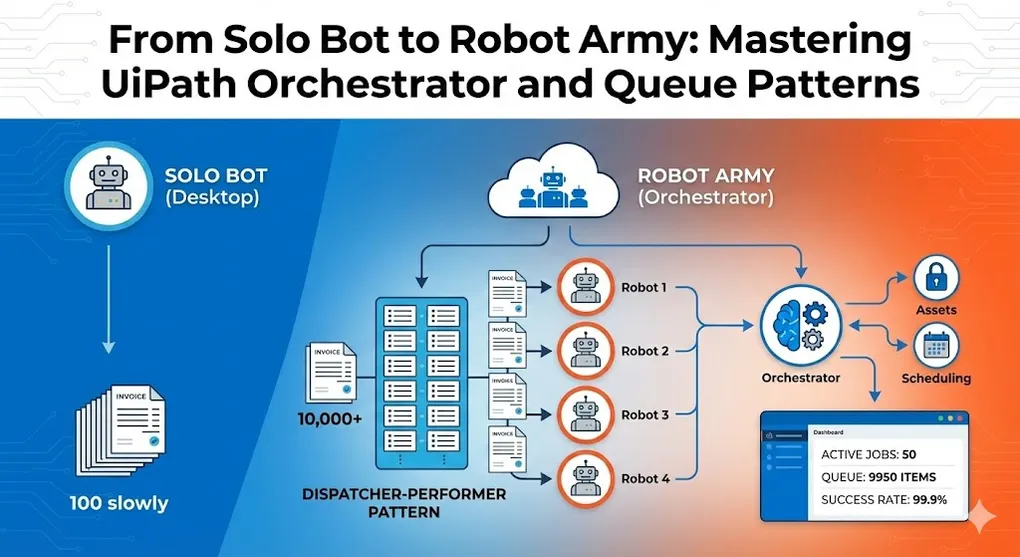
From Solo Bot to Robot Army: Mastering UiPath Orchestrator and Queue Patterns
Your first bot runs on your machine. It processes 100 invoices a day. Everyone’s happy.
Then the request comes: “Can we do 10,000 invoices?”
The answer isn’t to make your bot run faster. It’s to make it run in parallel, across multiple machines, with centralized control.
Welcome to orchestration.
Getting Started: Access Your Free Orchestrator
Common Myth: “I don’t have Orchestrator, so I can’t learn Queue patterns and enterprise architecture.”
Reality: You do have access! It’s in the cloud, and it’s free forever.
Scenario A: Individual Learners (Most Common)
UiPath provides Community Edition, which is permanently free and has nearly identical functionality to the Enterprise version (only limited by robot count).
How to Get Your Free Orchestrator:
graph LR
    %% 標題:用圓形,文字強制分三行
    Start(("Free<br/>Orchestrator<br/>Setup<br/>"<br/>))

    %% Step 1: 縮短單行長度
    Step1["<b>Step 1:</b><br/>No Install<br/>Required<br/>---------<br/>It's a website,<br/>not software<br/>"<br/>]

    %% Step 2
    Step2["<b>Step 2:</b><br/>Register<br/>-----------<br/>Create acct on<br/>cloud.uipath.com<br/><br/>"]

    %% Step 3
    Step3["<b>Step 3:</b><br/>Login<br/>-----------<br/>Click<br/>'Default Tenant'"]

    %% Step 4: 這是關鍵步驟,字最多,切最細
    Step4["<b>Step 4:</b><br/>Connect Studio<br/>-----------<br/>Pair local PC<br/>with Cloud<br/>(Critical!)"]

    %% 連線
    Start --> Step1
    Step1 --> Step2
    Step2 --> Step3
    Step3 --> Step4

    %% 樣式設定:增加內部填充 (padding) 防止文字貼邊
    classDef default fill:#f9f9f9,stroke:#333,stroke-width:1px,rx:5,ry:5,text-align:center;

    %% 特別強調 Step 4
    style Step4 fill:#ffe6e6,stroke:#f00,stroke-width:2px
Connection Steps:
- Open UiPath Assistant (green robot icon in system tray)
- Preferences → Orchestrator Settings
- Select Service URL mode
- Sign in with your UiPath account
- Verify status: Should show green
Connected, Licensed?
Now you can use Queues and Assets! This is the only way to learn enterprise-grade architecture.
Scenario B: Corporate Environment Without Orchestrator
If you’re on a closed corporate network, or your company only has Standalone licenses without internet access, then you “temporarily” won’t have Orchestrator.
Interview Question: “Can REFramework run without Orchestrator?”
Answer: Yes, but the mode changes.
REFramework Fallback Mode:
| With Orchestrator | Without Orchestrator (Fallback) |
|---|---|
Get Transaction Item fetches from Queue | Read from local Excel file |
TransactionItem type is QueueItem | Change to DataRow (Excel) or String (filenames) |
| Config.xlsx stores Queue Name | Store Excel file path instead |
| Auto-retry managed by Queue | Must implement retry logic manually |
Fallback Configuration Steps:
' 1. In Main.xaml, find variable TransactionItem
'    Original type: UiPath.Core.QueueItem
'    Change to: System.Data.DataRow

' 2. In GetTransactionData.xaml
'    Original: Get Transaction Item activity
'    Change to: Read current Row from DataTable

' 3. In Config.xlsx
'    Original: OrchestratorQueueName = "Invoice_Processing"
' Change to: InputExcelPath = "C:\Data\Invoices.xlsx"Important: Fallback mode is only suitable for development/testing. In production without Orchestrator, you lose:
- Automatic retry and failure management
- Multi-robot parallel processing
- Centralized monitoring and reporting
- Secure credential storage (Assets)
The Limits of Single-Machine Automation
Before we dive into solutions, let’s understand the problem.
The Solo Bot Ceiling
| Constraint | Impact |
|---|---|
| Processing speed | One bot = one item at a time |
| Machine dependency | If the PC crashes, everything stops |
| No scheduling | Manual start/stop, no off-hours running |
| No visibility | No dashboard, no real-time monitoring |
| Credential storage | Passwords in code or local files |
| No work distribution | Can’t split tasks across machines |
At some point, you need infrastructure. That infrastructure is Orchestrator.
What is Orchestrator?
UiPath Orchestrator is a web-based platform for managing, monitoring, and scaling your automation fleet.
Think of it as:
- Air Traffic Control for robots
- Job Scheduler on steroids
- Credential vault for sensitive data
- Analytics dashboard for performance metrics
Core Components
%%{init: {'theme': 'base', 'themeVariables': { 'fontSize': '16px'}}}%%
graph TD
    %% 主標題節點 (用 HTML 放大)
    MainTitle["<span style='font-size:26px; font-weight:bold'>🚀 UiPath Orchestrator<br/></span>"]

    %% 外框
    subgraph UO [System Overview]
        direction TB

        %% 上層:四大功能
        subgraph Manage [Management Layer]
            direction LR
            R["<span style='font-size:20px'>🤖</span><br/>Robots<br/><br/>"]
            Q["<span style='font-size:20px'>📥</span><br/>Queues<br/><br/>"]
            A["<span style='font-size:20px'>🔐</span><br/>Assets<br/><br/>"]
            S["<span style='font-size:20px'>⏰</span><br/>Schedules<br/><br/>"]
        end

        %% 下層:執行區塊
        subgraph Exec [Execution Layer]
            direction TB
            B1[Bot 1]
            B2[Bot 2]
            B3[Bot 3]
            B4[Bot 4]
            B5[Bot 5]
        end

        %% 連接
        R & Q & A & S ==> Exec
    end

    %% 連接標題
    MainTitle --- UO

    %% 樣式
    style MainTitle fill:#fff,stroke:none
    style UO fill:#f0f4f8,stroke:#333,stroke-width:2px
    style Exec fill:#e1f5fe,stroke:#0277bd,stroke-width:2px,stroke-dasharray: 5 5
Key Terms
| Term | Definition |
|---|---|
| Robot | The software agent that executes automation (UiPath Robot) |
| Machine | The physical/virtual PC where a robot runs |
| Process | A published automation package (your .nupkg file) |
| Job | An instance of a process running on a robot |
| Queue | A collection of work items to be processed |
| Queue Item | A single unit of work (e.g., one invoice) |
| Asset | A stored value (credentials, config settings) |
| Trigger | Condition that starts a job (schedule, queue, event) |
| Folder | Organizational unit for robots, processes, queues, and assets |
Modern Folders vs Classic Folders
Important: As of 2021, Modern Folders are the default and recommended approach in UiPath Orchestrator. Understanding this distinction is critical for new implementations.
The Architecture Shift
graph TD
    %% --- 設定樣式 ---
    classDef legacy fill:#f9f9f9,stroke:#999,stroke-width:2px,stroke-dasharray: 5 5;
    classDef classicFolder fill:#ffebee,stroke:#c62828,stroke-width:2px;
    classDef modern fill:#e3f2fd,stroke:#1565c0,stroke-width:2px;
    classDef tenant fill:#fff3e0,stroke:#ef6c00,stroke-width:2px;
    classDef bot fill:#e8f5e9,stroke:#2e7d32,stroke-width:1px,rx:5,ry:5;
    classDef noteBox fill:#fff,stroke:#333,stroke-width:1px,stroke-dasharray: 2 2;

    %% ==============================
    %% 左側:Classic Folders (Legacy)
    %% ==============================
    subgraph ClassicWrapper ["❌ CLASSIC FOLDERS (Legacy)"]
        direction TB

        %% Header 區
        subgraph C_Header [Concept]
            direction LR
            Note1["Feature: Robots belong to FOLDER<br/>"]
            Warning["⚠️ Constraint: One robot = ONE folder<br/>"]
        end

        %% 結構圖
        subgraph CFA ["📁 Folder A"]
            CB1[Bot 1]
            CB2[Bot 2]
        end

        subgraph CFB ["📁 Folder B"]
            CB3[Bot 3]
            CB4[Bot 4]
        end

        %% 連線
        C_Header ==> CFA
        CFA ~~~ CFB
    end

    %% ==============================
    %% 右側:Modern Folders (Current)
    %% ==============================
    subgraph ModernWrapper ["✅ MODERN FOLDERS (Current)<br/>"]
        direction TB

        %% Header 區
        subgraph M_Header [Concept]
            direction LR
            Note2["Feature: Robots belong to TENANT<br/>"]
            Success["✨ Benefit: Full Utilization<br/>"]
        end

        %% 結構圖
        subgraph Tenant ["🏢 Tenant Resource Pool"]
            direction TB
            MB1[Bot 1]
            MB2[Bot 2]
            MB3[Bot 3]
            MB4[Bot 4]
        end

        subgraph AccessScope ["Folders = Access Scope"]
            direction LR
            MFA["📁 Folder A"]
            MFB["📁 Folder B"]
        end

        %% 連線
        M_Header ==> Tenant
        Tenant ==> MFA
        Tenant ==> MFB
    end

    %% 套用樣式
    class ClassicWrapper legacy;
    class CFA,CFB classicFolder;
    class ModernWrapper modern;
    class Tenant tenant;
    class CB1,CB2,CB3,CB4,MB1,MB2,MB3,MB4 bot;
    class Warning classicFolder;
    class Success modern;
    class C_Header,M_Header noteBox;
Key Differences
| Aspect | Classic Folders | Modern Folders |
|---|---|---|
| Robot assignment | Robot belongs to one folder only | Robots at tenant level, shared across folders |
| Machine definition | Machine Template + Robot = License | Machine Template with dynamic allocation |
| Unattended licensing | Per-robot license assignment | Floating license pool |
| Personal workspace | Not supported | Each user gets personal folder |
| Robot accounts | Windows accounts required | Robot Accounts (no Windows user needed) |
| Folder hierarchy | Flat structure | Subfolders supported |
| Concurrent jobs | Limited by robot-folder binding | Flexible based on license pool |
Why Modern Folders Matter
1. Better Resource Utilization
Classic:
Folder A: Bot1, Bot2 (only run Folder A processes)
Folder B: Bot3, Bot4 (only run Folder B processes)
→ If Folder A is idle, Bot1 and Bot2 can't help Folder B
Modern:
Tenant: Bot1, Bot2, Bot3, Bot4 (available to any folder)
Folder A: Process X (can use any available bot)
Folder B: Process Y (can use any available bot)
→ Full utilization: any bot can run any folder's work
2. Robot Accounts (No Windows User Required)
Classic: Unattended robot needs Windows login
  └── Create Windows AD account for each robot
  └── Manage passwords, group policies
  └── Security and compliance overhead

Modern: Robot Account in Orchestrator
  └── No Windows account needed
  └── Managed entirely in Orchestrator
  └── Simpler compliance, no AD dependency
3. Dynamic License Allocation
Classic (Static):
  License 1 → Bot1 (always assigned)
  License 2 → Bot2 (always assigned)
  → 2 licenses, max 2 concurrent jobs

Modern (Floating Pool):
  License Pool: 2 Unattended Runtime licenses
  Job request → Allocate from pool → Release after job
  → Same 2 licenses, but more flexible distribution
Migration Considerations
If you’re working with an existing Classic Folders setup:
| Situation | Recommendation |
|---|---|
| New Orchestrator setup | Always use Modern Folders |
| Existing Classic, works fine | Can continue, but plan migration |
| Scaling beyond current limits | Migrate to Modern Folders |
| Need subfolders/hierarchy | Must use Modern Folders |
| Using Automation Cloud | Modern Folders only |
Creating a Modern Folder
When creating a new folder in Orchestrator:
- Navigate to Tenant → Folders → Add Folder
- Ensure “Use Modern Folders” is enabled (tenant setting)
- Assign processes, queues, and assets to the folder
- Grant robot access via Roles (not direct assignment)
Folder Settings:
├── Name: "Invoice_Processing"
├── Parent: (None or select parent folder)
├── Assigned Processes:
│   ├── Invoice_Dispatcher
│   └── Invoice_Performer
├── Assigned Queues:
│   └── Invoice_Queue
├── Assigned Assets:
│   ├── SAP_Credentials
│   └── EmailRecipients
└── Role Assignments:
    ├── RPA_Developers: Edit
    ├── RPA_Operators: Execute
    └── Robot_ServiceAccount: Robot (execute jobs)
Queues: The Heart of Scalable RPA
Queues are what enable true scalability. Instead of one bot processing a list sequentially, you:
- Load all work items into a queue
- Multiple bots pull items from the queue
- Each bot processes independently
- Results are tracked centrally
Queue Item Lifecycle
stateDiagram-v2
    %% 設定標題 (雖然 stateDiagram 原生不支援標題,但我用註解標示)
    %% Title: Queue Item States

    %% 初始狀態
    [*] --> New: Add Item

    %% 主要轉換
    New --> InProgress: Get Transaction Item

    %% In Progress 的三種結果
    state InProgress {
        %% 這裡可以加上備註,雖然 Mermaid 顯示會有差異
        direction LR
        [*] --> Processing
    }

    InProgress --> Successful: Set Transaction Status (Success)<br/><br/>
    InProgress --> Failed: Set Transaction Status (System/Business Exception)<br/><br/>
    InProgress --> Abandoned: 24h Timeout (No Status Set)<br/><br/>

    %% 關於 Retry 的特殊路徑
    Failed --> Retried: If Retry Enabled & MaxRetry > 0<br/><br/>
    Retried --> New: System auto-creates new item<br/><br/>

    %% 最終狀態
    Successful --> [*]
    Abandoned --> [*]

    %% 樣式設定
    classDef success fill:#e8f5e9,stroke:#2e7d32,stroke-width:2px;
    classDef fail fill:#ffebee,stroke:#c62828,stroke-width:2px;
    classDef progress fill:#e3f2fd,stroke:#1565c0,stroke-width:2px;
    classDef new fill:#fff3e0,stroke:#ef6c00,stroke-width:2px;

    class Successful success
    class Failed,Abandoned,Retried fail
    class InProgress progress
    class New new
State Definitions
| State | Meaning |
|---|---|
| New | Item is waiting to be processed |
| In Progress | A robot has claimed it and is working |
| Successful | Processing completed successfully |
| Failed | Processing failed (business or system exception) |
| Abandoned | Robot crashed or timed out mid-processing |
| Retried | Failed item that was cloned for retry (see below) |
Understanding Retry Behavior: The Cloning Mechanism
Critical for Reporting: This behavior is often misunderstood and causes reporting errors.
When an item fails and is automatically retried, Orchestrator does not simply revert the item to “New” status. Instead:
- The original item status changes to “Retried” (counted as a failure type)
- A brand new clone item is created with status “New”
- The clone has a new Queue Item ID but same Reference and SpecificContent
sequenceDiagram
    participant O as Original Item (12345)
    participant C as Clone Item (12346)

    Note over O: Status: New
    Note over O: Status: In Progress

    rect rgb(255, 200, 200)
    Note over O: ❌ Fails
    end

    O->>C: Orchestrator Auto-Retry

    par Update Old Item
        Note over O: Status: Retried
        Note over O: (End of Life)
    and Create New Item
        Note over C: Status: New
        Note over C: Status: In Progress
        rect rgb(200, 255, 200)
        Note over C: ✅ Successful
        end
    end
Why This Matters for Reporting:
If you’re calculating total transactions processed:
' WRONG: Counts both original and clone
totalProcessed = queue.Items.Count()  ' Returns 2 for same transaction!

' CORRECT: Count unique references, or exclude "Retried" status
successfulUnique = queue.Items _
    .Where(Function(i) i.Status = "Successful") _
    .Count()

' Or count only final states (excluding Retried which is intermediate)
finalStates = queue.Items _
    .Where(Function(i) i.Status <> "Retried") _
    .GroupBy(Function(i) i.Reference) _
    .Count()
Best Practice for Analytics Queries:
| Metric | How to Calculate |
|---|---|
| Transactions attempted | Count where Status NOT IN (“Retried”) |
| Success rate | Successful / (Successful + Failed) — exclude Retried |
| Total retries | Count where Status = “Retried” |
| Items requiring 2+ attempts | Items with any “Retried” record |
Dead Letter Queue: Handling Poison Messages
When an item exhausts all retries and still fails, it becomes a “poison message”—it will never be processed unless someone intervenes manually.
[!CAUTION] UiPath doesn’t have a built-in Dead Letter Queue, but you should implement one:
Recommended Pattern:
' In SetTransactionStatus (when marking as Failed for the LAST time)
If transactionItem.RetryNo >= Config("MaxRetryNumber") Then
    ' This is the final failure - trigger Dead Letter handling

    ' Option 1: Send notification email
    SendEmail(
        To: Config("OpsTeam_Email"),
        Subject: $"[POISON] Item {transactionItem.Reference} exhausted retries",
        Body: $"Please investigate manually. Error: {exceptionMessage}"
    )

    ' Option 2: Log to Exception Dashboard
    InsertDBRecord("RPA_DeadLetterLog",
        Reference: transactionItem.Reference,
        Queue: queueName,
        ErrorMessage: exceptionMessage,
        Timestamp: DateTime.Now
    )

    ' Option 3: Add to a separate "DeadLetter" queue for manual review
    AddQueueItem("Invoice_DeadLetter", transactionItem.SpecificContent)
End If
Why This Matters: Without Dead Letter handling, failed items silently disappear into “Failed” status, and operations staff has no proactive notification.
Queue Item Properties
Each queue item can carry:
- Specific Content: Custom fields (JSON) with your business data
- Reference: Unique identifier for tracking
- Priority: High, Normal, Low
- Deadline: When must this be processed by?
- Postpone: Don’t process until this timestamp
- Output: Results after processing
- Analytics: Timing, retry count, robot ID
The Dispatcher-Performer Pattern
This is the architectural pattern that unlocks true scalability.
Concept
Split your automation into two separate processes:
- Dispatcher: Reads source data, creates queue items
- Performer: Processes queue items one at a time
flowchart TD
    %% 定義區域
    subgraph Input_Layer [Data Layer]
        DS[Data Sources<br/>Excel, DB, API]
    end

    subgraph Robot_Environment [Robot Execution Environment]
        Disp(Dispatcher Robot):::bot
        Perf1(Performer Robot 1):::bot
        Perf2(Performer Robot 2):::bot
    end

    subgraph Orchestrator_Layer [Orchestrator Server]
        Queue[("Transaction Queue")]:::infra
    end

    subgraph App_Layer [Application Layer]
        Target[Target App]:::app
    end

    %% 邏輯流
    DS ==> Disp
    Disp -.->|Upload Items| Queue
    Queue -.->|Fetch Item| Perf1
    Queue -.->|Fetch Item| Perf2
    Perf1 ==> Target
    Perf2 ==> Target

    %% 樣式
    classDef bot fill:#c8e6c9,stroke:#2e7d32,stroke-width:2px,rx:5,ry:5;
    classDef infra fill:#ffccbc,stroke:#d84315,stroke-width:2px,shape:cylinder;
    classDef app fill:#cfd8dc,stroke:#455a64,stroke-width:2px;
Why Separate Them?
| Benefit | Explanation |
|---|---|
| Scalability | Add more Performer robots without changing Dispatcher |
| Resilience | If one Performer crashes, others continue. Queue persists. |
| Visibility | Queue shows exactly how much work remains |
| Retry handling | Failed items requeue automatically |
| Different schedules | Dispatcher runs once/day, Performers run continuously |
| Different machines | Dispatcher on scheduler, Performers on farm |
The Math of Parallel Processing
Why do we need multiple robots? Here’s the formula:
Where:
- N = Total number of items to process
- T_item = Average time to process one item
- R = Number of robots
Example:
Items: 10,000 invoices
Time per item: 2 minutes
Robots: 1

Total Time = (10,000 → 2) / 1 = 20,000 minutes = 333 hours - 14 days!

With 5 robots:
Total Time = (10,000 → 2) / 5 = 4,000 minutes = 67 hours - 2.8 days

With 10 robots:
Total Time = (10,000 → 2) / 10 = 2,000 minutes = 33 hours - 1.4 days
When N grows to enterprise scale, optimizing T_item has limits. The most effective lever is increasing R—hence the Dispatcher-Performer pattern.
Dispatcher Implementation
The Dispatcher is typically simple:
' Pseudo-code for Dispatcher

' 1. Read data source
invoiceData = ReadExcel("Invoices.xlsx")

' 2. For each item, add to queue
For Each row In invoiceData.Rows
    queueItem = New QueueItem()
    queueItem.Reference = row("InvoiceNumber")
    queueItem.Priority = If(row("Urgent") = "Yes", "High", "Normal")
    queueItem.SpecificContent = New Dictionary(Of String, Object) From {
        {"InvoiceNumber", row("InvoiceNumber")},
        {"Vendor", row("Vendor")},
        {"Amount", row("Amount")}
    }

    Orchestrator.AddQueueItem("Invoice_Processing", queueItem)
Next

Log.Info($"Dispatcher complete. Added {invoiceData.RowCount} items to queue.")
Performer Implementation
The Performer uses REFramework (see article 1):
' Get Transaction Data state
transactionItem = Orchestrator.GetQueueItem("Invoice_Processing")

If transactionItem Is Nothing Then
    ' Queue empty - end process
Else
    ' Process Transaction state
    invoiceNumber = transactionItem.SpecificContent("InvoiceNumber")
    vendor = transactionItem.SpecificContent("Vendor")
    amount = transactionItem.SpecificContent("Amount")

    ' ... do actual processing ...

    ' On success
    Orchestrator.SetTransactionStatus(transactionItem, "Successful", "Invoice processed")

    ' On failure
    Orchestrator.SetTransactionStatus(transactionItem, "Failed", "Vendor not found")
End If
Queue Configuration Deep Dive
Creating a Queue
When you create a queue in Orchestrator, you configure:
| Setting | Purpose | Recommendation |
|---|---|---|
| Name | Unique identifier | {Process}_{DataType}, e.g., Invoice_Processing |
| Max # of retries | Auto-retry on failure | 2-3 for transient failures |
| Auto Retry | Retry on any exception? | Yes for system, No for business |
| Unique Reference | Prevent duplicates | Yes, using invoice/transaction ID |
| SLA | Target processing time | Based on business requirements |
Unique Reference: Preventing Duplicates
If you enable unique references:
' First add - succeeds
AddQueueItem(queue, reference: "INV-001", content: {...})  ' ?

' Duplicate add - silently ignored
AddQueueItem(queue, reference: "INV-001", content: {...})  ' Skipped

' Different reference - succeeds
AddQueueItem(queue, reference: "INV-002", content: {...})  ' ?
This prevents reprocessing if the Dispatcher runs multiple times.
Priority and Deadlines
' High priority - processed first
item1 = New QueueItem()
item1.Priority = QueueItemPriority.High
item1.Deadline = DateTime.Now.AddHours(2)  ' Must complete by 2 hours

' Normal priority
item2 = New QueueItem()
item2.Priority = QueueItemPriority.Normal

' Postponed - don't process until specific time
item3 = New QueueItem()
item3.Postpone = DateTime.Today.AddHours(18)  ' Process after 6 PM
Queue processing order:
- Deadline approaching (urgent)
- Priority (High > Normal > Low)
- Creation time (FIFO within same priority)
[!TIP] Postpone: Smarter Than Retry
UsePostponewhen the failure is predictable and temporary, not random.Real Scenario: A bank transfer bot runs at 11 PM and hits a “System Maintenance” page. This isn’t a System Exception (retry won’t help)—the bank is always down 11 PM–6 AM.
' Instead of throwing exception and wasting retry attempts:
If maintenancePageDetected Then
    ' Postpone to next business window
    Dim nextMorning As DateTime = DateTime.Today.AddDays(1).AddHours(8)
    PostponeTransactionItem(transactionItem, nextMorning, "Bank maintenance window")
    ' Item returns to queue with New status, deferred until 8 AM
End If
This preserves retry count for actual failures, and the item automatically reprocesses when the system is available.
Assets: Secure Configuration
Assets store values that your automation needs but shouldn’t be hardcoded.
Asset Types
| Type | Use Case | Example |
|---|---|---|
| Text | Simple strings | Queue name, URL, email |
| Integer | Numeric config | Retry count, timeout |
| Boolean | Feature flags | SendNotifications = True |
| Credential | Username + Password | SAP login, DB connection |
Why Use Assets?
- Security: Credentials are encrypted, never visible in code
- Environment separation: Different values for Dev/UAT/Prod
- No redeployment: Change values without republishing
- Audit trail: Track who changed what, when
Using Assets in Code
' Get credential
sapCredential = GetCredential("SAP_ServiceAccount")
username = sapCredential.Username
password = sapCredential.Password

' Get simple value
maxRetries = GetAsset("MaxRetryCount")  ' Returns: 3
emailRecipient = GetAsset("AlertEmail")  ' Returns: "ops@company.com"
[!CAUTION] Security Rule: Never Store Credentials as Text Assets
While you can store passwords as Text type Assets, you absolutely should not:
Asset Type Storage Security Text Plaintext in database ? Visible to admins, in backups Credential Encrypted in database ? Encrypted at rest, never logged Always use Credential type for any username/password pair. This protects against:
- Database exports exposing secrets
- Orchestrator admins seeing passwords
- Audit log leakage
Robot-Specific Assets
You can set different values per robot:
| Asset Name | Robot 1 | Robot 2 | Robot 3 |
|---|---|---|---|
WorkingFolder | C:\Bot1\Work | C:\Bot2\Work | C:\Bot3\Work |
BrowserType | Chrome | Edge | Chrome |
Each robot automatically gets its own value.
Triggers and Scheduling
Schedule Triggers
Run processes on a cron schedule:
| Schedule | Cron Expression | Use Case |
|---|---|---|
| Every hour | 0 * * * * | Continuous polling |
| Daily at 6 AM | 0 6 * * * | Morning batch |
| Weekdays only | 0 8 * * 1-5 | Business hours |
| First of month | 0 0 1 * * | Monthly reports |
Queue Triggers
Automatically start robots when items appear:
Queue Trigger Configuration:
├── Queue: Invoice_Processing
├── Minimum items: 10 (start when 10+ items)
├── Maximum robots: 5 (never more than 5 Performers)
├── Jobs per robot: 1 (one active job per robot)
└── Target folder: Production
This creates elastic scaling:
- Queue has 0 items → 0 robots running
- Queue has 50 items → 5 robots running (max)
- Queue empties → robots stop automatically
Event Triggers
Start based on external events:
- Email arrives in specific folder
- File appears in watched directory
- API webhook fires
- Database record inserted
Monitoring and Analytics
Real-Time Dashboard
Orchestrator provides:
| Metric | What It Shows |
|---|---|
| Active Jobs | Currently running processes |
| Queue Throughput | Items processed per hour |
| Success Rate | % of items succeeding |
| Average Processing Time | How long per item |
| Robot Utilization | % of time robots are busy |
| Pending Items | Work waiting in queue |
SLA Monitoring
Configure SLA rules:
SLA Configuration:
├── Target: 95% of items within SLA
├── Risk threshold: 85%
├── Alert channels: Email, Slack
└── Escalation: If below 80% for 1 hour
When items approach their deadline, dashboards turn yellow/red.
Audit Logs
Every action is tracked:
2024-01-15 09:00:00 | Queue item INV-001 created by Dispatcher
2024-01-15 09:00:05 | Queue item INV-001 claimed by Robot_002
2024-01-15 09:01:23 | Queue item INV-001 completed successfully
2024-01-15 09:01:25 | Queue item INV-002 claimed by Robot_002
2024-01-15 09:02:45 | Queue item INV-002 failed - Business Exception
2024-01-15 09:02:46 | Queue item INV-002 status set to Failed
Multi-Robot Patterns
Pattern 1: Horizontal Scaling
Multiple identical Performers:
graph TD
    %% 定義節點
    Q[Queue<br/>1000 items]:::queue

    %% 定義機器人
    R1[Robot 1<br/>200]:::robot
    R2[Robot 2<br/>200]:::robot
    R3[Robot 3<br/>200]:::robot
    R4[Robot 4<br/>200]:::robot
    R5[Robot 5<br/>200]:::robot

    %% 連線關係
    Q --> R1
    Q --> R2
    Q --> R3
    Q --> R4
    Q --> R5

    %% 樣式設定
    classDef queue fill:#f9a825,stroke:#333,stroke-width:2px,color:white;
    classDef robot fill:#e3f2fd,stroke:#1565c0,stroke-width:2px;
All robots run the same Performer process. Work distributes automatically.
Pattern 2: Pipeline Processing
Sequential stages:
Source → [Stage 1 Queue] → [Stage 2 Queue] → [Stage 3 Queue] → Done
              →                   →                   →
         Extract Bot         Validate Bot        Load Bot
Each stage has its own queue and specialized robot.
Pattern 3: Priority Lanes
Separate queues for different priorities:
High Priority Queue (SLA: 1 hour)   → Dedicated Robot
Normal Priority Queue (SLA: 24 hours) → Shared Robot Pool
Low Priority Queue (SLA: 1 week)    → Off-hours Robot
Best Practices
Queue Design
- One item = One transaction: Don’t batch multiple operations into one item
- Include all data: Queue item should be self-contained, no external lookups
- Use meaningful references: Make debugging easier with readable IDs
- Set appropriate retry counts: 0 for business, 2-3 for system exceptions
Performer Design
- Idempotent processing: Running twice should not cause duplicates
- Quick failure: Fail fast, don’t waste queue slot on doomed items
- Clear status codes: Distinguish business vs system failures
- Stateless: Don’t rely on previous items; each is independent
Monitoring
- Alert on queue growth: If items increase faster than processing
- Alert on failure spikes: Sudden increase in exceptions
- Daily review: Check successful vs failed ratio
- Capacity planning: Track growth for scaling decisions
Common Mistakes
Mistake 1: Everything in One Queue Item
// BAD: 100 invoices in one item
{
  "invoices": [
    {"id": "INV-001", "amount": 500},
    {"id": "INV-002", "amount": 750},
    // ... 98 more ...
  ]
}
If this fails, you retry all 100. Instead:
// GOOD: One invoice per item
{"id": "INV-001", "amount": 500}  // Item 1
{"id": "INV-002", "amount": 750}  // Item 2
// ... 98 more items ...
Mistake 2: External Dependencies in Performer
' BAD: Performer reads from Excel
invoiceData = ReadExcel("Pending_Invoices.xlsx")
If the file changes mid-processing, you have inconsistent data.
' GOOD: All data comes from queue item
invoiceData = queueItem.SpecificContent
Mistake 3: Not Setting Output
After processing, always set meaningful output:
' BAD: No output
SetTransactionStatus("Successful")

' GOOD: Rich output for debugging
SetTransactionStatus("Successful",
    output: $"Invoice {invoiceNumber} posted with transaction ID {sapTxId}")
Key Takeaways
- Queues enable parallelism through work distribution, not faster code.
- Dispatcher-Performer pattern separates data loading from processing.
- Assets secure credentials and enable environment-specific configuration.
- Queue triggers enable elastic scaling based on demand.
- Monitoring and SLAs turn automation into a managed service.
- One item = one transaction is the foundation of reliable scaling.
With Orchestrator, you’re not managing scripts—you’re managing infrastructure. That shift in mindset is what transforms RPA from a tactical tool to a strategic platform.