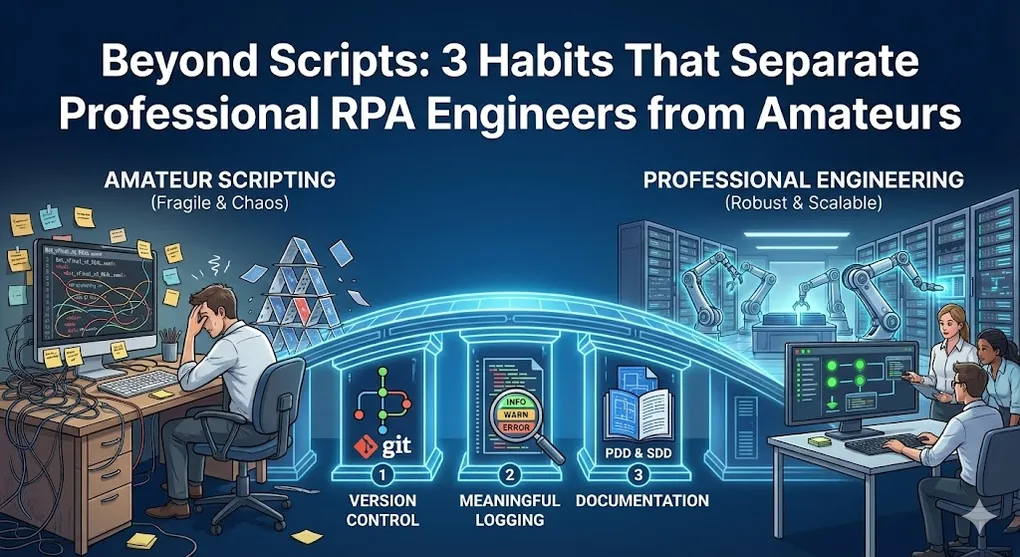
Beyond Scripts: 3 Habits That Separate Professional RPA Engineers from Amateurs
Anyone can record a macro. Fewer can build a robust automation. Even fewer can build one that someone else can maintain, debug, and extend a year later.
The difference isn’t raw technical skill—it’s engineering discipline.
Today, we’ll cover three habits that distinguish professional RPA engineers from script builders: version control, meaningful logging, and documentation. None of these are glamorous. All of them are essential.
Habit 1: Version Control with Git
“It worked yesterday. What changed?” If you can’t answer this question in 30 seconds, you don’t have version control.
Why Git for RPA?
| Without Git | With Git |
|---|---|
Email attachments: Invoice_Bot_v3_FINAL_v2.xaml | Clean history: git log --oneline |
| ”Who changed this and why?” → Shrug | git blame shows exactly who, when, why |
| Rollback = find old backup somewhere | git revert abc123 |
| Two people can’t work on same bot | Branches and merges |
| Code reviews = send zip file | Pull requests with inline comments |
Git Basics for RPA
Essential Commands
# Clone a repository
git clone https://github.com/company/invoice-bot.git
# Check current status
git status
# Stage changes
git add .
# Commit with message
git commit -m "Fix: Handle null vendor name gracefully"
# Push to remote
git push origin main
# Pull latest changes
git pull origin main
# Create a branch
git checkout -b feature/add-email-notifications
# Switch branches
git checkout main
# Merge branch
git merge feature/add-email-notifications
Commit Message Best Practices
Write commits like you’re leaving notes for future you (who will have forgotten everything):
BAD:
- "fixed bug"
- "updates"
- "asdfasdf"
- "final version"
GOOD:
- "Fix: Handle timeout when SAP is slow to respond"
- "Feature: Add email notification on failure"
- "Refactor: Extract PDF parsing to separate workflow"
- "Config: Update queue name for production"
Commit Message Format
<type>: <short description>
<optional longer description>
<optional reference to ticket>
Types:
Fix: Bug fixFeature: New functionalityRefactor: Code restructure without behavior changeConfig: Configuration changesDocs: Documentation updatesTest: Adding or updating tests Example:
Fix: Handle empty rows in invoice Excel file
Previously, the bot would crash if row 50 was empty but row 51 had data.
Now we skip empty rows and continue processing.
Fixes: JIRA-1234
Branching Strategy
For RPA teams, a simple strategy works best:
┌─────────────────────────────────────────────────────────────────────────┐
│                        Git Flow for RPA Teams                            │
├─────────────────────────────────────────────────────────────────────────┤
│                                                                          │
│  main (Production)                                                       │
│  ═══════════════════●═══════════════════●═══════════════●════════════   │
│                     ▲                   ▲               ▲                │
│                     │ Release           │ Hotfix        │ Release        │
│                     │                   │               │                │
│  develop            │                   │               │                │
│  ─────●─────●───────┴────●────●─────────┴────●──────────┴─────────────   │
│       │     │            ▲    │              ▲                           │
│       │     │            │    │              │                           │
│       │     └──────┐     │    └────────┐     │                           │
│       │            │     │             │     │                           │
│       ▼            ▼     │             ▼     │                           │
│  feature/       bugfix/  │        feature/   │                           │
│  add-retry     sap-timeout        new-vendor │                           │
│  ──●──●──●──▶             ──●──●──▶           │                           │
│       │                      │                                           │
│       │   Code Review        │   Code Review                             │
│       │   (Pull Request)     │   (Pull Request)                          │
│       └──────────────────────┘                                           │
│                                                                          │
│  hotfix/ (Emergency)                                                     │
│  ────────────────────────────●──────▶                                    │
│                              │                                           │
│                              └── Direct merge to main + backport         │
│                                                                          │
└─────────────────────────────────────────────────────────────────────────┘
Flow:
- Create feature branch from
develop - Work on feature, commit often
- Pull request to
developfor code review - Merge to
developafter approval - Periodically merge
developtomainfor releases - Hotfixes: Branch from
main, fix, merge back to bothmainANDdevelop
XAML Merge Conflicts: The Pain Point
[!WARNING] XAML conflicts are brutal. UiPath workflows are XML with GUIDs, making manual conflict resolution nearly impossible. Prevention Strategies: | Strategy | When to Use | |----------|-------------| | Communicate before merging | Before merging large branches, sync with the team to avoid overlapping changes | | Small, frequent commits | Merge daily to reduce conflict scope | | Split workflows | One person per
.xamlfile; split large workflows by function | When Conflicts Happen:
Option 1: UiPath Visual Merge (Studio 2021.10+)
  └── Team → Git → Resolve Conflicts → Visual Comparison
  └── Shows side-by-side workflow diff
  └── Best for: Simple conflicts
Option 2: Accept Theirs/Ours
  └── git checkout --theirs path/to/file.xaml
  └── git checkout --ours path/to/file.xaml
  └── Best for: When you trust one version completely
Option 3: Re-implement
  └── Accept one version, manually re-apply changes from the other
  └── Best for: Complex conflicts on critical workflows
[!TIP] Pro Tip: Before a major merge, export your changes as a separate backup
.xaml. If the merge goes badly, you have a clean reference to re-apply.
UiPath + Git Integration
UiPath Studio has built-in Git support:
- Team → Git Init: Initialize repository
- Team → Commit: Stage and commit changes
- Team → Push/Pull: Sync with remote
- Team → Manage Branches: Create, switch, merge What gets tracked:
.xamlfiles (actual automation code)project.json(project settings)Config.xlsx(configuration)
Recommended .gitignore for UiPath
💡 Critical: A proper
.gitignoreprevents irrelevant changes from polluting your commit history and causing merge conflicts.
# ===================================================
# UiPath Project .gitignore Template
# ===================================================
# ---------------- UiPath Local Files ----------------
# These are auto-generated and machine-specific
.local/
.objects/
.project/
.tmh/
# Screenshots captured during development
.screenshots/
# NuGet packages (will be restored automatically)
.nuget/
packages/
# ---------------- Build Outputs ----------------
output*/
bin/
obj/
*.nupkg
# ---------------- IDE & Editor Files ----------------
.vs/
*.suo
*.user
*.userosscache
*.sln.docstates
# Visual Studio Code
.vscode/
# JetBrains IDEs
.idea/
# ---------------- OS-Specific ----------------
# Windows
Thumbs.db
desktop.ini
# macOS
.DS_Store
# ---------------- Sensitive & Local Config ----------------
# Local test data (may contain real data)
Data/Test*/
TestData/
# Personal credentials or local overrides
*.local.xlsx
Config.local.xlsx
# Log files from local runs
*.log
Logs/
# ---------------- Common Ignored Extensions ----------------
*.tmp
*.temp
*.bak
*.swp
~$*
Common Pitfalls to Avoid:
| File/Folder | Why Ignore? | What Happens If Committed? |
|---|---|---|
.local/ | Contains machine-specific settings, breakpoints | Merge conflicts every commit |
.screenshots/ | Development-time UI captures | Bloats repository size |
packages/ | NuGet dependencies | Large repo, already in NuGet feed |
*.nupkg | Built output package | Wrong version in version control |
project.json version changes | Auto-incremented on publish | Constant “which version” conflicts |
⚠️ Note on
project.json: Some teams choose to ignore version number changes inproject.jsonto avoid frequent conflicts. Others keep it tracked for traceability. Decide as a team and be consistent. [!CAUTION] Never Ignoreproject.jsonEntirely!
While you may want to ignore frequent version number changes, the file itself must be tracked:
- It defines package dependencies and their versions
- It stores project settings (target framework, entry point)
- Without it, builds will fail or use wrong dependency versions
Safe approach: Track
project.json, but agree on who “owns” version bumps (e.g., only CI/CD pipeline updates version).
Code Review Practices
Before merging, reviewers should check:
| Category | What to Look For |
|---|---|
| Functionality | Does it do what the ticket describes? |
| Error handling | Are exceptions caught appropriately? |
| Selectors | Are they stable? Using wildcards where needed? |
| Hardcoding | Any values that should be in config? |
| Logging | Meaningful log messages at appropriate levels? |
| Naming | Variables and workflows named clearly? |
| Performance | Any obvious inefficiencies? |
Habit 2: Logging Strategy
“The bot failed.” “Where?” “I don’t know.” This conversation happens when logging is an afterthought.
The Purpose of Logging
Logs serve three audiences:
| Audience | What They Need |
|---|---|
| Developers | Debugging information, stack traces, variable values |
| Operations | What happened? When? Is action needed? |
| Business | Was the process successful? What was processed? |
| Each needs different information at different detail levels. |
Log Levels
| Level | When to Use | Example |
|---|---|---|
| Trace | Detailed debugging (variable values, loops) | Trace: Processing row 47, Amount=1234.56 |
| Info | Normal operations, milestones | Info: Invoice INV-001 processed successfully |
| Warn | Something unusual but non-fatal | Warn: Vendor not found, using default |
| Error | Operation failed, needs attention | Error: SAP login failed after 3 retries |
| Fatal | Process cannot continue | Fatal: Config file missing, aborting |
What Makes a Good Log?
Bad Log
Log: Error occurred
Log: Processing...
Log: Done
Useless. What error? Processing what? Done with what?
Good Log
Log [Info]: Starting Invoice Processing for batch 2024-01-15
Log [Info]: Retrieved 47 items from queue Invoice_Processing
Log [Info]: Processing INV-12345: Vendor=ACME Corp, Amount=$1,234.56
Log [Trace]: Looking up vendor ACME Corp in SAP
Log [Trace]: Found vendor ID V00123
Log [Info]: INV-12345 posted successfully with SAP transaction 4500001234
Log [Warn]: INV-12346 skipped - Amount $0.00 below minimum threshold
Log [Error]: INV-12347 failed - Vendor "XYZ Unknown" not found in SAP
Log [Info]: Batch complete. 45 successful, 1 skipped, 1 failed.
Notice:
- Transaction identifiers included
- Enough context to understand what was being attempted
- Outcome is clear
- Warnings for non-fatal issues
- Summary at the end
Logging Anti-Patterns
Anti-Pattern 1: Over-Logging
Log.Info("Entering For Each loop")
For Each row In data
    Log.Info("Processing row")
    Log.Info("Getting Invoice Number")
    invoiceNumber = row("InvoiceNumber")
    Log.Info("Got Invoice Number: " & invoiceNumber)
    Log.Info("Getting Amount")
    amount = row("Amount")
    Log.Info("Got Amount: " & amount)
    ' ... continues for every single action ...
Next
Log.Info("Exiting For Each loop")
This creates megabytes of logs that no one will read. Fix: Log at transaction level, not line level:
Log.Info($"Processing {data.RowCount} invoices")
For Each row In data
    Log.Trace($"Processing {row("InvoiceNumber")}: Amount={row("Amount")}")
    ' ... processing ...
Next
Log.Info($"Completed processing. Success: {successCount}, Failed: {failCount}")
Anti-Pattern 2: Missing Context
Catch ex As Exception
    Log.Error("Error occurred")  ' WHAT error? Processing WHAT?
End TryFix: Include the context:
Catch ex As Exception
    Log.Error($"Failed processing invoice {invoiceNumber}: {ex.Message}")
End Try
Anti-Pattern 3: Secrets in Logs
Log.Info($"Logging into SAP with password: {password}") ' NEVER DO THISFix: Never log credentials, PII, or sensitive data.
Structured Logging with Add Log Fields
🔥 UiPath Pro Tip: The
Add Log Fieldsactivity is the core implementation of structured logging in UiPath, yet it’s often overlooked. Modern log platforms (Splunk, ELK/Elasticsearch, Application Insights) work best with structured data. In UiPath, string concatenation is the naive approach:
' Naive approach - string concatenation
Log.Info($"Processed invoice {invoiceNumber} for vendor {vendor} amount {amount}")
' Result in Elasticsearch: One big "message" field you can only text-search
The Better Way: Add Log Fields Activity
┌─────────────────────────────────────────────────────────────────┐
│                    Add Log Fields Activity                       │
├─────────────────────────────────────────────────────────────────┤
│                                                                  │
│  ┌─────────────────────────────────────────────────────────────┐│
│  │ Arguments (Dictionary<String, Object>):                     ││
│  │   "InvoiceNumber" → in_InvoiceNumber                        ││
│  │   "VendorName"    → in_VendorName                           ││
│  │   "Amount"        → in_Amount                               ││
│  │   "TransactionID" → in_TransactionItem.Id.ToString          ││
│  └─────────────────────────────────────────────────────────────┘│
│                              │                                   │
│                              ▼                                   │
│  ┌─────────────────────────────────────────────────────────────┐│
│  │ All subsequent Log Message activities will include these    ││
│  │ fields as SEPARATE, SEARCHABLE columns in Orchestrator/ELK  ││
│  └─────────────────────────────────────────────────────────────┘│
│                              │                                   │
│                              ▼                                   │
│  ┌─────────────────────────────────────────────────────────────┐│
│  │ Log Message: "Invoice processing started"                   ││
│  │                                                              ││
│  │ In Orchestrator/Elasticsearch, this becomes:                 ││
│  │   message:       "Invoice processing started"                ││
│  │   InvoiceNumber: "INV-12345"   ← Searchable field!           ││
│  │   VendorName:    "ACME Corp"   ← Searchable field!           ││
│  │   Amount:        1234.56       ← Numeric, aggregatable!      ││
│  │   TransactionID: "a1b2c3d4"    ← Filterable!                 ││
│  └─────────────────────────────────────────────────────────────┘│
│                                                                  │
│  ┌─────────────────────────────────────────────────────────────┐│
│  │ Remove Log Fields (at end of transaction)                   ││
│  │   Keys: InvoiceNumber, VendorName, Amount, TransactionID    ││
│  └─────────────────────────────────────────────────────────────┘│
│                                                                  │
└─────────────────────────────────────────────────────────────────┘
Practical Example: REFramework Integration
' In Process Transaction state, BEFORE doing any work:
Dim logFields As New Dictionary(Of String, Object) From {
    {"TransactionID", in_TransactionItem.Id.ToString},
    {"Reference", in_TransactionItem.Reference},
    {"InvoiceNumber", in_TransactionItem.SpecificContent("InvoiceNumber").ToString},
    {"VendorName", in_TransactionItem.SpecificContent("Vendor").ToString},
    {"Amount", CDec(in_TransactionItem.SpecificContent("Amount"))}
}
' Use Add Log Fields activity with this dictionary
' Now ALL logs within this transaction automatically include these fields!
Log.Info("Processing started")
Log.Info("Vendor lookup completed")
Log.Info("SAP posting successful")
' Each of these logs has InvoiceNumber, VendorName, etc. attached!
' At END of transaction: Remove Log Fields to clean up for next item
Why This Matters for Enterprise Operations:
| Capability | String Concatenation | Add Log Fields |
|---|---|---|
| Search by InvoiceNumber | Text search: message:*INV-12345* | Field query: InvoiceNumber:"INV-12345" |
| Filter by Amount > 10000 | ❌ Not possible | ✅ Amount:>10000 |
| Aggregate by Vendor | ❌ Requires regex parsing | ✅ Native aggregation |
| Dashboard charts | ❌ Manual extraction | ✅ Direct field mapping |
| Alerting rules | ❌ Complex text parsing | ✅ Amount > 10000 AND VendorName:"ACME" |
| Best Practice: Standard Log Fields | ||
| Field Name | Type | When to Add |
| ------------ | ------ | ------------- |
BusinessProcess | String | At process start |
TransactionID | String | At transaction start |
TransactionType | String | At transaction start |
CustomerID / VendorID | String | When known |
DocumentNumber | String | When processing specific document |
Amount | Decimal | For financial transactions |
Environment | String | Dev/UAT/Prod (from config) |
| This transforms your logs from plain text files into a queryable business intelligence database. |
[!IMPORTANT] Correlation ID: The One Field You Must Always Add
The most critical log field isTransactionID(orCorrelationID). When an error occurs:
- Operations team gets alert: “Transaction XYZ failed”
- They search:
TransactionID:"XYZ"- Instantly see all logs for that transaction across Init, Process, and End states
Without this, debugging means scrolling through thousands of log lines hoping to find the right ones. With it, you filter to the 10-20 lines that matter in under 1 second.
Log Retention and Rotation
Consider:
- How long do you need logs? (Compliance requirements?)
- How much storage is acceptable?
- Are logs searchable after archival? | Environment | Trace | Info | Warn/Error | |-------------|-------|------|------------| | Development | 7 days | 30 days | 90 days | | UAT | 7 days | 30 days | 180 days | | Production | Off | 90 days | 1 year+ |
Habit 3: Documentation
“How does this work?” “Ask the person who built it.” “They left the company.” Documentation is insurance against knowledge loss.
The Two Essential Documents
1. PDD: Process Definition Document
Purpose: Explain what the process should do (business perspective) Audience: Business stakeholders, new developers, auditors Contents:
| Section | Description |
|---|---|
| Process Overview | What does this automation accomplish? |
| Business Context | Why does this process exist? What problem does it solve? |
| AS-IS Process | How is it done manually today? (step-by-step) |
| TO-BE Process | How will the bot do it? What changes? |
| Input/Output | What data goes in? What comes out? |
| Business Rules | Decision logic (if amount > X, do Y) |
| Exception Handling | What happens when things go wrong? |
| SLA Requirements | How fast? How often? By when? |
| Stakeholders | Who owns this? Who to contact? |
| Example AS-IS/TO-BE: |
AS-IS (Manual Process):
1. Clerk opens email inbox
2. Clerk downloads invoice PDF attachments
3. Clerk opens SAP GUI
4. For each invoice:
   a. Clerk looks up vendor by name
   b. Clerk enters invoice header (date, amount)
   c. Clerk enters line items
   d. Clerk posts document
   e. Clerk records SAP document number in Excel
5. Clerk sends summary email to manager
Average time: 3 minutes per invoice
TO-BE (Automated Process):
1. Bot monitors shared mailbox for new emails
2. Bot downloads PDF attachments to processing folder
3. Bot extracts invoice data using Document Understanding
4. Bot logs into SAP
5. For each invoice:
   a. Bot looks up vendor (error if not found)
   b. Bot enters data via GUI automation
   c. Bot captures SAP document number
   d. Bot updates status in tracking spreadsheet
6. Bot sends summary email with success/failure counts
Average time: 45 seconds per invoice
2. SDD: Solution Design Document
Purpose: Explain how the automation is built (technical perspective) Audience: Developers, support team, code reviewers Contents:
| Section | Description |
|---|---|
| Architecture Overview | High-level design (Dispatcher-Performer? REFramework?) |
| Component Diagram | Workflows and how they connect |
| Data Flow | How data moves through the system |
| Config Settings | What’s in Config.xlsx and why |
| Orchestrator Setup | Queues, assets, triggers needed |
| Exception Catalog | List of known exceptions and handling |
| Selector Strategy | Key selectors and stability notes |
| Dependencies | External systems, credentials, network |
| Deployment Steps | How to deploy to new environment |
[!TIP] Document Naming Convention
Keep documentation synchronized with code versions using this pattern:v2026.01.22_InvoiceBot_SDD.docx v2026.01.22_InvoiceBot_PDD.docxOr with semantic versioning:
InvoiceBot_SDD_v1.2.0.docx ← Matches project.json versionKey Rule: When you merge a feature branch, update both code version AND document version. This prevents “which doc goes with which release?” confusion. Example Component Diagram:
┌─────────────────────────────────────────────────────────────────┐
│              Invoice Processing Solution Architecture            │
├─────────────────────────────────────────────────────────────────┤
│                                                                  │
│  ┌──────────────────────────────────────┐                       │
│  │           Main.xaml                   │                       │
│  │      (REFramework Orchestrator)       │                       │
│  └────────────────┬─────────────────────┘                       │
│                   │                                              │
│    ┌──────────────┼──────────────┬───────────────┐              │
│    ▼              ▼              ▼               ▼              │
│  ┌─────┐    ┌──────────┐  ┌──────────┐   ┌──────────┐          │
│  │Init │    │Get Trans.│  │ Process  │   │   End    │          │
│  │State│    │  Data    │  │  Trans.  │   │ Process  │          │
│  └──┬──┘    └────┬─────┘  └────┬─────┘   └──────────┘          │
│     │            │             │                                 │
│     ▼            ▼             ▼                                 │
│  ┌─────────┐ ┌─────────┐ ┌─────────────────────────────┐        │
│  │LoadConfig│ │GetQueue │ │      ProcessInvoice.xaml    │        │
│  │OpenSAP   │ │Item     │ │ ┌─────────┐ ┌────────────┐ │        │
│  │ValidateEnv│└─────────┘ │ │LookupVen│ │EnterInvoice│ │        │
│  └─────────┘              │ │dor.xaml │ │Data.xaml   │ │        │
│                           │ └─────────┘ └────────────┘ │        │
│                           └─────────────────────────────┘        │
│                                                                  │
└─────────────────────────────────────────────────────────────────┘
Documentation Anti-Patterns
Anti-Pattern 1: No Documentation
“The code is self-documenting.” No, it isn’t. XAML workflows are verbose. Comments get lost. Business context isn’t in code.
Anti-Pattern 2: Outdated Documentation
Documentation written once and never updated is worse than no documentation—it’s actively misleading. Fix: Update docs as part of the pull request. If code changes, docs change.
Anti-Pattern 3: Documentation as Afterthought
Writing docs after the project is done means:
- You’ve forgotten details
- You don’t have time (deadline passed)
- You skip it Fix: Write PDD before development. Update SDD during development.
Inline Documentation
In addition to external docs, comment your code:
' ====================================================================
' Workflow: LookupVendorBySAP
' Purpose: Find vendor ID using vendor name in SAP VD03
' Input: vendorName (String) - The vendor company name
' Output: vendorID (String) - SAP vendor number or Nothing if not found
' Notes:
'   - Uses partial match (name contains)
'   - Returns first match if multiple found
'   - Throws BusinessRuleException if vendor blocked
' ====================================================================
' SAP sometimes takes 5+ seconds to load search results
' Using extended timeout to handle slow days
WaitForElement(searchResultsTable, timeout:=15000)
' The vendor table doesn't have stable IDs, so we're using
' anchor-based selection: find "Active" label, then get adjacent cell
' TODO: Ask SAP team if they can add IDs in next release
README.md
Every repository should have a README:
# Invoice Processing Bot
Automated processing of vendor invoices from email to SAP.
## Quick Start
1. Clone this repository
2. Open in UiPath Studio
3. Update `Data\Config.xlsx` with your environment settings
4. Publish to Orchestrator
## Configuration
| Setting | Description | Required |
|---------|-------------|----------|
| `OrchestratorQueueName` | Queue for invoice items | Yes |
| `SAPSystemID` | Target SAP system (DEV/QA/PRD) | Yes |
| `NotificationEmail` | Failure alert recipient | Yes |
## Architecture
Uses REFramework with Dispatcher-Performer pattern.
See `Docs/SDD.docx` for detailed design.
## Deployment
See `Docs/Deployment.md` for environment setup.
## Support
- Process Owner: finance@company.com
- Technical Support: rpa-team@company.com
- Documentation: SharePoint/RPA/InvoiceBot
Putting It All Together
These three habits reinforce each other:
- Version control tracks what changed
- Logging tells you what happened at runtime
- Documentation explains why it was built that way Together, they create observable, maintainable, collaborative automation.
The Professional RPA Checklist
Before declaring a project complete:
| Category | Checkpoint |
|---|---|
| Version Control | ☐ Code in Git repository |
| ☐ Meaningful commit messages | |
| ☐ No hardcoded secrets in code | |
| ☐ README with setup instructions | |
| Logging | ☐ Log level appropriate for production |
| ☐ Transaction identifiers in logs | |
| ☐ Summary log at process end | |
| ☐ No sensitive data in logs | |
| Documentation | ☐ PDD reviewed by business |
| ☐ SDD reflects actual implementation | |
| ☐ Exception catalog complete | |
| ☐ Deployment steps documented |
Key Takeaways
- Git is not optional. It’s how professional teams collaborate without chaos.
- Logs are for humans. Write them like you’re leaving clues for a detective (who is future you).
- Documentation decays. Budget time to maintain it, or don’t bother writing it.
- Process > talent. A mediocre developer with good habits outperforms a genius cowboy over time.
- Think about the maintainer. Often, that maintainer is you, in 6 months, having forgotten everything. The best RPA engineers aren’t the ones who build the most features. They’re the ones who build things that keep running—and that others can understand.
Habit 4: Error Handling Deep Dive
Beyond basic Try-Catch, production bots need sophisticated error strategies.
The Exception Hierarchy
┌─────────────────────────────────────────────────────────────────┐
│                    Exception Type Hierarchy                      │
├─────────────────────────────────────────────────────────────────┤
│                                                                  │
│   System.Exception (Base)                                        │
│   ├── System.ApplicationException                                │
│   │   └── UiPath.Core.BusinessRuleException  ← Data is wrong    │
│   │                                                              │
│   └── System.SystemException                                     │
│       ├── SelectorNotFoundException         ← UI element missing │
│       ├── TimeoutException                  ← Operation too slow │
│       ├── IOException                       ← File/network issue │
│       └── COMException                      ← Excel/Office crash │
│                                                                  │
│   Business Exception = Skip transaction, move to next            │
│   System Exception   = Retry or restart application              │
│                                                                  │
└─────────────────────────────────────────────────────────────────┘
Try-Catch vs Global Exception Handler
| Feature | Try-Catch | Global Handler |
|---|---|---|
| Scope | Single activity/sequence | Entire workflow |
| Granularity | Fine-grained control | Catch-all safety net |
| Best for | Expected exceptions you can handle | Unexpected crashes |
| Recovery | In-place retry possible | Usually terminates gracefully |
Best Practice: Use both! Try-Catch for anticipated issues, Global Handler as last resort.
' In SetTransactionStatus.xaml (REFramework)
Try
    ' Business logic
    ProcessInvoice(invoice)
Catch bex As BusinessRuleException
    ' Expected: bad data
    Log.Warn($"Business exception: {bex.Message}")
    Throw  ' Let REFramework handle (skip to next)
Catch ex As Exception
    ' Unexpected: system issue
    Log.Error($"System exception: {ex.Message}")
    Throw New System.Exception($"Failed processing {invoice.Id}", ex)
End Try
Retry Scope Best Practices
┌─────────────────────────────────────────────────────────────────┐
│                    Retry Scope Configuration                     │
├─────────────────────────────────────────────────────────────────┤
│                                                                  │
│   ┌─────────────────────────────────────────────────────────┐   │
│   │               Retry Scope Activity                      │   │
│   │                                                         │   │
│   │   Number of Retries: 3                                  │   │
│   │   Retry Interval (ms): 2000   ← Wait between retries    │   │
│   │                                                         │   │
│   │   ┌─────────────────────────────────────────────────┐   │   │
│   │   │ Action (Activities to Retry)                    │   │   │
│   │   │   - Click "Submit" button                       │   │   │
│   │   │   - Wait for confirmation                       │   │   │
│   │   └─────────────────────────────────────────────────┘   │   │
│   │                                                         │   │
│   │   ┌─────────────────────────────────────────────────┐   │   │
│   │   │ Condition (When to Stop Retrying)               │   │   │
│   │   │   Element Exists: "Success Message"             │   │   │
│   │   └─────────────────────────────────────────────────┘   │   │
│   │                                                         │   │
│   └─────────────────────────────────────────────────────────┘   │
│                                                                  │
│   Retry Scope retries on ANY exception inside the Action block   │
│   Condition check runs AFTER each attempt                        │
│                                                                  │
└─────────────────────────────────────────────────────────────────┘
When to Use Retry Scope:
- Clicking buttons that sometimes don’t register
- Waiting for slow-loading elements
- Network operations that occasionally fail
When NOT to Use:
- Business logic errors (bad data won’t improve with retry)
- Authentication failures (wrong password stays wrong)
Graceful Degradation
When full automation fails, have a fallback plan:
Primary Path (Fully Automated)
    │
    ├── Success → Complete transaction
    │
    └── Failure → Fallback Path
                    │
                    ├── Option A: Partial automation
                    │   (Send to human queue for manual step)
                    │
                    ├── Option B: Data preservation
                    │   (Save progress, create ticket)
                    │
                    └── Option C: Alert and wait
                        (Notify ops, pause for intervention)
Example: PDF Extraction Fallback
Try
    ' Primary: Use Document Understanding
    invoiceData = ExtractWithAI(pdfPath)
Catch ex As Exception When Not IsCritical(ex)
    ' Fallback 1: Try regex patterns
    Log.Warn("AI extraction failed, trying regex fallback")
    invoiceData = ExtractWithRegex(pdfPath)
Finally
    If invoiceData Is Nothing Then
        ' Fallback 2: Send to human
        AddToHumanQueue(pdfPath, "Extraction failed")
    End If
End Try
Habit 5: Performance Optimization
A bot that takes 5 minutes per transaction instead of 30 seconds isn’t just slow—it’s a business failure.
The Performance Hierarchy
| Level | Impact | Effort | Example |
|---|---|---|---|
| Architecture | 10x | High | Replace UI automation with API |
| Algorithm | 5x | Medium | Dictionary lookup vs nested loop |
| Activity | 2x | Low | SimulateClick vs Hardware Events |
| Micro | 1.1x | Low | Remove unnecessary delays |
Rule: Optimize from top to bottom. Don’t micro-optimize before fixing architecture.
UI Automation: The Slowest Part
┌─────────────────────────────────────────────────────────────────┐
│              Input Method Speed Comparison                       │
├─────────────────────────────────────────────────────────────────┤
│                                                                  │
│   Method                 Speed       Visibility Requirement      │
│   ────────────────       ─────       ──────────────────────      │
│                                                                  │
│   Hardware Events        🐢 Slow     Window must be foreground   │
│   (Default)              ~500ms      Simulates physical mouse    │
│                          per click                               │
│                                                                  │
│   SendWindowMessages     🐇 Fast     Window can be background    │
│                          ~50ms       Windows apps only           │
│                          per click                               │
│                                                                  │
│   SimulateClick/Type     🚀 Fastest  Window can be background    │
│                          ~10ms       Works on most apps          │
│                          per click                               │
│                                                                  │
│   Chromium API           🚀 Fastest  Chrome/Edge only            │
│                          ~10ms       Best for web automation     │
│                          per action                              │
│                                                                  │
└─────────────────────────────────────────────────────────────────┘Recommendation: Enable SimulateClick and SimulateType by default. Only use Hardware Events when required.
Background Automation
Run multiple bots on the same machine:
| Technique | Description | Speed Gain |
|---|---|---|
| Picture-in-Picture | Lightweight VM session | Moderate |
| Citrix/RDP Session | Full remote desktop | High (parallel) |
| Headless Browser | No visible UI | Very High |
| API-first | Skip UI entirely | Maximum |
Reduce UI Interactions
Before (10 clicks):
Click Field A → Type Value A → Tab
Click Field B → Type Value B → Tab
Click Field C → Type Value C → Tab
Click Save
After (3 actions):
Type Into Field A: Value A
Send Hotkey: Tab
Type Into Field B: Value B
Send Hotkey: Tab
Type Into Field C: Value C
Send Hotkey: Ctrl+S
Best Practices:
- Use keyboard shortcuts over mouse clicks
- Batch clipboard operations
- Use TypeInto with SimulateType instead of individual keystrokes
Memory Management
Symptoms of memory leaks:
- Bot slows down over time
- “Out of memory” errors after many transactions
- Machine becomes unresponsive
Prevention:
' Dispose Excel objects properly
Using excelApp As New Microsoft.Office.Interop.Excel.Application
    ' ... work with Excel ...
End Using  ' Automatically closed

' Clear large variables when done
largeDataTable = Nothing
GC.Collect()

' Close applications between batches
If transactionCount Mod 100 = 0 Then
    CloseAllApplications()
    OpenAllApplications()  ' Fresh state
End If
Benchmarking Your Bot
' Add timing to your logs
Dim stopwatch As New Stopwatch()
stopwatch.Start()

ProcessTransaction(item)

stopwatch.Stop()
Log.Info($"Transaction {item.Id} completed in {stopwatch.ElapsedMilliseconds}ms")

' Track averages
averageMs = (averageMs * count + stopwatch.ElapsedMilliseconds) / (count + 1)
If stopwatch.ElapsedMilliseconds > averageMs * 2 Then
    Log.Warn($"Transaction {item.Id} took {stopwatch.ElapsedMilliseconds}ms (avg: {averageMs}ms)")
End If