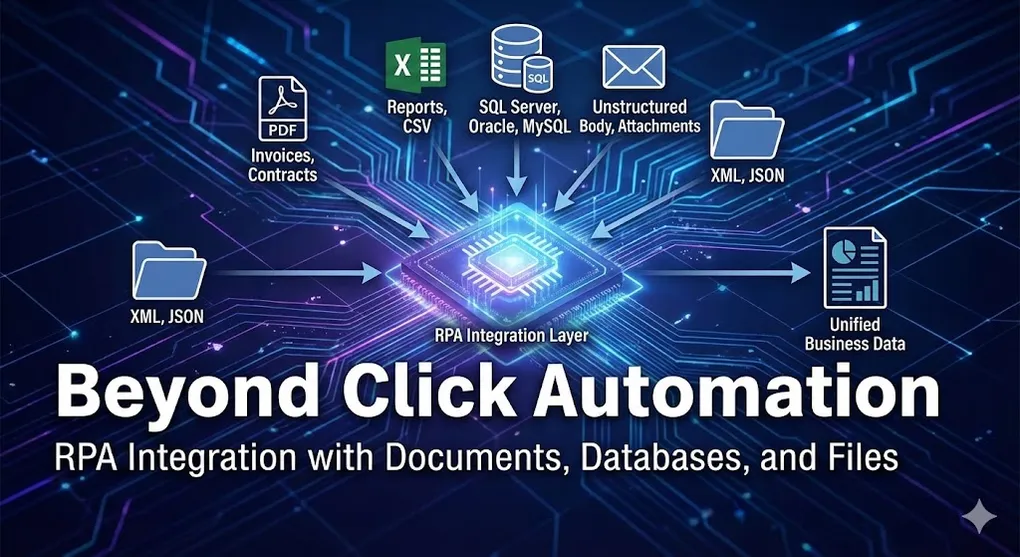
Beyond Click Automation: RPA Integration with Documents, Databases, and Files
Clicking buttons is easy. Moving data between systems is where RPA earns its keep.
In the real world, your automation needs to:
- Extract tables from PDF invoices
- Consolidate 50 Excel files into one report
- Read from and write to SQL Server
- Parse unstructured email bodies
- Handle CSV, XML, JSON, and legacy formats
This is the integration layer that makes RPA genuinely useful.
PDF Processing
PDFs are everywhere in business - invoices, contracts, reports. And they’re notoriously difficult to automate.
Types of PDFs
| Type | Characteristics | Extraction Method |
|---|---|---|
| Native/Digital | Created digitally, text is selectable | Direct text extraction |
| Scanned/Image | Photos of paper, no selectable text | OCR required |
| Hybrid | Mix of native text and embedded images | Combined approach |
Native PDF Extraction
For digitally-created PDFs, use Read PDF Text:
Activity: Read PDF Text
├── FileName: "C:\Invoices\invoice_001.pdf"
├── Range: "All" (or "1-3" for specific pages)
└── Output: extractedText (String)
The output is raw text. You’ll need to parse it:
' Extract invoice number using RegEx (with defensive programming)
pattern = "Invoice\s*#?\s*:?\s*(\w+-?\d+)"
match = Regex.Match(extractedText, pattern)

' IMPORTANT: Always check match.Success before accessing Groups
If match.Success Then
    invoiceNumber = match.Groups(1).Value
Else
    invoiceNumber = "NOT_FOUND"
    Log.Warn($"Could not extract invoice number from text")
End If

' Extract total amount
pattern = "Total\s*:?\s*\$?([\d,]+\.\d{2})"
match = Regex.Match(extractedText, pattern)

If match.Success Then
    totalAmount = Decimal.Parse(match.Groups(1).Value.Replace(",", ""))
Else
    totalAmount = 0
    Log.Warn($"Could not extract total amount from text")
End If
Defensive Programming: Always use
If match.Successbefore accessingmatch.Groups(). Without this check, your bot will crash on documents with unexpected formats.
Extracting Tables from PDFs
For structured data, Read PDF with OCR with table extraction:
Activity: Read PDF With OCR
├── FileName: "invoice.pdf"
├── OCR Engine: UiPath Document OCR
├── ExtractTables: True
└── Output:
    ├── Text: fullText
    └── Tables: extractedTables (DataTable[])
Processing the extracted table:
For Each table As DataTable In extractedTables
    For Each row As DataRow In table.Rows
        itemName = row(0).ToString()
        quantity = Convert.ToInt32(row(1))
        unitPrice = Convert.ToDecimal(row(2))
        Log.Info($"Item: {itemName}, Qty: {quantity}, Price: {unitPrice}")
    Next
Next
Scanned PDF + OCR
For image-based PDFs:
Activity: Read PDF With OCR
├── FileName: "scanned_invoice.pdf"
├── OCR Engine: Google Cloud Vision (or Tesseract, ABBYY)
├── Language: "eng" (or "chi_tra" for Traditional Chinese)
└── Output: ocrText
OCR Engine Comparison:
| Engine | Accuracy | Speed | Cost | Best For |
|---|---|---|---|---|
| Tesseract | Good | Fast | Free | Simple documents |
| Google Vision | Excellent | Medium | Pay-per-use | Multi-language |
| ABBYY FineReader | Excellent | Slow | License | Complex layouts |
| UiPath Document OCR | Very Good | Fast | Included | UiPath integration |
2026 Approach: Document Understanding (DU)
[!IMPORTANT] Regex is Not Enough for Real-World Documents Traditional pattern matching fails when invoice formats vary by vendor. UiPath Document Understanding uses AI to intelligently extract data.
How Document Understanding Works:
+--------------------------------------------------------------------+
|              Document Understanding Pipeline                        |
+--------------------------------------------------------------------+
|                                                                    |
|   PDF/Image -> Digitize -> Classify -> Extract -> Validate -> Export
|       |           |          |          |          |        |
|       v           v          v          v          v        v
|   [Input]     [OCR]    [Document   [ML Model  [Human    [JSON]
|               Engine    Type ID]   Key-Value  Review
|                                    Pairs]     Station]
|                                                                    |
|   Key Benefit: AI automatically finds fields like "Invoice #",    |
|   "Total", "Vendor" without hardcoded coordinates or Regex.       |
|                                                                    |
+--------------------------------------------------------------------+
When to Use What:
| Scenario | Regex/OCR | Document Understanding |
|---|---|---|
| Single vendor, fixed format | ✓ Simple | Overkill |
| Multi-vendor invoices | ✗ Nightmare | ✓ Perfect |
| Handwritten forms | ✗ Impossible | ~ Requires training |
| High accuracy requirements | ~ Brittle | ✓ Self-improving |
[!TIP] Even without full DU training, Intelligent Keyword Classifier and Form Extractor can handle many document types out-of-the-box.
PDF Generation
Creating PDFs from data:
' Generate PDF from HTML template
htmlContent = File.ReadAllText("template.html")
htmlContent = htmlContent.Replace("{{InvoiceNumber}}", invoiceNumber)
htmlContent = htmlContent.Replace("{{CustomerName}}", customerName)
htmlContent = htmlContent.Replace("{{TotalAmount}}", totalAmount.ToString("C"))

Activity: Generate PDF
├── Source: htmlContent
├── SourceType: HTML
└── FileName: "output_invoice.pdf"
Advanced Excel Operations
Excel is the universal translator of business data. Master it.
Beyond Read Range
Filtering and Sorting:
' Read entire sheet
dataTable = ExcelReadRange("data.xlsx", "Sheet1", "A1:Z1000")

' Filter using LINQ
filteredData = dataTable.AsEnumerable() _
    .Where(Function(r) r("Status").ToString() = "Pending" _
           AndAlso r.Field(Of Decimal)("Amount") > 1000) _
    .OrderByDescending(Function(r) r.Field(Of DateTime)("Date")) _
    .CopyToDataTable()

' Write filtered results
ExcelWriteRange(filteredData, "filtered_output.xlsx", "Results", "A1")
[!WARNING] Memory Killer: Large Excel Files
Read Rangeloads the entire file into memory. For files > 50MB or 100,000+ rows, your robot will crash withOutOfMemoryException.Solutions:
Approach When to Use Workbook Activities Doesn’t open Excel, lower memory OLEDB Provider Treat Excel as a database, query specific rows OpenXml (Coded Workflow) Streaming read, handle millions of rows OLEDB Example:
connectionString = "Provider=Microsoft.ACE.OLEDB.12.0;Data Source=huge.xlsx;Extended Properties='Excel 12.0;HDR=YES';"
sql = "SELECT * FROM [Sheet1$] WHERE Amount > 1000"
' Only loads matching rows, not entire file
Dynamic Range Detection:
' Find last row with data
Activity: Excel Application Scope
├── Workbook: "data.xlsx"
└── Activities:
    ├── Read Cell: "A1048576" -> lastCell
    ├── Use formula: =COUNTA(A:A) to count non-empty
    └── Or use Get Last Row activity
Pivot Table Creation
While UiPath can’t directly create pivot tables, you can:
- Use Execute Macro (for macros saved in workbook):
Activity: Execute Macro
├── MacroName: "CreatePivotTable"
└── Parameters: [sourceRange, destSheet]- Use Invoke VBA Activity:
Important: The
Invoke VBAactivity requires a file path to a .vbs or .txt file containing the VBA code, NOT a code string directly. This is a common mistake.
Step 1: Create VBA Script File (CreatePivot.vbs):
Sub CreatePivot()
    Dim pt As PivotTable
    Dim pc As PivotCache
    Set pc = ThisWorkbook.PivotCaches.Create(xlDatabase, "Data!A1:E100")
    Set pt = pc.CreatePivotTable("Summary!A1")
    pt.AddDataField pt.PivotFields("Amount"), "Sum of Amount"
    pt.PivotFields("Category").Orientation = xlRowField
End Sub
Step 2: Call the Activity:
Activity: Invoke VBA
├── CodeFilePath: "C:\Scripts\CreatePivot.vbs"  -> File path, not code string!
├── EntryMethodName: "CreatePivot"
└── EntryMethodParameters: (empty or as needed)
Modern Alternative (2026): Consider using
Coded Workflows(see Article 7) to manipulate Excel viaInterop.Excelwith full IDE debugging support.
Multi-File Consolidation
Combining multiple Excel files:
' Get all Excel files in folder
files = Directory.GetFiles("C:\Reports\", "*.xlsx")

' Initialize master table with structure from first file
masterTable = ExcelReadRange(files(0), "Sheet1", "")
masterTable.TableName = "Consolidated"

' Append data from remaining files
For Each file In files.Skip(1)
    tempTable = ExcelReadRange(file, "Sheet1", "")

    ' Skip header row, append data rows
    For Each row As DataRow In tempTable.Rows.Cast(Of DataRow)().Skip(1)
        masterTable.ImportRow(row)
    Next
Next

' Write consolidated output
ExcelWriteRange(masterTable, "C:\Reports\consolidated.xlsx", "All Data", "A1")
Excel Formatting
Using Excel Application Scope for formatting:
Activity: Excel Application Scope
├── Workbook: "report.xlsx"
└── Activities:
    ├── Auto Fit Columns: Range="A:Z"
    ├── Set Range Color: Range="A1:E1", Color=Blue (header highlight)
    ├── Set Range Font: Range="A1:E1", Bold=True
    └── Add Borders: Range="A1:E100", Style=Thin
Database Connectivity
For high-volume, mission-critical data, databases beat Excel every time.
Security First: Never Hardcode Credentials
CRITICAL: Database passwords should NEVER appear in your code, config files, or logs.
Use Orchestrator Assets or Windows Credential Manager:
' WRONG - password in code or config (audit failure!)
connectionString = "Server=...;Password=MySecretPassword123;"

' CORRECT - retrieve from Orchestrator Credential Asset
dbCredential = GetCredential("DB_InvoiceDB_ServiceAccount")
connectionString = $"Server=server.company.com;Database=InvoiceDB;User Id={dbCredential.Username};Password={dbCredential.GetNetworkCredential().Password};"
For Windows Integrated Authentication (no password needed):
connectionString = "Server=server.company.com;Database=InvoiceDB;Integrated Security=True;"Connection Patterns
SQL Server:
' Using Credential Asset (recommended)
dbCredential = GetCredential("SQL_ServiceAccount")
connectionString = $"Server=server.company.com;Database=InvoiceDB;User Id={dbCredential.Username};Password={dbCredential.Password};"

Activity: Connect
├── ConnectionString: connectionString
├── ProviderName: "System.Data.SqlClient"
└── Output: dbConnection
Oracle:
connectionString = "Data Source=ORCL;User Id=rpa_user;Password={{password}};"
providerName = "Oracle.ManagedDataAccess.Client"
MySQL:
connectionString = "Server=mysql.company.com;Database=crm;Uid=rpa;Pwd={{password}};"
providerName = "MySql.Data.MySqlClient"
Query Execution
SELECT (Read Data):
Activity: Execute Query
├── Connection: dbConnection
├── Sql: "SELECT InvoiceID, Vendor, Amount, DueDate
          FROM Invoices
          WHERE Status = 'Pending' AND Amount > @MinAmount"
├── Parameters: {{"@MinAmount", 1000}}
└── Output: resultTable (DataTable)
[!CAUTION] SQL Injection: The Security Red Line The
@MinAmountparameter above isn’t just convenient - it’s mandatory for security.' ✗ DANGEROUS: String concatenation (SQL Injection vulnerable!) sql = "SELECT * FROM Users WHERE Name = '" & userInput & "'" ' If userInput = "'; DROP TABLE Users; --" -> Database destroyed ' ✓ SAFE: Parameterized query (SQL Injection proof) sql = "SELECT * FROM Users WHERE Name = @UserName" parameters = {{"@UserName", userInput}}When is this critical? Whenever data comes from external sources: email bodies, PDF text, user forms, API responses.
INSERT/UPDATE (Write Data):
Activity: Execute Non Query
├── Connection: dbConnection
├── Sql: "INSERT INTO ProcessedInvoices
          (InvoiceID, ProcessedDate, RobotName, Status)
          VALUES (@InvoiceID, @ProcessedDate, @RobotName, @Status)"
├── Parameters: {
    {"@InvoiceID", invoiceId},
    {"@ProcessedDate", DateTime.Now},
    {"@RobotName", Environment.MachineName},
    {"@Status", "Success"}
}
└── Output: rowsAffected (Int32)
Stored Procedures
For complex operations, use stored procedures:
Activity: Execute Non Query
├── Connection: dbConnection
├── CommandType: StoredProcedure
├── Sql: "sp_ProcessInvoiceBatch"
├── Parameters: {
    {"@BatchID", batchId},
    {"@ProcessedBy", "RPA_Bot"},
    {"@OutputStatus", Direction.Output, SqlDbType.VarChar, 50}
}
└── Output: outputParams
Batch Operations
For inserting thousands of rows:
' BAD: One insert per row (slow)
For Each row In dataTable.Rows
    ExecuteNonQuery("INSERT INTO ...")  ' 10,000 round trips!
Next

' GOOD: Bulk insert
Activity: Insert DataTable
├── Connection: dbConnection
├── TableName: "StagingTable"
├── DataTable: dataTable
└── BatchSize: 1000

' Or use stored procedure with table-valued parameter
Transaction Handling
For data integrity:
Activity: Start Transaction
├── Connection: dbConnection
└── Output: transaction

Try
    ExecuteNonQuery("UPDATE Accounts SET Balance = Balance - @Amount ...", transaction)
    ExecuteNonQuery("UPDATE Accounts SET Balance = Balance + @Amount ...", transaction)
    ExecuteNonQuery("INSERT INTO TransactionLog ...", transaction)

    Activity: Commit Transaction
    └── Transaction: transaction

Catch ex As Exception
    Activity: Rollback Transaction
    └── Transaction: transaction

    Throw
End Try
File and Folder Operations
File Management Patterns
Watching for New Files:
Activity: File Change Trigger
├── Path: "C:\Incoming\Invoices"
├── Filter: "*.pdf"
├── NotifyFilter: Created
└── Actions:
    └── Process each new file
Archiving Processed Files:
' Create dated archive folder
archiveFolder = Path.Combine("C:\Archive", DateTime.Now.ToString("yyyy-MM-dd"))
Directory.CreateDirectory(archiveFolder)

' Move processed file with timestamp
newFileName = $"{Path.GetFileNameWithoutExtension(file)}_{DateTime.Now:HHmmss}{Path.GetExtension(file)}"
File.Move(file, Path.Combine(archiveFolder, newFileName))
Safe File Handling:
' Wait for file to be fully written (not locked)
maxWaitSeconds = 30
waited = 0

While IsFileLocked(filePath) AndAlso waited < maxWaitSeconds
    Delay(1000)
    waited += 1
End While

If waited >= maxWaitSeconds Then
    Throw New ApplicationException($"File locked: {filePath}")
End If

' Now safe to process
ProcessFile(filePath)
XML Processing
' Load XML
doc = XDocument.Load("data.xml")

' Query with LINQ to XML
invoices = doc.Descendants("Invoice") _
    .Where(Function(i) Decimal.Parse(i.Element("Amount").Value) > 1000) _
    .Select(Function(i) New With {
        .Id = i.Element("InvoiceID").Value,
        .Amount = Decimal.Parse(i.Element("Amount").Value),
        .Vendor = i.Element("Vendor").Value
    }).ToList()

' Create XML
newDoc = New XDocument(
    New XElement("ProcessedInvoices",
        From inv In invoices
        Select New XElement("Invoice",
            New XAttribute("Id", inv.Id),
            New XElement("Status", "Processed"),
            New XElement("Timestamp", DateTime.Now)
        )
    )
)
newDoc.Save("output.xml")
JSON Processing with Newtonsoft.Json
JSON is the standard format for APIs and modern configuration files. UiPath uses Newtonsoft.Json (Json.NET) for JSON handling.
Package:
UiPath.Web.Activitiesincludes JSON activities on the left side will include. For code-based parsing,Newtonsoft.Jsonis already referenced.
Parsing JSON Response from API:
' After HTTP Request activity returns responseBody (String)
' Parse to JObject for navigation

Imports Newtonsoft.Json.Linq

jsonObject = JObject.Parse(responseBody)

' Access nested properties
customerId = jsonObject("data")("customer")("id").ToString()
customerName = jsonObject("data")("customer")("name").ToString()
orderCount = CInt(jsonObject("data")("orders").Count())

' Access array elements
firstOrderId = jsonObject("data")("orders")(0)("orderId").ToString()
Iterating JSON Arrays:
' API returns: {"invoices": [{...}, {...}, ...]}
invoicesArray = JArray.Parse(jsonObject("invoices").ToString())

For Each invoice As JToken In invoicesArray
    invoiceNumber = invoice("invoiceNumber").ToString()
    amount = CDec(invoice("amount"))
    vendorName = invoice("vendor")("name").ToString()

    ' Handle optional fields safely
    dueDate = If(invoice("dueDate") IsNot Nothing,
                 DateTime.Parse(invoice("dueDate").ToString()),
                 DateTime.Today.AddDays(30))

    Log.Info($"Processing {invoiceNumber}: {amount:C}")
Next
Building JSON for API Requests:
' Method 1: Using JObject
requestBody = New JObject()
requestBody("transactionId") = transactionId
requestBody("processedDate") = DateTime.Now.ToString("yyyy-MM-ddTHH:mm:ssZ")
requestBody("status") = "Completed"
requestBody("details") = New JObject()
requestBody("details")("itemCount") = itemCount
requestBody("details")("totalAmount") = totalAmount

jsonString = requestBody.ToString()
' Use in HTTP Request Body

' Method 2: Using Anonymous Types (cleaner)
requestData = New With {
    .transactionId = transactionId,
    .processedDate = DateTime.Now.ToString("yyyy-MM-ddTHH:mm:ssZ"),
    .status = "Completed",
    .details = New With {
        .itemCount = itemCount,
        .totalAmount = totalAmount
    }
}
jsonString = JsonConvert.SerializeObject(requestData)
Deserialize to Strongly-Typed Objects:
' Define class (in Invoke Code or Coded Workflow)
Public Class Invoice
    Public Property InvoiceNumber As String
    Public Property Amount As Decimal
    Public Property DueDate As DateTime
End Class

' Deserialize
invoiceList = JsonConvert.DeserializeObject(Of List(Of Invoice))(jsonString)

For Each inv As Invoice In invoiceList
    ' IntelliSense works! Type-safe!
    Log.Info($"{inv.InvoiceNumber}: {inv.Amount}")
Next
Working with Config.json (Modern Pattern):
' Read config file
configJson = File.ReadAllText("config.json")
config = JObject.Parse(configJson)

' Access settings
orchestratorUrl = config("Settings")("OrchestratorUrl").ToString()
maxRetries = CInt(config("Settings")("MaxRetries"))
enableNotifications = CBool(config("Settings")("EnableNotifications"))

' Environment-specific overrides
currentEnv = config("CurrentEnvironment").ToString()  ' "Dev", "UAT", "Prod"
dbConnection = config("Environments")(currentEnv)("DatabaseConnection").ToString()
Modern Alternative: System.Text.Json
[!NOTE] For Coded Workflows (2026+): Consider
System.Text.Json(.NET Core native) instead ofNewtonsoft.Jsonfor better performance.
// In Coded Workflow (.cs file)
using System.Text.Json;

// Deserialize (2-3x faster than Newtonsoft for large payloads)
var invoice = JsonSerializer.Deserialize<Invoice>(jsonString);

// Serialize
var json = JsonSerializer.Serialize(invoice, new JsonSerializerOptions
{
    WriteIndented = true,
    PropertyNamingPolicy = JsonNamingPolicy.CamelCase
});
When to Use Which:
| Library | Pros | Cons | Use When |
|---|---|---|---|
| Newtonsoft.Json | Feature-rich, flexible | Slower, larger | Complex JSON, legacy code |
| System.Text.Json | Faster, native, lower memory | Less flexible | Coded Workflows, high performance |
CSV Handling
' Read CSV with headers
Activity: Read CSV
├── FilePath: "data.csv"
├── IncludeColumnNames: True
├── Delimiter: ","
└── Output: csvTable

' Handle special cases
' - Quoted fields with commas inside
' - Different encodings (UTF-8, ASCII)
' - Custom delimiters (semicolon in Europe)

' Write CSV
Activity: Write CSV
├── FilePath: "output.csv"
├── DataTable: resultTable
├── IncludeColumnNames: True
└── Delimiter: ","
Email Processing
Reading and Parsing Emails
Activity: Get Outlook Mail Messages
├── Account: "invoices@company.com"
├── Filter: "[Subject] = 'Invoice' AND [ReceivedTime] >= '" &
            DateTime.Today.ToString("MM/dd/yyyy") & "'"
├── Top: 50
└── Output: emailMessages

For Each email In emailMessages
    ' Extract sender
    senderEmail = email.From.Address

    ' Parse body for data
    bodyText = email.Body
    invoiceNumber = ExtractWithRegex(bodyText, "Invoice\s*#?\s*:?\s*(\w+)")

    ' Save attachments
    For Each attachment In email.Attachments
        attachment.SaveAsFile($"C:\Incoming\{attachment.Name}")
    Next

    ' Mark as processed
    email.MarkAsRead()
    email.Move(processedFolder)
Next
Sending Formatted Emails
' Build HTML body
htmlBody = $"
<html>
<body>
    <h2>Daily Processing Report</h2>
    <p>Processing completed at {DateTime.Now:g}</p>
    <table border='1'>
        <tr><th>Metric</th><th>Value</th></tr>
        <tr><td>Processed</td><td>{successCount}</td></tr>
        <tr><td>Failed</td><td>{failCount}</td></tr>
        <tr><td>Duration</td><td>{duration.TotalMinutes:F1} minutes</td></tr>
    </table>
</body>
</html>
"

Activity: Send Outlook Mail Message
├── To: "ops-team@company.com"
├── Subject: $"[RPA] Daily Report - {DateTime.Today:d}"
├── Body: htmlBody
├── IsBodyHtml: True
├── Attachments: {"C:\Reports\daily_log.xlsx"}
└── Priority: Normal
Integration Patterns
Pattern 1: ETL Pipeline
+--------------------------------------------------------------------+
|                      ETL Pipeline Pattern                          |
+--------------------------------------------------------------------+
|                                                                    |
|  +----------+   +----------+   +----------+   +----------+         |
|  | EXTRACT  |-->|TRANSFORM |-->|   LOAD   |-->| ARCHIVE  |         |
|  +----------+   +----------+   +----------+   +----------+         |
|       |              |              |              |                |
|       v              v              v              v                |
|   - PDF OCR      - Validate     - SQL Insert   - Move files        |
|   - Email parse  - Cleanse      - API POST     - Update log        |
|   - Excel read   - Enrich       - Excel write  - Notify            |
|   - API GET      - Calculate    - Email send                       |
|                                                                    |
+--------------------------------------------------------------------+
Pattern 2: Data Reconciliation
' Load data from two sources
systemAData = QueryDatabase("SELECT * FROM Sales WHERE Date = @Date", systemA)
systemBData = ExcelReadRange("daily_report.xlsx", "Sales", "")

' Find discrepancies
discrepancies = (
    From a In systemAData.AsEnumerable()
    Join b In systemBData.AsEnumerable()
    On a("OrderID").ToString() Equals b("Order ID").ToString()
    Where a.Field(Of Decimal)("Amount") <> b.Field(Of Decimal)("Amount")
    Select New With {
        .OrderID = a("OrderID"),
        .SystemA_Amount = a("Amount"),
        .SystemB_Amount = b("Amount"),
        .Difference = a.Field(Of Decimal)("Amount") - b.Field(Of Decimal)("Amount")
    }
).ToList()

' Report discrepancies
If discrepancies.Any() Then
    SendAlertEmail(discrepancies)
    LogToDatabase(discrepancies)
End If
Error Handling for Data Integration
Try
    ' Attempt database operation
    result = ExecuteQuery(sql, parameters)

Catch ex As SqlException When ex.Number = 1205
    ' Deadlock - retry
    Log.Warn("Deadlock detected, retrying...")
    Delay(1000)
    result = ExecuteQuery(sql, parameters)

Catch ex As SqlException When ex.Number = -2
    ' Timeout - increase and retry
    Log.Warn("Query timeout, increasing timeout and retrying...")
    command.CommandTimeout = 120
    result = ExecuteQuery(sql, parameters)

Catch ex As IOException
    ' File locked or inaccessible
    Log.Error($"File I/O error: {ex.Message}")
    Throw New SystemException("Cannot access required file", ex)

Catch ex As Exception
    Log.Error($"Unexpected error: {ex.Message}")
    Throw
End Try
Key Takeaways
- PDFs require different strategies for native vs scanned documents.
- Excel is powerful beyond simple read/write - master LINQ for manipulation.
- Databases scale better than files for high-volume, concurrent access.
- Use transactions for data integrity in multi-step database operations.
- Archive everything: source files, processed data, logs.
- Handle file locks gracefully - files being written can’t be read.
- Email parsing requires robust RegEx for varying formats.
Data integration is where RPA stops being a toy and becomes enterprise infrastructure.