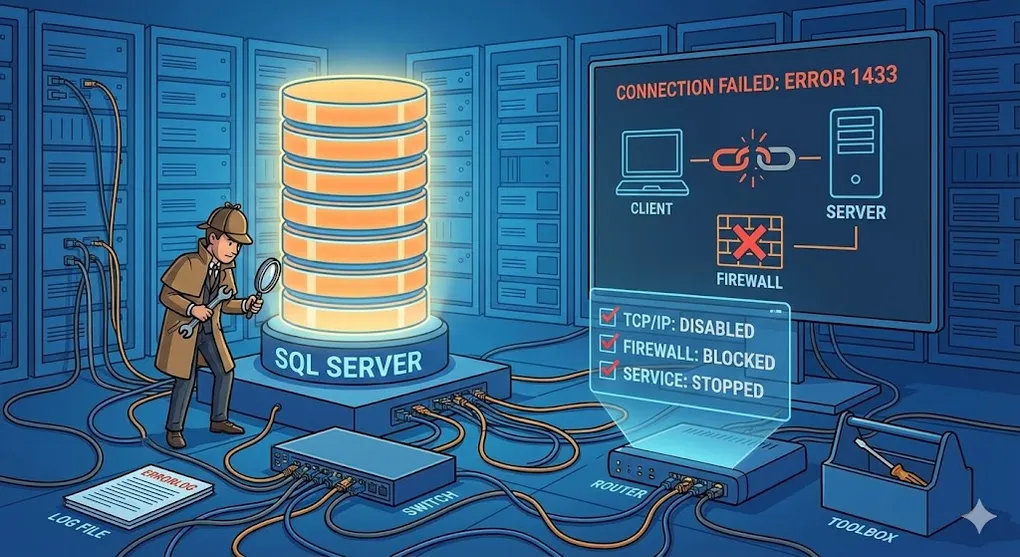
SQL Server Troubleshooting: Connection Issues & Debugging
Prerequisites: Understanding of SQL Server basics and networking. See DB 01 Networking Fundamentals.
When you encounter “Cannot connect to SQL Server,” the problem usually falls into two categories: Internal Settings or External Blockers. This guide will help you diagnose and fix both.
Part A: Understanding the Two Barriers
1. The Restaurant Analogy
Think of SQL Server as a restaurant, and the Client as a customer trying to call for delivery:
| Barrier | Analogy | Technical Name |
|---|---|---|
| Internal | Owner doesn’t accept phone orders | TCP/IP Protocol Disabled |
| External | Security cuts phone line | Firewall blocks Port 1433 |
2. Why Is TCP/IP Disabled by Default?
The SQL Slammer Worm (2003)
In January 2003, a devastating worm called SQL Slammer exploited SQL Server 2000’s open UDP Port 1434.
Damage in 10 minutes:
- 🇰🇷 South Korea: Nationwide internet blackout
- 🇺🇸 USA: Bank ATM systems crashed
- 🌍 Global: Internet backbone severely degraded
Microsoft’s Response:
“Never again. From now on, Secure by Default.”
That’s why modern SQL Server installations:
- ❌ TCP/IP disabled by default
- ❌ Remote connections blocked
- ✅ Only local “Shared Memory” connections allowed
You must manually enable TCP/IP to prove: “I know what I’m doing.”
Part B: Diagnosing Connection Problems
3. The Troubleshooting Checklist
When you see “Cannot connect to SQL Server,” check in this order:
4. Step 1: Check If SQL Server Service Is Running
Method A: Services Panel
1. Press Win + R
2. Type: services.msc
3. Look for: SQL Server (MSSQLSERVER)
4. Status should be: Running
Method B: PowerShell
# Check SQL Server service status
Get-Service -Name "MSSQLSERVER"

# If stopped, start it:
Start-Service -Name "MSSQLSERVER"
Method C: SQL Server Configuration Manager
1. Search: SQL Server Configuration Manager
2. Click: SQL Server Services
3. Look for green arrow (running) vs red square (stopped)
5. Step 2: Enable TCP/IP Protocol
This is the most commonly forgotten step!
Where to Find It
SQL Server Configuration Manager
└── SQL Server Network Configuration
    └── Protocols for MSSQLSERVER
        ├── Shared Memory     ← Enabled (local only)
        ├── Named Pipes       ← Disabled
        └── TCP/IP            ← Often DISABLED! ⚠️
How to Enable
Verify TCP/IP Port
After enabling, double-click TCP/IP → IP Addresses tab:
| Setting | Value |
|---|---|
| IPAll → TCP Port | 1433 (default) |
| IPAll → TCP Dynamic Ports | (leave blank for static port) |
6. Step 3: Open Firewall Port 1433
Even with TCP/IP enabled, the Windows Firewall might block external connections.
Method A: GUI (Windows Defender Firewall)
1. Open: Windows Defender Firewall with Advanced Security
2. Click: Inbound Rules → New Rule
3. Select: Port → Next
4. Select: TCP, Specific ports: 1433 → Next
5. Select: Allow the connection → Next
6. Check: Domain, Private, Public → Next
7. Name: SQL Server Port 1433 → Finish
Method B: PowerShell (One-liner)
# Add firewall rule for SQL Server
New-NetFirewallRule -DisplayName "SQL Server Port 1433" `
    -Direction Inbound -Protocol TCP -LocalPort 1433 -Action Allow
Method C: netsh Command
netsh advfirewall firewall add rule name="SQL Server" ^
    dir=in action=allow protocol=tcp localport=1433
☁️ Cloud & Enterprise Firewall Reminder
If Windows Firewall is open but you still can’t connect, check:
- AWS: Security Group inbound rules
- Azure: Network Security Group (NSG)
- Corporate: Hardware firewall / network team rules
Windows Defender Firewall is often just the first layer!
Part C: Diagnostic Commands
7. Testing Port Connectivity
Test 1: Telnet (Is Port Open?)
# First, enable Telnet client if not installed:
dism /online /Enable-Feature /FeatureName:TelnetClient

# Test connection:
telnet 192.168.1.50 1433
Results:
| Screen | Meaning |
|---|---|
| Blank black screen | ✅ Port is OPEN and reachable |
| ”Could not open connection” | ❌ Port is CLOSED or blocked |
Test 2: Test-NetConnection (PowerShell)
# Test if port 1433 is reachable
Test-NetConnection -ComputerName 192.168.1.50 -Port 1433

# Expected output if successful:
# TcpTestSucceeded : True
Test 3: Check What’s Listening (Local)
# See what ports SQL Server is listening on
netstat -an | findstr 1433

# Expected output:
# TCP    0.0.0.0:1433    0.0.0.0:0    LISTENING
8. Common Error Messages & Solutions
| Error Message | Cause | Solution |
|---|---|---|
| A network-related or instance-specific error | TCP/IP disabled or firewall blocking | Enable TCP/IP, open Port 1433 |
| Login failed for user | Wrong username/password | Check credentials |
| Cannot generate SSPI context | Kerberos/domain authentication issue | Use SQL Authentication instead |
| Server does not exist or access denied | Wrong server name/IP | Verify connection string |
| The server was not found | DNS resolution failed | Use IP address instead of hostname |
| Connection timeout expired | Firewall or network issue | Check firewall, increase timeout |
The UDL Test Trick (No Code Required!)
A quick way to test connection strings without writing any code:
1. Create a new text file on your desktop
2. Rename it to: Test.udl (accept the extension change)
3. Double-click to open the Data Link Properties dialog
4. Enter server name, authentication, and database
5. Click "Test Connection"
Why this helps: If UDL works but your app doesn’t, the problem is in your code. If UDL fails too, it’s a network/server issue.
9. SQL Server Error Log
For deeper troubleshooting, check the SQL Server error log:
Location
C:\Program Files\Microsoft SQL Server\MSSQL{version}.MSSQLSERVER\MSSQL\Log\ERRORLOGQuery the Log
-- View recent error log entries
EXEC xp_readerrorlog 0, 1, 'error'

-- View login failures
EXEC xp_readerrorlog 0, 1, 'Login failed'

-- View startup information
EXEC xp_readerrorlog 0, 1, 'Server is listening on'
Cycle the Error Log (For Clean Debugging)
When troubleshooting, old log entries create noise. Create a fresh log file first:
-- Start a new, clean error log file
EXEC sp_cycle_errorlog;

-- Now reproduce the problem...
-- Then check the fresh log:
EXEC xp_readerrorlog 0, 1;  -- Only new entries!
Pro Tip: Run
sp_cycle_errorlog→ reproduce the issue → read the fresh log. Much easier than searching through thousands of old entries!
Part D: Automation & Preventative Maintenance
10. What Is SQL Agent?
SQL Server Agent is your “Night Manager” — it automates tasks to prevent problems before they happen (disk full, log overflow, fragmented indexes).
11. Common SQL Agent Jobs
| Job Type | Schedule | Purpose |
|---|---|---|
| Full Backup | Sunday 12 AM | Complete database backup |
| Log Backup | Every 15 min | Transaction log backup |
| Index Rebuild | Weekly | Reduce fragmentation |
| Statistics Update | Daily | Keep query optimizer accurate |
| Disk Space Check | Every 10 min | Alert before running out |
12. Creating a Simple Backup Job
-- Create a job to backup database daily
USE msdb;
GO

EXEC sp_add_job
    @job_name = 'Daily Full Backup';

EXEC sp_add_jobstep
    @job_name = 'Daily Full Backup',
    @step_name = 'Backup MyDB',
    @subsystem = 'TSQL',
    @command = 'BACKUP DATABASE MyDB TO DISK = ''D:\Backups\MyDB_Full.bak'' WITH COMPRESSION, INIT';

EXEC sp_add_schedule
    @schedule_name = 'DailyAt3AM',
    @freq_type = 4,  -- Daily
    @active_start_time = 030000;  -- 3:00 AM

EXEC sp_attach_schedule
    @job_name = 'Daily Full Backup',
    @schedule_name = 'DailyAt3AM';

EXEC sp_add_jobserver
    @job_name = 'Daily Full Backup';
Summary: Quick Troubleshooting Guide
Connection Checklist
□ SQL Server service running?
□ TCP/IP enabled in Configuration Manager?
□ SQL Server restarted after enabling TCP/IP?
□ Port 1433 open in Windows Firewall?
□ Correct IP address in connection string?
□ Correct username/password?
Diagnostic Commands Cheat Sheet
| Command | Purpose |
|---|---|
telnet <IP> 1433 | Test if port is reachable |
Test-NetConnection -Port 1433 | PowerShell port test |
netstat -an | findstr 1433 | Check if SQL is listening |
ping <server> | Basic network connectivity |
nslookup <hostname> | DNS resolution check |
Key Takeaways
- TCP/IP is disabled by default — for security after SQL Slammer
- Always restart SQL Service after enabling TCP/IP
- Firewall blocks Port 1433 — must add inbound rule
- Use
Test-NetConnectionfor quick port testing - SQL Agent automates backups and maintenance
Part E: Named Instance & SQL Browser
13. Default Instance vs Named Instance
| Type | Connection String | Port |
|---|---|---|
| Default Instance | Server=192.168.1.50 | 1433 (fixed) |
| Named Instance | Server=192.168.1.50\SQLEXPRESS | Dynamic (changes!) |
The Problem with Named Instances
Named instances use dynamic ports — the port changes every time SQL Server restarts!
14. SQL Server Browser Service
SQL Browser solves the dynamic port problem. It listens on UDP 1434 and tells clients which port to use.
Enable SQL Browser
# Start SQL Browser service
Set-Service -Name "SQLBrowser" -StartupType Automatic
Start-Service -Name "SQLBrowser"
Firewall Rule for SQL Browser
New-NetFirewallRule -DisplayName "SQL Browser" `
    -Direction Inbound -Protocol UDP -LocalPort 1434 -Action Allow
Alternative: Set Static Port for Named Instance
1. SQL Server Configuration Manager
2. Protocols for SQLEXPRESS → TCP/IP → Properties
3. IP Addresses → IPAll:
   - TCP Dynamic Ports: (clear this)
   - TCP Port: 1433 (or any fixed port like 1434)
4. Restart SQL Server
Part F: Authentication & Security Issues
15. Windows Auth vs SQL Auth
| Mode | When It Fails |
|---|---|
| Windows Auth | Kerberos/NTLM issues, domain trust problems |
| SQL Auth | Wrong password, login disabled |
Error: “Cannot generate SSPI context”
This means Kerberos authentication failed. Common causes:
| Cause | Solution |
|---|---|
| Time sync issue | Ensure server and client clocks are within 5 minutes |
| SPN not registered | Run setspn -L <service_account> |
| DNS issue | Use IP address instead of hostname |
Enable SQL Authentication Mode
-- Check current authentication mode
SELECT SERVERPROPERTY('IsIntegratedSecurityOnly')
-- 0 = Mixed Mode (SQL + Windows)
-- 1 = Windows Only

-- Must change in SSMS:
-- Right-click Server → Properties → Security
-- → SQL Server and Windows Authentication mode
-- Then restart SQL Server!
16. TLS/SSL Certificate Errors
Error: “The certificate chain was issued by an authority that is not trusted”
Quick Fix (Dev/Test only!):
// Connection string
Server=192.168.1.50;Database=MyDB;User Id=sa;Password=xxx;TrustServerCertificate=True
Production Fix:
- Install a valid SSL certificate on SQL Server
- Or add the self-signed cert to client’s Trusted Root store
# Export SQL Server's certificate
# Then import on client:
Import-Certificate -FilePath "SQLCert.cer" -CertStoreLocation Cert:\LocalMachine\Root
Part G: Database State Issues
17. Database Recovery States
Sometimes a database is “there” but inaccessible:
| State | Meaning | Can Connect? |
|---|---|---|
| ONLINE | Normal | ✅ Yes |
| RESTORING | Waiting for more log restores | ❌ No |
| RECOVERING | Running recovery scripts | ❌ No (wait) |
| SUSPECT | Corruption detected | ❌ No |
| EMERGENCY | Admin-only mode | ⚠️ Limited |
| OFFLINE | Manually taken offline | ❌ No |
Check Database State
SELECT name, state_desc FROM sys.databases;Fix SUSPECT Database
-- Set to EMERGENCY mode to access
ALTER DATABASE [MyDB] SET EMERGENCY;

-- Check consistency
DBCC CHECKDB ('MyDB');

-- If OK, bring back online
ALTER DATABASE [MyDB] SET ONLINE;
18. Orphaned Users
When you restore a database from another server, login mappings break.
Find Orphaned Users
EXEC sp_change_users_login 'Report';Fix Orphaned Users
-- Re-map user to login
ALTER USER [bob] WITH LOGIN = [bob];

-- Or use the old method:
EXEC sp_change_users_login 'Auto_Fix', 'bob';
Part H: Performance & Resource Issues
19. Memory Configuration
Error: “There is insufficient system memory to run this query”
-- Check current memory settings
SELECT
    name,
    value_in_use
FROM sys.configurations
WHERE name LIKE '%memory%';

-- Set max server memory (leave some for OS!)
-- If 16GB total RAM, set SQL to 12GB:
EXEC sp_configure 'max server memory (MB)', 12288;
RECONFIGURE;| Total RAM | Windows Needs | SQL Server Max |
|---|---|---|
| 8 GB | 2 GB | 6 GB |
| 16 GB | 4 GB | 12 GB |
| 32 GB | 6 GB | 26 GB |
| 64 GB | 8 GB | 56 GB |
20. TempDB Issues
Error: “Could not allocate space for object in database ‘tempdb’”
TempDB is full! This stops almost everything.
-- Check tempdb space usage
SELECT
    SUM(size) * 8 / 1024 AS TempDB_Size_MB,
    SUM(FILEPROPERTY(name, 'SpaceUsed')) * 8 / 1024 AS Used_MB
FROM tempdb.sys.database_files;

-- Find what's using tempdb
SELECT
    t.session_id,
    t.internal_objects_alloc_page_count * 8 / 1024 AS Internal_MB,
    t.user_objects_alloc_page_count * 8 / 1024 AS User_MB
FROM sys.dm_db_task_space_usage t
ORDER BY Internal_MB DESC;
Quick Fixes
-- Shrink tempdb (temporary relief)
DBCC SHRINKFILE (tempdev, 1024);

-- Add more tempdb files (long-term fix)
ALTER DATABASE tempdb ADD FILE (
    NAME = tempdev2,
    FILENAME = 'D:\SQLData\tempdb2.ndf',
    SIZE = 4GB,
    FILEGROWTH = 512MB
);
Best Practice: Number of TempDB Files
| CPU Cores | TempDB Files |
|---|---|
| 1-4 | 4 files |
| 5-8 | 8 files |
| 9+ | 8 files (start), then add if contention |
Summary: Quick Troubleshooting Guide
Connection Checklist
□ SQL Server service running?
□ TCP/IP enabled in Configuration Manager?
□ SQL Server restarted after enabling TCP/IP?
□ Port 1433 open in Windows Firewall?
□ Named Instance? Is SQL Browser running + UDP 1434 open?
□ Correct IP address in connection string?
□ Correct username/password?
□ Database ONLINE (not RESTORING/SUSPECT)?
□ User orphaned after restore?
Diagnostic Commands Cheat Sheet
| Command | Purpose |
|---|---|
telnet <IP> 1433 | Test if port is reachable |
Test-NetConnection -Port 1433 | PowerShell port test |
netstat -an | findstr 1433 | Check if SQL is listening |
ping <server> | Basic network connectivity |
nslookup <hostname> | DNS resolution check |
sqlcmd -S <server> -U sa -P xxx | Command-line connection test |
Error Quick Reference
| Error | Likely Cause | First Check |
|---|---|---|
| Network-related error | TCP/IP or firewall | Enable TCP/IP, open 1433 |
| Cannot generate SSPI | Kerberos issue | Use SQL Auth or check time sync |
| Login failed | Credentials or mode | Check password, enable Mixed Mode |
| Certificate error | TLS issue | Add TrustServerCertificate=True |
| Database not accessible | State issue | Check sys.databases state |
| Out of memory | Memory config | Set max server memory |
| TempDB full | Temp space | Add tempdb files |
Key Takeaways
- TCP/IP is disabled by default — for security after SQL Slammer
- Always restart SQL Service after enabling TCP/IP
- Firewall blocks Port 1433 — must add inbound rule
- Named Instance needs SQL Browser — UDP 1434
- Orphaned users — re-map after database restore
- Set max server memory — leave room for Windows
- Multiple tempdb files — match CPU cores (up to 8)
- SQL Agent automates backups and maintenance
💡 Practice Questions
Conceptual
-
Why is TCP/IP disabled by default in SQL Server? What happened that caused this change?
-
What is the difference between Windows Authentication and SQL Server Authentication? When would you use each?
-
Explain what causes the “Cannot generate SSPI context” error and how to fix it.
-
What are the common database recovery states (RESTORING, SUSPECT, RECOVERING)? What causes each?
Hands-on
-- A user can't connect to a database after it was restored from another server.
-- Error: "Login failed for user 'AppUser'"
-- The login exists at server level, and the user exists in the database.
-- Diagnose and fix the issue.
💡 View Answer
This is an orphaned user issue. The SID of the login doesn’t match the SID of the database user.
-- Diagnose: Check for orphaned users
USE [YourDatabase];
EXEC sp_change_users_login 'Report';

-- Fix: Re-link the user to the login
ALTER USER [AppUser] WITH LOGIN = [AppUser];

-- Or use the newer syntax:
EXEC sp_change_users_login 'Auto_Fix', 'AppUser', NULL, 'NewPassword123';
Scenario
-
Production Issue: Users report SQL Server is unreachable. You can RDP to the server. What are the first 5 things you check?
-
Performance: SQL Server is using 90% of the server’s RAM, and Windows is running slow. Is this a problem? What would you do?