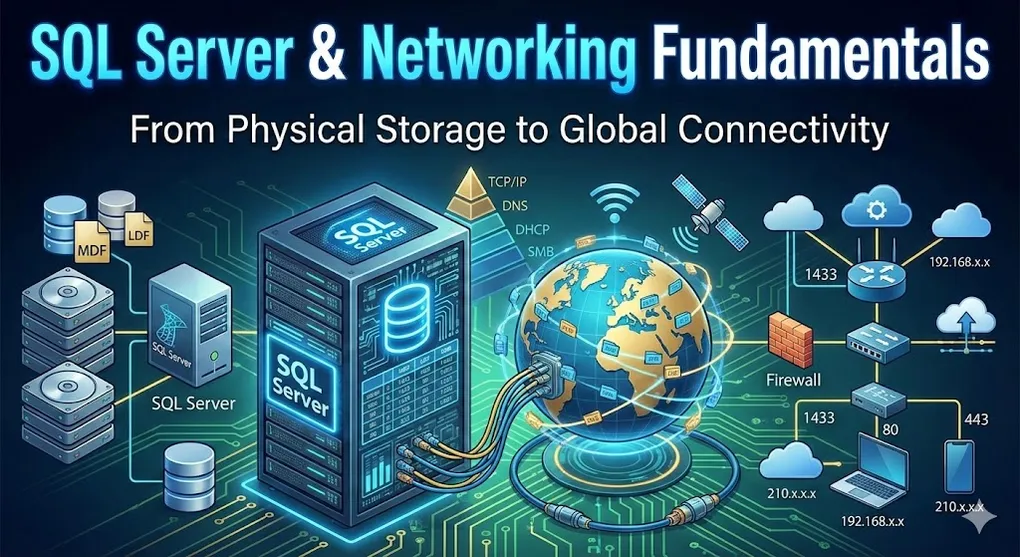
SQL Server & Networking Fundamentals: From Disk to Cloud
Understanding how data flows from your application to a database server requires knowledge of both database architecture and networking concepts. This guide connects the dots from physical disk storage to cloud connectivity.
Part A: SQL Server Basics
1. SQL Server Data Storage
1.1 Physical File Architecture
SQL Server databases exist as files on disk. Every database consists of three main file types:
| File Type | Extension | Purpose | Required? |
|---|---|---|---|
| Primary Data File | .mdf | Starting point, contains startup info and data | Yes (exactly 1) |
| Transaction Log | .ldf | Records all transactions for recovery | Yes (at least 1) |
| Secondary Data File | .ndf | Additional data storage for large databases | Optional |
1.2 How to Find Database File Locations
Method A: SQL Query (Recommended)
-- Query all database file paths
SELECT
    name AS [Logical Name],
    physical_name AS [Physical Location],
    state_desc AS [Status]
FROM sys.master_files;

-- Query current database files
USE [YourDatabaseName];
GO
EXEC sp_helpfile;
Method B: SSMS GUI
- Right-click database in Object Explorer
- Select Properties
- Navigate to Files page
- View Path and File Name columns
1.3 Default Installation Paths
C:\Program Files\Microsoft SQL Server\MSSQL{version}.{instance}\MSSQL\DATA\

Example (SQL Server 2019):
C:\Program Files\Microsoft SQL Server\MSSQL15.MSSQLSERVER\MSSQL\DATA\
1.4 System Databases
SQL Server maintains four critical system databases:
| Database | Purpose |
|---|---|
| master | Server configuration, logins, linked servers |
| tempdb | Temporary tables, sorts, intermediate results (recreated on startup) |
| msdb | SQL Agent jobs, backups, alerts |
| model | Template for new databases |
2. Connection Strings
A connection string is like a GPS address + door key for your application. It tells the program where to find the database and how to authenticate.
2.1 Core Parameters
| Parameter | Alias | Purpose | Example |
|---|---|---|---|
| Server | Data Source, Address | Database host IP or name | Server=192.168.1.10 |
| Database | Initial Catalog | Which database to connect to | Database=Northwind |
| User ID | Uid | Login account | User ID=sa |
| Password | Pwd | Login password | Password=secret123 |
2.2 Authentication Modes
SQL Server Authentication (Username/Password)
Server=192.168.1.50; Database=MyStore; User Id=sa; Password=myPassword123;Windows Authentication (Trusted Connection)
Server=localhost; Database=MyStore; Integrated Security=True;Uses current Windows login. Cannot specify User ID/Password with this mode.
2.3 Security Parameters
| Parameter | Purpose | When to Use |
|---|---|---|
| TrustServerCertificate=True | Skip SSL certificate validation | Local dev, self-signed certs |
| Encrypt=True | Encrypt data transmission | Azure SQL (required) |
| Connection Timeout=60 | Wait time before giving up | Slow networks |
2.4 Practical Examples
Standard SQL Login:
Server=192.168.1.50; Database=MyStore; User Id=sa; Password=myPassword123;Local Development (Windows Auth):
Server=localhost; Database=MyStore; Integrated Security=True;Fix Certificate Errors:
Server=192.168.1.50; Database=MyStore; User Id=sa; Password=myPassword; Encrypt=True; TrustServerCertificate=True;3. Client-Server Architecture
3.1 The Connection String Is for YOUR Program
Common Misconception: “The connection string tells the server to come get my data.”
Reality: The connection string tells YOUR PROGRAM where to find the server.
Think of it like a GPS navigation:
- Your Program (Client): The car driving to the destination
- Connection String: The address entered into GPS
- SQL Server: The store (Costco) waiting for customers
3.2 SSMS Is a Client
SQL Server Management Studio (SSMS) is the most common Client application.
| Component | Role | Analogy |
|---|---|---|
| SQL Server (Service) | Server | TV set (plays content) |
| SSMS (Application) | Client | Remote control (sends commands) |
When you open SSMS and click “Connect”:
- SSMS reads the server address you entered
- SSMS sends a request over the network
- SQL Server validates credentials
- Connection established → you see databases
3.3 One Computer, Two Roles
When practicing locally, your PC plays both roles simultaneously, coordinated by the Operating System:
┌────────────────────────────────────────────────────────────────┐
│                     Your Computer                               │
├────────────────────────────────────────────────────────────────┤
│                                                                 │
│                    ┌─────────────────┐                          │
│                    │  OS (Windows)   │                          │
│                    │  Resource       │                          │
│                    │  Coordinator    │                          │
│                    └────────┬────────┘                          │
│                             │                                   │
│              ┌──────────────┴──────────────┐                    │
│              │ Allocates CPU, Memory, I/O  │                    │
│              ▼                             ▼                    │
│  ┌─────────────────┐              ┌─────────────────┐           │
│  │  SSMS (Client)  │   ───────►   │  SQL Server     │           │
│  │  Application    │   Request    │  (Background    │           │
│  │  (Visible UI)   │   ◄───────   │   Service)      │           │
│  └─────────────────┘   Response   └─────────────────┘           │
│                                                                 │
└────────────────────────────────────────────────────────────────┘
Three-Layer Architecture:
| Layer | Role | What It Does |
|---|---|---|
| OS (Windows) | Coordinator | Allocates CPU time, memory, disk I/O to each process |
| SQL Server | Server (Service) | Background process, listens for requests, reads/writes data |
| SSMS | Client (Application) | Foreground process, sends commands, displays results |
- SQL Server: Runs as a Windows Service (background, no window)
- SSMS: Runs as an Application (visible window)
- OS: The referee that ensures both get fair resources and can communicate via Shared Memory or TCP loopback
3.4 DDL and DML Are Both “Requests”
From the Client’s perspective, all SQL commands are just “work orders” sent to the Server:
| Type | Full Name | Purpose | Server Action | Examples |
|---|---|---|---|---|
| DDL | Data Definition Language | Build/modify structure | Changes database schema | CREATE, ALTER, DROP |
| DML | Data Manipulation Language | Read/write data | Changes data in tables | SELECT, INSERT, UPDATE, DELETE |
3.5 Server = More Than Disk Management
SQL Server isn’t just “disk management on the OS.” It adds a smart brain layer:
| Capability | What SQL Server Does | What OS Alone Can’t Do |
|---|---|---|
| Processing | Filters, joins, aggregates data | Only gives you the whole file |
| Concurrency | Manages locks when 100 users edit same row | File locks entire document |
| ACID Transactions | Rollback incomplete operations after crash | Corrupted half-written files |
| Indexing | Finds 1 row in 10 million instantly | Sequential scan of entire file |
3.6 Beyond SSMS: Other SQL Server Clients
SSMS is just one remote control. Anything that speaks TDS protocol and connects to port 1433 can be a Client—even Excel!
A. Programming Language Drivers
Every major language has a “translator” (driver) that converts your code into TDS protocol:
| Language | Affinity | Common Use Case | Driver/Library |
|---|---|---|---|
| C# (.NET) | Native son | Enterprise systems, ASP.NET | Microsoft.Data.SqlClient |
| Python | Best friend | Data analysis, AI, automation | pyodbc, SQLAlchemy |
| Java | Old ally | Banking systems, cross-platform | JDBC Driver |
| Node.js | Trendy newcomer | High-concurrency web apps | mssql package |
B. Management Tools (SSMS Alternatives)
| Tool | Best For | Key Advantage |
|---|---|---|
| SSMS | DBAs, full administration | Most complete feature set |
| Azure Data Studio | Developers, cross-platform | Modern UI, runs on Mac/Linux |
| VS Code + SQL Extension | Coders already using VS Code | Write code and query DB in one app |
| DBeaver | Multi-database environments | One tool for SQL Server, MySQL, PostgreSQL, Oracle |
| Excel | Business users | ”Refresh” button pulls live data—no SQL knowledge needed |
Pro Tip: All these tools do the same thing at the network level: Find IP → Connect to Port 1433 → Authenticate → Send SQL → Receive results.
Database Platform Comparison
SQL Server vs Oracle vs MySQL vs PostgreSQL
Although this guide focuses on SQL Server, understanding the landscape helps you appreciate what you’re learning.
Commercial Databases (Enterprise-Grade)
| Database | Vendor | Analogy | Best For |
|---|---|---|---|
| SQL Server | Microsoft | Mercedes-Benz | Microsoft shops, traditional enterprises |
| Oracle | Oracle Corp | Military Tank | Banks, telecoms, government (mission-critical) |
Open Source Databases (Free)
| Database | Analogy | Best For |
|---|---|---|
| MySQL | Toyota Corolla | Web apps, blogs, startups (most popular globally) |
| PostgreSQL | Tesla | Advanced features, data science, modern startups |
Is SQL Transferable?
Great news: 90% is universal.
SELECT * FROM Customers WHERE Country = 'Taiwan'This query works identically on all four platforms. They all follow SQL standards.
The remaining 10% are “dialects”:
- Different function names (e.g., date formatting)
- Vendor-specific features
Analogy: American English vs British English vs Australian English. Once you learn one, adapting to others takes days, not months.
Part B: Networking Fundamentals
4. IP Address System
4.1 What Is an IP Address?
An IP (Internet Protocol) Address is a unique identifier for devices on a network—like a phone number for computers.
4.2 Private IP vs Public IP
| Type | Example | Scope | Analogy |
|---|---|---|---|
| Private IP | 192.168.1.5 | Only valid within your LAN | Office extension (101) |
| Public IP | 210.12.34.56 | Globally unique on Internet | Company main phone number |
Why does everyone have 192.168.x.x?
Because private IPs are reusable. Your home uses 192.168.1.x, my home uses 192.168.1.x, and we never conflict because we’re in different LANs (like different office buildings with their own extension systems).
Reserved Private IP Ranges:
192.168.0.0–192.168.255.25510.0.0.0–10.255.255.255172.16.0.0–172.31.255.255
4.3 Static IP vs Dynamic IP
| Type | Who Uses It | Why |
|---|---|---|
| Static (Fixed) | Servers | Must be findable at same address always |
| Dynamic (Changing) | Your laptop, phone | Just needs any available address |
Your home router gets a dynamic public IP from your ISP. When you restart the router, you might get a different IP.
4.4 IPv4 vs IPv6
| Feature | IPv4 | IPv6 |
|---|---|---|
| Format | 4 numbers (192.168.1.1) | 8 hex groups (2001:0db8:85a3:…) |
| Total Addresses | ~4.3 billion | 340 undecillion (practically infinite) |
| Status | Exhausted (using NAT to cope) | Gradually replacing IPv4 |
4.5 DHCP: Automatic IP Assignment
DHCP (Dynamic Host Configuration Protocol) automatically assigns IP addresses to devices.
When your laptop connects to WiFi:
- Laptop asks: “Can I have an IP?”
- Router (DHCP Server) responds: “Use 192.168.1.25”
- Router remembers: “192.168.1.25 is taken by that laptop”
5. Local Area Network (LAN)
5.1 What Is a LAN?
A LAN (Local Area Network) is the network under one router—your home, your office floor, a coffee shop.
Simple Definition: Everything connected to the same router is in the same LAN.
5.2 Subnet Mask
The subnet mask defines the boundary of your network.
| Subnet Mask | Meaning | Usable Hosts |
|---|---|---|
255.255.255.0 | First 3 octets are network ID | 254 devices |
255.255.0.0 | First 2 octets are network ID | 65,534 devices |
Example: If your IP is 192.168.1.5 with mask 255.255.255.0:
- Network:
192.168.1.x - You can reach
192.168.1.1to192.168.1.254directly
5.3 Default Gateway
The default gateway is the exit door from your LAN to the outside world—typically your router’s LAN IP (e.g., 192.168.1.1).
When you browse Google:
- Your PC checks: “Is 8.8.8.8 in my LAN?” → No
- Sends traffic to default gateway (router)
- Router handles from there
5.4 One LAN = One Public IP + Many Private IPs
graph TD
    INTERNET[The Internet<br/>Public IP: 210.12.34.56] --> ROUTER

    subgraph "Your LAN"
        ROUTER[Router<br/>192.168.1.1]
        ROUTER --> LAPTOP[Laptop<br/>192.168.1.5]
        ROUTER --> PHONE[Phone<br/>192.168.1.6]
        ROUTER --> PRINTER[Printer<br/>192.168.1.10]
    end

    style INTERNET fill:#3498db,color:#fff
    style ROUTER fill:#27ae60,color:#fff
5.5 VLAN: Virtual Network Segmentation
Problem: What if you want to separate networks (e.g., HR vs Engineering) but they’re physically on the same switch?
Solution: VLAN (Virtual LAN) — logically divide one physical network into multiple isolated networks.
graph TD
    SWITCH[Physical Switch]

    SWITCH --> VLAN10
    SWITCH --> VLAN20
    SWITCH --> VLAN30

    subgraph VLAN10["VLAN 10 (HR Dept)"]
        HR[192.168.10.x]
    end

    subgraph VLAN20["VLAN 20 (Engineering)"]
        ENG[192.168.20.x]
    end

    subgraph VLAN30["VLAN 30 (Guest)"]
        GUEST[192.168.30.x]
    end

    VLAN10 x--x|Isolated| VLAN20
    VLAN20 x--x|Isolated| VLAN30

    style SWITCH fill:#3498db,color:#fff
    style VLAN10 fill:#27ae60,color:#fff
    style VLAN20 fill:#f39c12,color:#fff
    style VLAN30 fill:#e74c3c,color:#fff
Benefits:
- ❌ HR cannot see Engineering traffic (isolated)
- ❌ Guest cannot access internal servers
- ✅ All on same physical hardware (cost-effective)
Why Use VLAN?
| Use Case | Without VLAN | With VLAN |
|---|---|---|
| Separate HR & Engineering | Buy 2 switches, 2 routers | 1 switch, configured logically |
| Guest WiFi isolation | Separate physical network | Same AP, different VLAN |
| Security breach containment | Entire network exposed | Only that VLAN affected |
VLAN vs Physical LAN
| Aspect | Physical LAN | VLAN |
|---|---|---|
| Separation method | Different cables/switches | Same hardware, logical tags |
| Cost | High (more equipment) | Low (software config) |
| Flexibility | Need rewiring to change | Reconfigure in minutes |
| Security | Physical isolation | Logical isolation (equally secure) |
How VLAN Works (Simplified)
Each packet gets a VLAN tag (number like 10, 20, 30). The switch reads this tag and only forwards to ports in the same VLAN.
Packet from HR laptop:
┌────────────────────────────────────┐
│ VLAN Tag: 10 │ Source: 192.168.10.5 │ Data...             │
└────────────────────────────────────┘
              ↓
Switch thinks: "VLAN 10? Only forward to other VLAN 10 ports"
Interview Tip: “VLAN lets you create multiple isolated networks on the same physical switch, improving security and reducing hardware costs.”
6. Router: The Gateway Between LAN and WAN
6.1 The Router’s Two Faces
| Side | IP Address | Connects To |
|---|---|---|
| LAN Side | 192.168.1.1 | Your devices (laptop, phone) |
| WAN Side | 210.12.34.56 (or ISP-assigned) | The Internet |
6.2 WAN IP: Your Public Identity
The WAN IP shown in your router settings is what the ISP gave you. This is the address the outside world sees.
6.3 NAT: How Private IPs Talk to the Internet
NAT (Network Address Translation) lets multiple private IPs share one public IP.
How it works:
- You (192.168.1.5) request YouTube
- Router rewrites the sender address to 210.12.34.56
- Router remembers: “Response for YouTube goes to 192.168.1.5”
- YouTube replies to 210.12.34.56
- Router checks its table, forwards to 192.168.1.5
6.4 Detecting Real vs Fake Public IP
The Test:
- Check your router’s WAN IP (login to router admin page)
- Google “What is my IP”
- Compare:
| Result | Meaning |
|---|---|
| Same | ✅ Real public IP (can host servers) |
| Different | ⚠️ CGNAT or Double NAT (cannot host servers) |
Fake public IP indicators (WAN IP starts with):
100.64.x.x–100.127.x.x→ CGNAT192.168.x.x→ Double NAT (another router in front)10.x.x.x→ ISP internal network
6.5 PPPoE vs Bridge Mode
When you have an ISP modem (“小烏龜”) and your own router:
| Mode | Who Dials? | Who Gets Public IP? | Use Case |
|---|---|---|---|
| PPPoE (Dial-up) | Your router | Your router | Standard home setup |
| Bridge Mode | Your router (modem becomes transparent) | Your router | Want to use a better router |
| Modem Dials (default) | ISP modem | ISP modem | Double NAT problem |
Bridge Mode makes the ISP modem a “dumb pipe”—your router gets the public IP directly.
6.6 Double NAT Problem
If your router’s WAN IP is 192.168.x.x, you have Double NAT:
Internet → ISP Modem (has public IP) → Your Router (has 192.168...) → Your PCProblems:
- Cannot forward ports
- Cannot host game servers or SQL Server externally
Solution: Set ISP modem to Bridge Mode.
7. Wide Area Network (WAN) and Internet
7.1 What Is a WAN?
A WAN (Wide Area Network) is a concept of scope, not a single network. Any connection between two geographically separate LANs is a WAN.
Key Insight: The Internet is the most famous WAN, but it’s not the only one.
Definition: Connect two LANs in different locations → the path between them is a WAN.
| Network Type | Scope | Analogy |
|---|---|---|
| LAN | One building, one office | Your garage |
| WAN | Cross city, country, ocean | Highway between cities |
| Internet | Global | The world’s largest public highway system |
7.2 Public WAN vs Private WAN
This is why WAN ≠ Internet. There are two types of “highways”:
A. Public WAN = Internet
- Who uses it: Everyone in the world
- Connects: Google, Facebook, your home, my home
- Nature: Public road, anyone can drive on it
B. Private WAN = Enterprise Leased Lines (MPLS)
- Who uses it: Only that company
- Connects: TSMC Hsinchu HQ ↔ TSMC Tainan Factory
- Nature: Private tunnel, invisible to the public Internet
graph TD
    subgraph "PUBLIC WAN (Internet)"
        H1[Your Home] --> INT((Internet<br/>Shared))
        H2[My Home] --> INT
        GOOGLE[Google] --> INT
    end

    subgraph "PRIVATE WAN (MPLS)"
        OA[Office A<br/>192.168.1.x] <--> MPLS((Private<br/>Tunnel))
        OB[Office B<br/>192.168.2.x] <--> MPLS
    end

    style INT fill:#e74c3c,color:#fff
style MPLS fill:#27ae60,color:#fff| Aspect | Public WAN | Private WAN (MPLS) |
|---|---|---|
| Access | Everyone | Company only |
| Congestion | Peak times | Guaranteed bandwidth |
| Security | Exposed | Physically isolated |
7.3 Physical Media: Wired vs Wireless
Think of WAN as a logistics system:
| Medium | Analogy | Characteristics |
|---|---|---|
| Fiber Optic / Copper Cable | Railway / Highway | High capacity, fast, ultra-stable |
| Microwave / Satellite | Airplane / Ship | For special terrain, backup, or remote areas |
The rule: 99% of WAN backbone traffic runs on physical cables. Wireless is reserved for specific scenarios.
A. Why Backbone Is Almost Always Wired
Even when you use 4G/5G on your phone:
- Your signal flies to a cell tower (wireless)
- But behind that tower is a thick fiber optic cable connecting back to the data center (wired)
┌─────────────────────────────────────────────────────────────────┐
│                    Your 4G/5G Connection                         │
├─────────────────────────────────────────────────────────────────┤
│                                                                  │
│  📱 Your Phone                                                    │
│       │                                                          │
│       │ ~~~~ Wireless (4G/5G) ~~~~                               │
│       │                                                          │
│       ▼                                                          │
│  📡 Cell Tower                                                    │
│       │                                                          │
│       │ ═══════ Fiber Optic Cable (Wired) ═══════                │
│       │                                                          │
│       ▼                                                          │
│  🏢 ISP Data Center ──────────────────► 🌍 Internet                │
│                                                                  │
│  The "last mile" is wireless, but backbone is ALWAYS wired       │
│                                                                  │
└─────────────────────────────────────────────────────────────────┘
Why Fiber Optic Dominates:
| Advantage | Explanation |
|---|---|
| Massive bandwidth | One fiber cable carries millions of simultaneous Netflix streams |
| Low latency | Light travels at 200,000 km/s inside glass fiber |
| Interference-resistant | Immune to rain, lightning, radio interference |
| Distance | Can span thousands of kilometers without signal degradation |
| Medium | Bandwidth | Latency | Weather Impact | Cost |
|---|---|---|---|---|
| Fiber Optic | Terabits/sec | ~5ms per 1000km | None | High initial, low maintenance |
| Copper Cable | Gigabits/sec | ~8ms per 1000km | Minimal | Low initial, higher maintenance |
B. When WAN Goes Wireless
Some places cannot have cables (mountains, deserts, oceans). Wireless fills the gap.
B1. Microwave Transmission
Ever seen those white drum-shaped antennas on mountain peaks or building rooftops? That’s microwave.
    🏔️ Mountain A                              🏔️ Mountain B
         │                                                 │
      📡 ─────────── Radio Waves ──────────────── 📡
         │                                                 │
         │                                                 │
[LAN A] [LAN B] | Aspect | Details |
|---|---|
| How it works | Point-to-point radio beam between two antennas |
| Range | 50-100 km per hop (requires line of sight) |
| Use cases | Remote villages, mountain regions, ISP backbone backup |
| Limitation | Heavy rain can degrade signal (rain fade) |
B2. Satellite Transmission
For truly unreachable places: ocean vessels, aircraft, war zones.
Traditional Satellite (Geostationary)
- Orbit: 36,000 km above Earth
- Latency: 500-700ms (too slow for gaming, video calls)
- Use: Rural broadband, maritime, TV broadcasting
Starlink (Low Earth Orbit - LEO)
- Orbit: 550 km above Earth
- Latency: 20-50ms (usable for almost everything)
- Use: Ukraine battlefield, remote research stations, RVs, boats
┌─────────────────────────────────────────────────────────────────┐
│                    Satellite Internet Path                       │
├─────────────────────────────────────────────────────────────────┤
│                                                                  │
│                        🛰️ Satellite                              │
│                      ╱          ╲                                │
│                    ╱              ╲                              │
│                  ╱     SPACE       ╲                             │
│                ╱                    ╲                            │
│              ╱                        ╲                          │
│            📡                          📡                          │
│        Your Dish               Ground Station                    │
│            │                          │                          │
│            └────── You ◄──────────────┘                          │
│                     (via Internet backbone)                      │
│                                                                  │
│  Total distance: ~1,100 km (LEO) or ~72,000 km (GEO)             │
│                                                                  │
└─────────────────────────────────────────────────────────────────┘| Type | Altitude | Latency | Best For |
|---|---|---|---|
| Geostationary (GEO) | 36,000 km | 500-700ms | TV, rural backup |
| LEO (Starlink, OneWeb) | 350-550 km | 20-50ms | Remote work, mobile connectivity |
7.4 Submarine Cables: The Real Internet Backbone
99% of international data travels through undersea fiber optic cables, not satellites.
Fun Facts:
- These cables are as thin as a garden hose
- Sharks sometimes bite them (seriously)
- If a major cable breaks, entire countries can lose connectivity
- Repair ships take weeks to fix them
7.5 The Last Mile Problem
WAN infrastructure is divided into two segments:
| Segment | Scope | Medium |
|---|---|---|
| Backbone | City ↔ City, Country ↔ Country | 99% fiber optic (must handle massive traffic) |
| Last Mile (Access) | Data center ↔ Your home/phone | Wired (ADSL, fiber) or Wireless (4G/5G, WiFi, satellite) |
The “Last Mile” is often the bottleneck—you might have gigabit backbone nearby, but only 100Mbps reaching your home.
7.6 How the Internet Actually Works: The Complete Picture
Let’s answer the fundamental questions: Who talks? Through whom? Where? Why?
Scenario: You search “weather in Taipei” on Google.
┌─────────────────────────────────────────────────────────────────────────┐
│                    Complete Internet Communication Flow                  │
├─────────────────────────────────────────────────────────────────────────┤
│                                                                          │
│  YOU                                                                     │
│   │                                                                      │
│   ▼                                                                      │
│  ┌──────────┐   WiFi    ┌──────────┐   Fiber   ┌──────────────────┐      │
│  │Your Phone│ ───────►  │  Router  │ ───────►  │ ISP Data Center  │      │
│  │(Client)  │           │ (Gateway)│           │ (CHT, Far East)  │      │
│  └──────────┘           └──────────┘           └────────┬─────────┘      │
│                                                         │                │
│                                          Submarine Fiber Optic Cable          │
│                                                         │                │
│                                                         ▼                │
│                                              ┌──────────────────┐        │
│                                              │  Google Server   │        │
│                                              │  (USA/Taiwan DC) │        │
│                                              │     (Server)     │        │
│                                              └──────────────────┘        │
│                                                                          │
└─────────────────────────────────────────────────────────────────────────┘
Step-by-Step Breakdown:
| Step | What Happens | Location | Who’s Involved |
|---|---|---|---|
| 1. You type | ”weather taipei” + press Enter | Your phone | You (human) |
| 2. DNS lookup | Phone asks: “What’s Google’s IP?” | ISP’s DNS server | DNS Resolver |
| 3. Router NAT | Your private IP (192.168.x.x) → Public IP | Your router | NAT Translation |
| 4. ISP routing | Find the best path to Google | ISP backbone | Routers along the way |
| 5. Cross-ocean | Data travels via submarine cable | Pacific Ocean floor | Fiber optic light pulses |
| 6. Google receives | Server at port 443 (HTTPS) receives request | Google data center | Google’s load balancer |
| 7. Google processes | Search algorithm finds weather data | Google’s servers | CPU + Database |
| 8. Response returns | Same path, reversed | All the above | Every hop remembers you |
| 9. Render page | Your phone displays results | Your screen | Browser |
Total time: ~50-200 milliseconds (faster than you can blink)
The Four Questions Answered:
| Question | Answer |
|---|---|
| Who talks? | Your device (Client) ↔ Google’s server (Server) |
| Through whom? | Router → ISP → Internet backbone → Google’s network |
| Where? | Everywhere: your home, ISP hub, undersea cables, data centers |
| Why? | Client-Server model: You request, Server responds |
Key Insight: Every “conversation” on the Internet is just request → response, wrapped in layers of addressing (IP), routing (hops), and protocols (HTTP, TDS, etc.).
7.7 Mobile Phones: Where’s the Router?
When using WiFi at home, the router is obvious. But on the street with 4G/5G, where’s your router?
Answer: It exists—it’s just massive and managed by your telecom carrier (Chunghwa Telecom, T-Mobile, etc.).
┌─────────────────────────────────────────────────────────────────┐
│                    Home WiFi vs Mobile Network                   │
├─────────────────────────────────────────────────────────────────┤
│                                                                  │
│  HOME WIFI                        MOBILE 4G/5G                   │
│  ─────────                        ────────────                   │
│                                                                  │
│  📱 Phone                          📱 Phone                        │
│     │                                 │                          │
│     ▼                                 ▼                          │
│  📦 Your Router                   🗼 Cell Tower                    │
│  (Small box at home)              (Antenna on street)            │
│     │                                 │                          │
│     ▼                                 ▼                          │
│  🌐 Internet                      🏢 ISP Core Network              │
│                                   (GIANT invisible router)       │
│                                       │                          │
│                                       ▼                          │
│                                   🌐 Internet                     │
│                                                                  │
│  You OWN the router               You RENT the router            │
│  (one-time purchase)              (monthly fee pays for it)      │
│                                                                  │
└─────────────────────────────────────────────────────────────────┘
Key Concept: Your monthly phone bill is essentially rent for using the carrier’s giant shared router.
When Does Your Phone BECOME a Router?
When you enable Personal Hotspot, your phone transforms into a real router:
| Interface | Role | What It Does |
|---|---|---|
| 4G/5G Radio | WAN (uplink) | Connects to carrier network |
| WiFi Chip | LAN (downlink) | Broadcasts signal to your laptop |
| CPU | NAT Engine | Assigns IPs (typically 172.20.10.x), forwards packets |
Why does hotspot drain battery? Your CPU is doing NAT translation for every packet—the same job your home router does 24/7.
| Scenario | Who Is the Router? | Your Phone’s Role |
|---|---|---|
| Home WiFi | Your ASUS/TP-Link box | Client (normal user) |
| Street 4G/5G | Carrier’s core network | Client (normal user) |
| Personal Hotspot | Your Phone | Router (transformation!) |
7.8 The Complete IT Journey: From Fingertip to Hard Disk
Here’s the ultimate map of how your data travels when you check your bank balance on your phone:
┌─────────────────────────────────────────────────────────────────────────┐
│            Complete IT Journey: Checking Bank Balance                    │
├─────────────────────────────────────────────────────────────────────────┤
│                                                                          │
│  🏁 START: Your Finger (User)                                             │
│       👇  Press "Check Balance"                                           │
│                                                                          │
│  📱 1. Phone (Client)                                                     │
│       │  Role: Send request | Language: HTTP/TDS | Medium: 4G/5G         │
│       👇                                                                  │
│                                                                          │
│  🗼 2. Cell Tower                                                         │
│       │  Role: Antenna receiver | Converts to fiber optic                │
│       👇                                                                  │
│                                                                          │
│  🏢 3. ISP Core Network (Carrier's Giant Router)                          │
│       │  Role: NAT translation | Determines routing path                 │
│       👇                                                                  │
│                                                                          │
│  🌊 4. WAN (Internet / Submarine Cable)                                   │
│       │  Role: Highway | Data travels at light speed                     │
│       👇                                                                  │
│                                                                          │
│  🚪 5. Bank Router (Firewall)                                             │
│       │  Role: Guard | Has fixed public IP | Port forwarding             │
│       │  "Someone's knocking on Port 1433? → Forward to DB server"       │
│       👇                                                                  │
│                                                                          │
│  🕸️ 6. Bank LAN (Internal Network)                                       │
│       │  Role: Secure zone | Private IPs (192.168.x.x)                   │
│       👇                                                                  │
│                                                                          │
│  🧠 7. SQL Server (Software)                                              │
│       │  Role: Brain | Parses "SELECT Balance..." | Checks RAM cache     │
│       👇                                                                  │
│                                                                          │
│  💾 8. Hard Disk (Physical Storage)                                       │
│       │  Role: Final warehouse | Disk head moves, reads sectors          │
│       │  TRUTH: Your data physically exists HERE                         │
│       👇                                                                  │
│                                                                          │
│  🏁 END: Data returns via same path → Displays on your screen             │
│                                                                          │
└─────────────────────────────────────────────────────────────────────────┘
7.9 The Ultimate Truth: All Data Lives on a Physical Disk
No matter how many fancy buzzwords we use—Cloud, Virtualization, Big Data, AI—strip away all the layers and there’s only one physical truth:
All data must eventually rest on some physical storage device (hard disk).
A. Temporary Home: RAM (Memory) — “The Desk”
When you’re typing a Word document before saving, or SQL Server is processing a SELECT query:
- Data floats in RAM
- Speed: Ultra-fast (like papers spread on your desk)
- Fatal flaw: Power off = data gone (janitor clears your desk at night)
B. Permanent Home: Disk — “The File Cabinet”
Only when you click “Save” or SQL Server completes an INSERT:
- Data moves from desk (RAM) to cabinet (Disk)
- Speed: Slower (need to walk to the cabinet)
- Advantage: Survives power loss
| Storage Type | Analogy | Speed | Survives Power Off? |
|---|---|---|---|
| RAM | Desk | ⚡ Instant | ❌ No |
| SSD | Modern file cabinet | 🚀 Very fast | ✅ Yes |
| HDD | Old file cabinet with spinning disks | 🚗 Moderate | ✅ Yes |
Debunking the “Cloud” Myth
There’s a famous saying in engineering:
“There is no cloud. It’s just someone else’s computer.”
When you upload photos to Google Drive or host a database on Azure/AWS:
- Data travels through submarine cables
- Arrives at a massive data center in USA, Japan, or elsewhere
- Gets written to a physical hard disk on a rack in that building
If that disk fails and there’s no backup (extremely rare, but possible)—your “cloud” data vanishes.
Summary:
| Component | Analogy | Role |
|---|---|---|
| SQL Server | Librarian | Organizes, retrieves, protects data |
| RAM | Checkout counter | Temporary processing area |
| Hard Disk | Bookshelves | Where books (data) actually live |
Part C: Communication and Connectivity
8. Ports and Protocols
8.1 Port = Door Number
An IP address gets you to the building. The port tells you which door to knock on.
| Service | Port | What It Does |
|---|---|---|
| SQL Server | 1433 | Database queries |
| HTTP | 80 | Web pages |
| HTTPS | 443 | Secure web pages |
| RDP | 3389 | Remote Desktop |
| SMB | 445 | File sharing (Windows) |
| SMTP | 25/587 | Send email |
| IMAP | 143/993 | Receive email (sync) |
| Printer | 9100 | Network printing |
Example: To connect to SQL Server at 192.168.1.10:
- IP: 192.168.1.10 → The building
- Port: 1433 → The database department door
8.2 TDS Protocol
TDS (Tabular Data Stream) is the protocol SQL Server uses to communicate. Your SQL query gets packaged into TDS packets, sent over the network, and results come back the same way.
8.3 TCP vs UDP: Two Ways to Deliver Packages
Think of the network layer as a logistics company with two delivery options:
graph LR
    subgraph "TCP (Registered Mail)"
        T1[Send Packet 1] -->|ACK| T2[Received!]
        T3[Send Packet 2] -->|ACK| T4[Received!]
        T5[Send Packet 3] -->|LOST| T6[Resend!]
    end

    subgraph "UDP (Fire and Forget)"
        U1[Send Packet 1] --> U2[...]
        U3[Send Packet 2] --> U4[...]
        U5[Send Packet 3] --> U6[Who cares?]
    end

    style T2 fill:#27ae60,color:#fff
    style T4 fill:#27ae60,color:#fff
    style T6 fill:#e74c3c,color:#fff
    style U6 fill:#f39c12,color:#fff
TCP vs UDP:
- ✅ TCP: Every packet confirmed, guaranteed delivery, slower
- ✅ UDP: No confirmation, packets may be lost, blazing fast
| Protocol | Motto | When to Use | Examples |
|---|---|---|---|
| TCP | ”No packet left behind” | Data must be 100% accurate | Web, Email, File transfer, SQL |
| UDP | ”Fire and forget” | Speed > Accuracy, real-time | Video calls, Live streaming, Gaming |
Why does streaming use UDP?
Imagine watching a live broadcast:
- With TCP: One packet lost → Video freezes → Wait for retransmission → Buffering…
- With UDP: One packet lost → Frame glitches for 0.1 sec → Video continues
You’d rather see a tiny glitch than stare at a spinning wheel. That’s why Zoom, Netflix (live), and online games use UDP.
8.4 SMB Protocol: Windows File Sharing
SMB (Server Message Block) is the language Windows uses for network file sharing (“Network Neighborhood”).
Use Cases:
\\192.168.1.5\SharedFolderin File Explorer- “Scan to Folder” on office printers
The Dark Side: WannaCry (2017)
SMBv1 had a critical vulnerability called EternalBlue:
- One PC in your company gets infected
- Ransomware scans the LAN for any PC with Port 445 open
- Automatically spreads to every unpatched PC—no user action needed
- Encrypts all files, demands ransom
Current Best Practice:
- Disable SMBv1 completely
- Use SMBv3 (encrypted)
- Route traffic through a centralized File Server (not peer-to-peer)
8.5 Email Protocols: SMTP vs IMAP
| Protocol | Direction | Analogy | What It Does |
|---|---|---|---|
| SMTP | Outgoing | Mailman (picks up) | Sends your email to the server |
| IMAP | Incoming | Mailbox (synced) | Syncs email across all devices |
| POP3 | Incoming | Mailbox (one-time) | Downloads email, deletes from server (legacy) |
                    ┌─────────────────┐
                    │   Mail Server                  │
        SMTP (Send) └────────┬────────┘   IMAP (Receive)
           │                 │                       │
           │                 │                       │
    ┌──────▼──────┐          │         ┌──────▼──────┐
    │  Outlook    │          │         │  Outlook    │
    │  (Send)     │          │         │  (Receive)  │
    └─────────────┘          │         └─────────────┘
                                                     │
                             ▼
                    Recipient's Server
Why IMAP over POP3?
- IMAP: Read on phone → marked as read on laptop too
- POP3: Read on phone → still shows unread on laptop (no sync)
8.6 QoS: Quality of Service (Traffic Cop)
Problem: Your network has limited bandwidth. When everyone is on Zoom calls AND downloading files, who gets priority?
Solution: QoS (Quality of Service) — the traffic cop that decides who goes first.
┌─────────────────────────────────────────────────────────────────┐
│                    QoS: Network Traffic Priority                 │
├─────────────────────────────────────────────────────────────────┤
│                                                                  │
│                        🚦 QoS Router                              │
│                             │                                    │
│     ┌───────────────────────┼───────────────────────┐            │
│     │                       │                       │            │
│  Priority 1             Priority 2             Priority 3        │
│  ─────────             ─────────              ───────────        │
│  📞 Voice/Video        🌐 Web Browsing       📥 Downloads           │
│  (Zoom, Teams)         (HTTP/HTTPS)          (Torrents)          │
│                                                                  │
│  Gets bandwidth         Gets remaining        Gets scraps        │
│  FIRST, always         bandwidth             (low priority)      │
│                                                                  │
└─────────────────────────────────────────────────────────────────┘
How QoS Works:
| Priority | Traffic Type | Latency Tolerance | Bandwidth Allocation |
|---|---|---|---|
| Highest | Voice/Video (RTP) | Cannot wait | Guaranteed minimum |
| High | Interactive (SQL, RDP) | Low delay | Priority access |
| Medium | Web browsing | Some delay OK | Best effort |
| Low | File downloads, backups | Delay acceptable | Whatever’s left |
Real-World Example:
Without QoS: CEO’s Zoom call freezes because intern is downloading a 10GB file.
With QoS: CEO’s video packets always go first. Intern’s download slows down during the call.
Where is QoS configured?
- Enterprise routers/switches
- Windows Group Policy (for local traffic)
- Cloud providers (Azure/AWS traffic shaping)
8.7 Protocol Summary Table
| Abbreviation | Full Name | Layer | Role | Analogy |
|---|---|---|---|---|
| ISP | Internet Service Provider | Infrastructure | Provides the “road” | Road construction company |
| IP | Internet Protocol | Network | Address | Street address |
| DNS | Domain Name System | Application | Name → IP lookup | Phone book |
| TCP | Transmission Control Protocol | Transport | Reliable delivery | Registered mail |
| UDP | User Datagram Protocol | Transport | Fast, unreliable delivery | Broadcast/shout |
| TDS | Tabular Data Stream | Application | SQL Server communication | SQL’s native language |
| SMB | Server Message Block | Application | Windows file sharing | Office file cabinet (shared) |
| SMTP | Simple Mail Transfer Protocol | Application | Send email | Outgoing mailman |
| IMAP | Internet Message Access Protocol | Application | Receive/sync email | Synced mailbox |
| QoS | Quality of Service | Network | Traffic prioritization | Traffic cop |
9. DNS: Names to IP Addresses
9.1 Why Use Names?
IPs change and are hard to remember. DNS (Domain Name System) maps names to IPs.
| What You Type | What Actually Happens |
|---|---|
google.com | DNS → 142.250.185.78 |
MyCompanySQL | DNS → 192.168.1.10 |
9.2 Computer Names vs IP
In connection strings, prefer computer names over IPs:
Server=MyCompanySQL; ...If the IP changes, only the DNS record needs updating—not every connection string.
9.3 DDNS for Dynamic IPs
DDNS (Dynamic DNS) updates DNS records when your IP changes:
- Your IP changes from
210.x.x.1to210.x.x.2 - Router notifies DDNS provider
myserver.ddns.netnow points to new IP
9.4 The Hosts File: Local DNS Override
Before your computer asks a DNS server, it first checks a local file called hosts.
Location:
- Windows:
C:\Windows\System32\drivers\etc\hosts - Mac/Linux:
/etc/hosts
Example hosts file:
# This is a comment
127.0.0.1       localhost
192.168.1.50    dev-server
192.168.1.100   mycompany-sql
Use Cases:
| Scenario | How |
|---|---|
| Development testing | Point api.example.com to your local machine |
| Block websites | Point facebook.com to 127.0.0.1 (goes nowhere) |
| Override DNS | Force a domain to a specific IP without waiting for DNS propagation |
Note: Hosts file takes priority over DNS. If a name is found here, the computer won’t bother asking DNS.
10. Enterprise Network Concepts
10.1 Private WAN (Enterprise Leased Lines / MPLS)
Large companies rent dedicated private lines between offices:
Office A (Taipei) ←──── Private Tunnel ────→ Office B (Kaohsiung)
  192.168.1.x                                   192.168.2.x
Advantages:
- No public IP needed for internal communication
- Guaranteed bandwidth (no Internet congestion)
- Physical isolation (hackers can’t find the line)
10.2 VPN: Secure Tunnel over Internet
VPN (Virtual Private Network) creates an encrypted tunnel through the public Internet:
Your Laptop (Coffee Shop) → Encrypted Tunnel → Company Network
                                ↓
                        Public Internet
                        (Hackers see garbage)
After VPN connects, your laptop behaves as if it’s inside the office LAN.
10.3 Port Forwarding
To let external users reach a server behind NAT:
Router Rule: “Any traffic to my port 1433 → forward to 192.168.1.10:1433”
⚠️ Security Warning: Never expose SQL Server port 1433 directly to the Internet. Use VPN instead.
10.4 Firewall Basics
A firewall is the security guard at your network’s entrance.
┌─────────────────────────────────────────────────────────────────┐
│                    Firewall: Traffic Filter                      │
├─────────────────────────────────────────────────────────────────┤
│                                                                  │
│  Internet                       🧱 Firewall                       │
│     │                              │                             │
│     ├── Port 80 (HTTP) ──────────►│ ✅ "Welcome!"                 │
│     ├── Port 443 (HTTPS) ────────►│ ✅ "Welcome!"                 │
│     ├── Port 445 (SMB) ──────────►│ ❌ "Access Denied!"           │
│     └── Port 1433 (SQL) ─────────►│ ❌ "Not from outside!"        │
│                                                                  │
│  Rules: Allow 80, 443 | Block 445, 1433 from external            │
│                                                                  │
└─────────────────────────────────────────────────────────────────┘
Types:
- Hardware Firewall: Dedicated box in server room, protects entire company
- Software Firewall: Windows Defender Firewall, protects one PC
11. Network Infrastructure Components
11.1 DHCP: Automatic IP Assignment (Ticket Dispenser)
Problem: Without DHCP, you’d manually configure IP, subnet mask, and gateway for every device. Wrong settings = IP conflict.
Solution: DHCP (Dynamic Host Configuration Protocol) is the automatic ticket dispenser.
┌─────────────────────────────────────────────────────────────────┐
│                    DHCP: Automatic IP Assignment                 │
├─────────────────────────────────────────────────────────────────┤
│                                                                  │
│  📱 New Device: "I need an IP!"                                   │
│        │                                                         │
│        ▼                                                         │
│  🎫 DHCP Server (usually your router)                             │
│        │                                                         │
│        │ "Here's your ticket: 192.168.1.25"                      │
│        │ "Subnet: 255.255.255.0"                                 │
│        │ "Gateway: 192.168.1.1"                                  │
│        │ "DNS: 8.8.8.8"                                          │
│        │ "Valid for: 24 hours"                                   │
│        │                                                         │
│        ▼                                                         │
│  📱 "Got it! I'm 192.168.1.25 now."                               │
│                                                                  │
└─────────────────────────────────────────────────────────────────┘
Key Point: DHCP is why “Plug and Play” works. Connect to WiFi → instant IP → internet access.
DHCP Lease: The IP isn’t yours forever. It’s a lease (typically 24 hours). If you don’t renew, DHCP gives that IP to someone else.
11.2 Switch vs Hub: Smart vs Dumb Extension
Your home router has only 4 LAN ports. Need more? You buy a Switch.
| Device | Intelligence | How It Sends Data |
|---|---|---|
| Hub (obsolete) | Dumb | Broadcasts to ALL ports (noisy, inefficient) |
| Switch (modern) | Smart | Sends only to the destination port (knows MAC addresses) |
HUB (Old, inefficient)              SWITCH (Modern, efficient)
──────────────────────              ─────────────────────────

  A sends to B                        A sends to B
       │                                                     │
       ▼                                   ▼
  ┌─────────┐                         ┌─────────┐
  │   HUB   │                         │ SWITCH               │
  └─┬─┬─┬─┬─┘                         └─┬─┬─┬─┬─┘
    │ │ │ │                             │ │ │                │
    A B C D                             A B C D
    ↓ ↓ ↓ ↓  (everyone receives!)       ↓ ↓
              But only B wanted it!     Only A→B communicate
Switch vs Router:
| Device | Scope | Function |
|---|---|---|
| Switch | Internal (LAN) | Connects devices within same network |
| Router | External (WAN) | Connects your network to Internet, does NAT |
MAC Address: The Permanent ID
| Identifier | Analogy | Characteristics |
|---|---|---|
| IP Address | Home address | Changes (move house, new address) |
| MAC Address | National ID number | Burned at factory, never changes |
- Switch operates at Layer 2 → recognizes MAC addresses
- Router operates at Layer 3 → recognizes IP addresses
MAC Address format: AA:BB:CC:DD:EE:FF
                    └─────┘ └─────┘
                   Vendor ID Device ID
Key Insight: When you send data on the LAN, the Switch reads the MAC address to know which port to forward to. When data leaves the LAN (goes to Internet), the Router reads the IP address to know which path to take.
11.3 CDN: Content Delivery Network (Convenience Store)
Problem: Netflix is in the USA. Why don’t I experience lag when streaming in Taiwan?
Solution: CDN (Content Delivery Network) — distributed “convenience stores” that cache content near you.
┌─────────────────────────────────────────────────────────────────┐
│                    CDN: Local Cache Servers                      │
├─────────────────────────────────────────────────────────────────┤
│                                                                  │
│                    🏭 Netflix HQ (USA)                            │
│                    "Main Warehouse"                              │
│                           │                                      │
│           ┌───────────────┼───────────────┐                      │
│           │               │               │                      │
│           ▼               ▼               ▼                      │
│     📦 CDN Node      📦 CDN Node     📦 CDN Node                    │
│      (Tokyo)          (Taipei)        (Singapore)                │
│                           │                                      │
│                           │ ← You're here!                       │
│                           ▼                                      │
│                      📺 Your TV                                   │
│                                                                  │
│  Content travels: Taipei CDN → You (not USA → You!)              │
│  Result: Fast loading, no buffering                              │
│                                                                  │
└─────────────────────────────────────────────────────────────────┘
How it works:
- Popular content (Squid Game) is pre-loaded to CDN nodes worldwide
- You request the movie
- CDN serves it from Taiwan, not USA
- Feels instant, even though the “real” server is across the Pacific
11.4 OSI Model: The 7-Layer Framework (Troubleshooting Manual)
Why does this exist? When the network breaks, engineers use the OSI (Open Systems Interconnection) model to systematically debug.
┌─────────────────────────────────────────────────────────────────┐
│                    OSI 7-Layer Model                             │
├─────────────────────────────────────────────────────────────────┤
│                                                                  │
│   Layer 7: Application    │ HTTP, SMTP, SQL │ "What you see"     │
│   Layer 6: Presentation   │ Encryption, JPEG│ "Format/Encrypt"   │
│   Layer 5: Session        │ Login session   │ "Keep connection"  │
│   ──────────────────────────────────────────────────────────     │
│   Layer 4: Transport      │ TCP, UDP        │ "Reliable or fast" │
│   Layer 3: Network        │ IP, Routing     │ "Find the path"    │
│   Layer 2: Data Link      │ MAC, Switch     │ "Local delivery"   │
│   Layer 1: Physical       │ Cable, Wi-Fi    │ "The actual wire"  │
│                                                                  │
└─────────────────────────────────────────────────────────────────┘
Troubleshooting by Layer:
| Layer | Question to Ask | Tool to Use |
|---|---|---|
| 1 (Physical) | Is the cable plugged in? Light on? | 👁️ Visual check |
| 2 (Data Link) | Can I see the device on LAN? | arp -a |
| 3 (Network) | Can I ping the IP? | ping |
| 4 (Transport) | Is the port open? | telnet, netstat |
| 7 (Application) | Does the website load? Error code? | Browser, curl |
Appendix A: Diagnostic Commands (Network Stethoscope)
These commands help you diagnose network issues like a doctor with a stethoscope.
ping: Test Connectivity
Purpose: Check if a device is reachable.
ping google.com
ping 192.168.1.1
Reading the results:
| Result | Meaning |
|---|---|
Reply from... | ✅ Connection works |
Request timed out | ❌ Device unreachable or blocking ping |
TTL=128 | Hops remaining (higher = closer) |
tracert: Trace the Path
Purpose: See every hop between you and the destination.
tracert google.comUseful for: “My connection is slow—where is the problem?“
1   <1ms   192.168.1.1      ← Your router
2   5ms    10.0.0.1         ← ISP gateway
3   12ms   168.95.1.1       ← ISP backbone
4   *      *                ← Timeout here = problem area
5   45ms   142.250.185.78   ← Google
nslookup: Query DNS
Purpose: Check if DNS is resolving names correctly.
nslookup google.com
nslookup google.com 8.8.8.8    # Use specific DNS server
Useful for: “Website not loading—is it a DNS problem?“
ipconfig: View Your Network Settings
Purpose: See your IP, subnet, gateway, DNS.
ipconfig              # Basic info
ipconfig /all         # Full details including DHCP, MAC
ipconfig /release     # Give up current DHCP lease
ipconfig /renew       # Request new IP from DHCP
netstat: View Open Ports
Purpose: See what ports are listening on your PC.
netstat -an           # List all connections and ports
netstat -an | find "1433"   # Check if SQL Server port is open
Diagnostic Flowchart
Internet not working?
                                                      │
        ▼
  Can you ping 127.0.0.1? (localhost)
                                                      │
    No ──┴── Yes
    │                                                 │
 TCP/IP      Can you ping your gateway (192.168.1.1)?
 broken                                               │
              No ──┴── Yes
              │                                       │
           Local       Can you ping 8.8.8.8?
           network                                    │
           issue        No ──┴── Yes
                        │                             │
                     ISP       Can you ping google.com?
                     issue                            │
                                No ──┴── Yes
                                │                     │
                              DNS      Website-specific
                              issue    problem
Appendix B: Analogy Reference
| Concept | Analogy |
|---|---|
| SQL Server | Library manager who knows where every book is |
| SSMS | TV remote control (sends commands) |
| Connection String | GPS address + door key |
| Router | Reception desk (translates internal extensions to outside calls) |
| NAT | Receptionist rewriting “From: Extension 101” to “From: Company Main Line” |
| Private IP | Office extension number (101, 102…) |
| Public IP | Company main phone number |
| Port | Department door number in a building |
| LAN | One office building |
| WAN | Highway connecting multiple buildings |
| Internet | All highways in the world |
| VPN | Secret underground tunnel to office |
Appendix C: Common Errors
| Error | Cause | Solution |
|---|---|---|
| Error 40 | Cannot find server | Check IP/name, firewall, SQL Server service running |
| Error 18456 | Login failed | Wrong username/password, or account disabled |
| Certificate Error | SSL validation failed | Add TrustServerCertificate=True to connection string |
| Timeout | Network too slow | Increase Connection Timeout value |
Real-World Case Study: Why Can’t I Scan to My Folder?
“IT told me I can only receive scans via email, not to a shared folder on my PC. But they couldn’t explain why. That single question sparked my journey to understand networking.”
This common office scenario perfectly demonstrates everything we’ve learned.
The Setup
Your request: “I want to scan documents directly to a folder on my desktop.”
IT’s response: “Sorry, you can only receive scans via Outlook email.”
Your reaction: “Why?! It’s so inconvenient!”
The Hidden Client-Server Role Reversal
When printing, roles are normal:
- Your PC = Client (sends commands)
- Printer = Server (receives and executes)
When scanning to folder, roles reverse:
- Printer = Client (initiates connection, sends file)
- Your PC = Server (receives and stores file)
PRINTING (Normal)                    SCANNING (Reversed!)
─────────────────                    ────────────────────

💻 Your PC                           🖨️ Printer
"Print this!"                        "Hey, open your door!"
    │                                                     │
    ▼                                    ▼
🖨️ Printer                           💻 Your PC
"Yes boss"                           "Uh... okay, come in"
Why IT Says No: The 3 Security Concerns
1. 🦠 Ransomware Risk (Biggest Reason)
Remember WannaCry? It exploited SMB (Port 445)—the same protocol used for “Scan to Folder.”
| What You Want | What’s Actually Happening |
|---|---|
| Let printer write to my folder | Open Port 445, grant write access |
| = Hole in your firewall | |
| = Ransomware entry point |
If one PC in your company gets infected, the virus spreads through every open SMB share.
2. 🧱 VLAN Segmentation
Large companies separate networks:
- VLAN 10: Employee PCs
- VLAN 20: Printers & IoT devices
Firewall blocks SMB between VLANs (too dangerous). But SMTP (email) to Mail Server is allowed.
3. 🔧 Maintenance Nightmare
| Problem | How Often | IT’s Headache |
|---|---|---|
| Your IP changed (DHCP) | Every reboot | Printer can’t find you |
| Password expired (90-day policy) | Quarterly | Printer’s saved password fails |
| Windows Update disabled sharing | Randomly | ”It was working yesterday!” |
Email-based scanning: Configure Mail Server IP once. Works forever.
The Two Methods Compared
┌─────────────────────────────────────────────────────────────────┐
│              Scan to Folder vs Scan to Email                     │
├─────────────────────────────────────────────────────────────────┤
│                                                                  │
│  SCAN TO FOLDER (SMB)              SCAN TO EMAIL (SMTP)          │
│  ─────────────────────             ──────────────────            │
│                                                                  │
│  🖨️ Printer                        🖨️ Printer                    │
│     │                                 │                          │
│     │ "Push door open"                │ "Mail this to server"    │
│     │ (SMB, Port 445)                 │ (SMTP, Port 25)          │
│     ▼                                 ▼                          │
│  💻 Your PC                        📧 Mail Server                  │
│  (Door must be                     (Always accepting)            │
│   unlocked!)                           │                         │
│                                        │ "Deliver to mailbox"    │
│                                        ▼                         │
│                                    💻 Your Outlook                │
│                                                                  │
│  ❌ Opens security hole            ✅ No hole in your PC           │
│  ❌ Breaks when IP changes         ✅ Always works                 │
│  ❌ IT support calls               ✅ Zero maintenance             │
│                                                                  │
└─────────────────────────────────────────────────────────────────┘
The Analogy
| Method | Analogy |
|---|---|
| Scan to Folder (SMB) | “Courier, my door is unlocked. Come in and leave the package on my desk.” (Convenient, but thieves can also walk in) |
| Scan to Email (SMTP) | “Courier, drop it at the mailbox. The postman will deliver to my door.” (Extra step, but your door stays locked) |
Key Lesson
IT isn’t being difficult. They’re protecting the entire company from:
- Ransomware spreading via SMB shares
- Network architecture that blocks cross-VLAN SMB
- Constant troubleshooting when your IP or password changes
This single question—“Why can’t I scan to my folder?”—connected all the dots: Client-Server, SMB, VLAN, Ports, Security. That’s the power of asking “Why?”
Key Takeaways
- Connection strings tell YOUR PROGRAM where to find the server—not the other way around
- Private IPs (192.168.x.x) are only valid within your LAN
- NAT translates private IPs to public IPs at the router
- Servers need static IPs so clients can always find them
- Port 1433 is SQL Server’s default door—protect it with firewalls
- VPN is the safe way to access internal resources remotely
💡 Practice Questions
Conceptual
-
What is the difference between a public IP and a private IP? Why can’t you host a public-facing server with a private IP?
-
Explain what NAT (Network Address Translation) does and why it was invented.
-
What is a VLAN and what problem does it solve?
-
Describe the difference between TCP and UDP. Which one would SQL Server use and why?
-
Why does SQL Server use port 1433 by default? What happens if this port is blocked by a firewall?
Scenario
-
Troubleshooting: A user reports they cannot connect to SQL Server from their laptop at home. They used to connect fine from the office. What are the first 3 things you would check?
-
Network Design: Your company wants to set up a SQL Server that employees can access from both the office LAN and remotely from home. Describe the network components and security measures you would recommend.
-
Real-world Issue: A multifunction printer cannot scan documents to a user’s folder. The user can print to the printer, but scanning doesn’t work. Based on what you learned about SMB, VLAN, and Client-Server architecture, what could be the causes?