How to Fix “Running Scripts is Disabled” in PowerShell

If you have ever tried to run a PowerShell script (.ps1) and were immediately greeted by a wall of angry red text saying “running scripts is disabled on this system,” you’ve encountered the PowerShell Execution Policy.
By default, on most Windows 10 and 11 client machines, the policy is set to Restricted, meaning no scripts can run at all. It is often misunderstood as a complex security barrier, but it is actually a safety feature — a seatbelt designed to prevent you from accidentally executing malicious code.
In this guide, we will cover how to check your permissions, how to modify them (with or without Admin rights), and take a technical deep dive into how PowerShell communicates with the Windows Kernel.
Part 1: The Diagnosis and Scopes
Before we fix anything, we need to understand the current state of your machine.
1. Check Your Status
To see your current effective execution policy, open PowerShell and run:
Get-ExecutionPolicy2. Understanding the Hierarchy (The Scopes)
You might find that even if you try to change a setting, it doesn’t work. This is usually because Execution Policies exist at different Scopes. To see the full list in order of precedence, run:
Get-ExecutionPolicy -ListNote: PowerShell checks these scopes from top to bottom. The first one that is defined (not “Undefined”) wins.
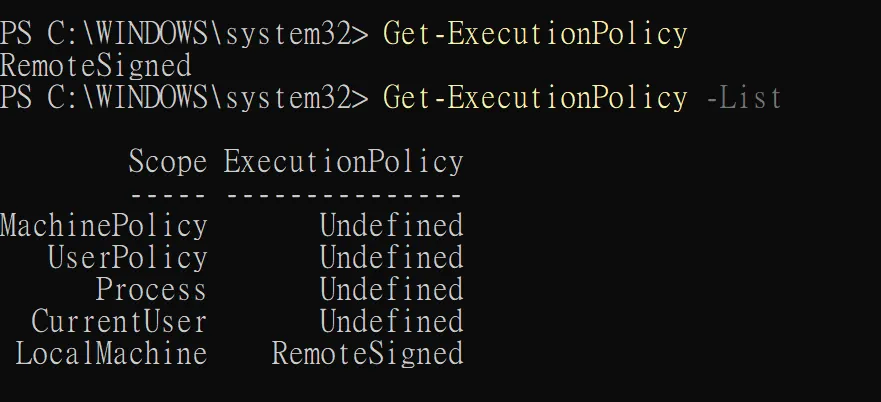
Here is what each scope means:
- MachinePolicy: Set by your company’s IT administrators (GPO). It overrides everything. If set, you cannot change it locally.
- UserPolicy: Similar to MachinePolicy, but applies to users.
- Process: Affects only the current PowerShell window. Vanishes when you close the window.
- CurrentUser: Affects only your user account. No Admin rights needed.
- LocalMachine: Affects everyone on this computer. Default scope for
Set-ExecutionPolicy. Requires Admin rights.
Part 2: The Solution (Modifying the Policy)
To run scripts comfortably, the recommended standard for developers is RemoteSigned. This allows local scripts to run but requires digital signatures for downloaded scripts.
Step A: Verify Administrator Privileges
Before changing system-wide settings, check if you are an Administrator:
$isAdmin = ([Security.Principal.WindowsPrincipal] [Security.Principal.WindowsIdentity]::GetCurrent()).IsInRole([Security.Principal.WindowsBuiltInRole]::Administrator)

if ($isAdmin) {
    Write-Host "You are running as Administrator." -ForegroundColor Green
} else {
    Write-Host "You are NOT running as Administrator." -ForegroundColor Red
}
Step B: Change the Policy
Scenario 1: You have Admin Rights (Recommended)
If the check above returned Green, you can set the policy for the whole machine:
Set-ExecutionPolicy RemoteSignedPress Y or A when prompted.
Scenario 2: You do NOT have Admin Rights
If you are on a restricted corporate laptop, set the policy only for yourself. This does not require elevation:
Set-ExecutionPolicy RemoteSigned -Scope CurrentUserScenario 3: The “One-Time” Bypass
If you just want to run a specific script once without changing system settings:
powershell -ExecutionPolicy Bypass -File .\your-script.ps1Warning: Malware often uses this method to ignore the policy entirely. This is why Execution Policy is a safety feature, not a true security boundary.

Part 3: “RemoteSigned” and the Mark of the Web
Why is RemoteSigned the best choice? It follows a simple logic:
“If you cooked the food in your own kitchen (Local), you can eat it. If the food was delivered (Remote), check the safety seal.”
- Local Scripts: Files you create on your machine run immediately.
- Remote Scripts: Files downloaded from the internet are blocked unless signed.
How does Windows know?
When you download a file, the browser adds a hidden tag called the Zone.Identifier (Mark of the Web). To unblock a safe script manually:
Single File:
Unblock-File -Path .\downloaded-script.ps1Bulk Action (Entire Folder):
Get-ChildItem .\Scripts\*.ps1 | Unblock-FilePart 4: Under the Hood (Shell vs. Kernel)
A common question is: “When I run a script in PowerShell, is it communicating directly with the OS Kernel?”
The answer is: Yes, but not directly.
PowerShell acts as a mediator. It is a layered process designed for stability and security.
1. The Relationship: Shell and Kernel
- The Kernel: The heart of the OS. Controls hardware (CPU, RAM). A crash here causes a Blue Screen of Death (BSOD).
- The Shell (PowerShell): The translator. Takes human commands and translates them into requests the Kernel understands.
2. The Communication Flow
When you execute a .ps1 script, the data flows through these layers:
A. User Mode:
- Input: You type a command.
- Parsing: PowerShell parses syntax.
- The Framework: Calls .NET Framework.
- Win32 API: Calls high-level Windows APIs.
- Native API: Calls
ntdll.dll.
B. Kernel Mode: 6. System Call: Switches CPU to Kernel Mode. 7. Kernel Executive: Performs Resource Management and hardware manipulation. 8. Return: Sends result back up the chain.

Summary
- Diagnosis:
Get-ExecutionPolicy -List(Watch out for MachinePolicy). - The Fix:
Set-ExecutionPolicy RemoteSigned(Balance of safety and ease). - The Check: Ensure you are Admin before changing
LocalMachine. - The Theory: PowerShell operates in User Mode, safely requesting resources via System Calls to the Kernel.